
You will now see the following screen:
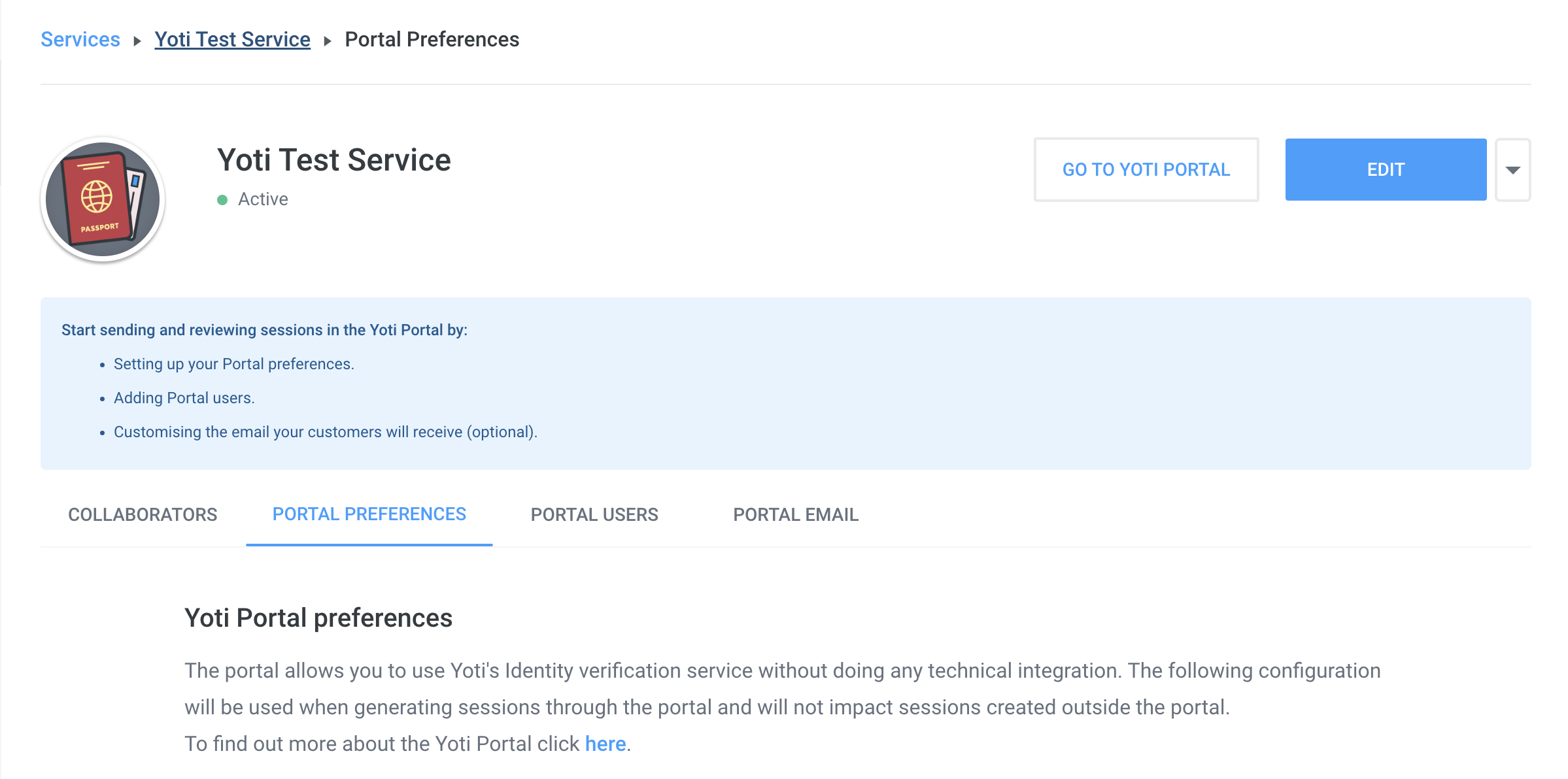
Choose your configuration
Before you start here, get familiar with our user view. See what your users would go through by using the following demo.
You can either use preconfigured workflows or create your own based off what checks you require:
Select a Ready-made workflow.
Create a custom workflow.
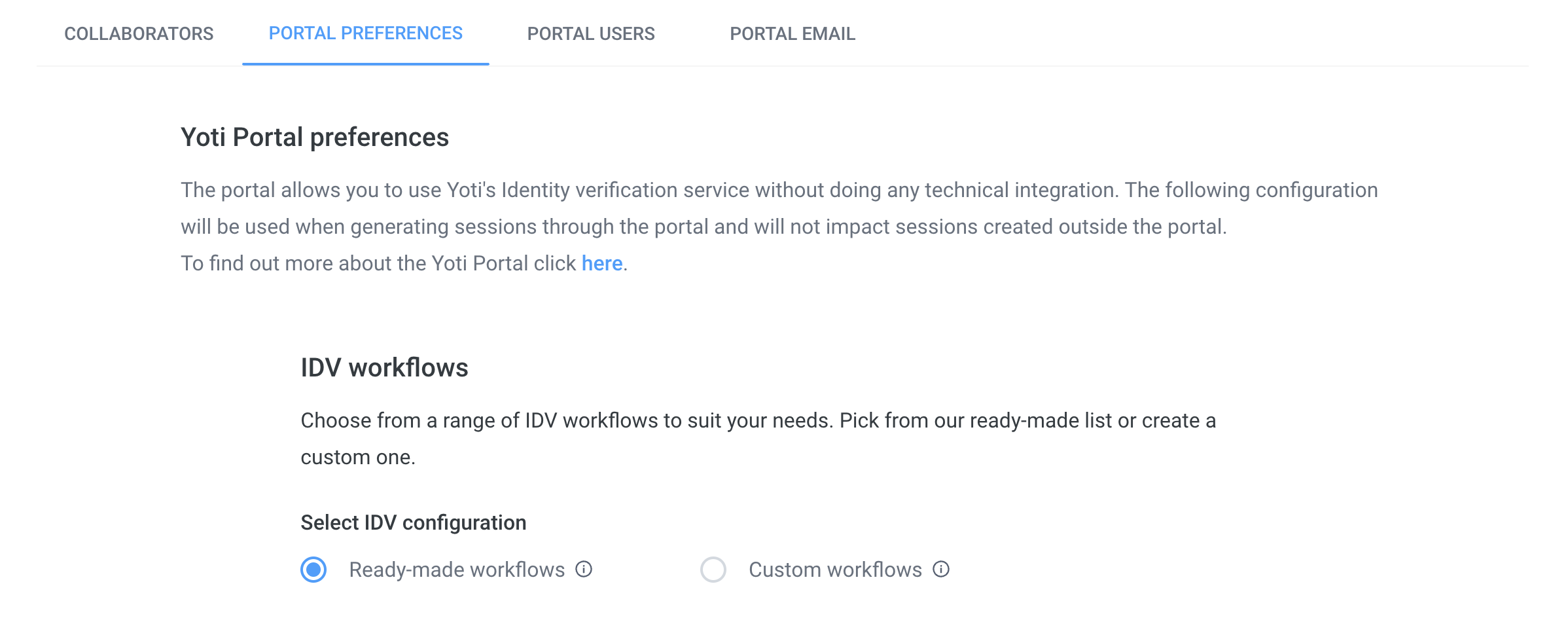
Ready-made workflows
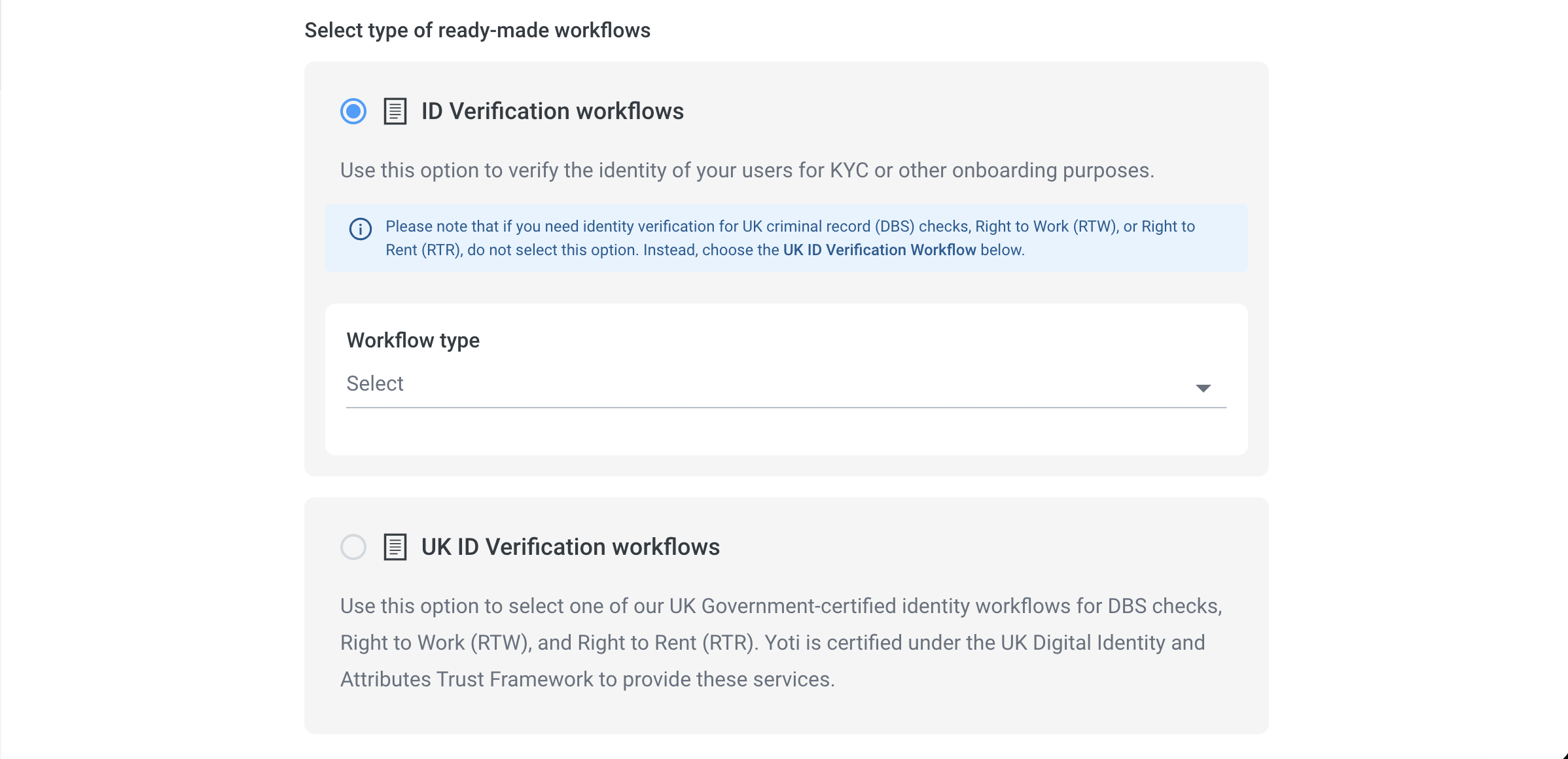
Yoti offers two different types of ready-made workflows:
UK ID Verification workflows
ID Verification workflows
The "UK ID Verification workflows" are UK Government-certified identity workflows for DBS checks, Right to Work (RTW), and Right to Rent (RTR). Whilst the "ID Verification workflows" are standard ID verification workflows that Yoti has created.
A digital RTW check requires the user to have a GBR or IRE passport.
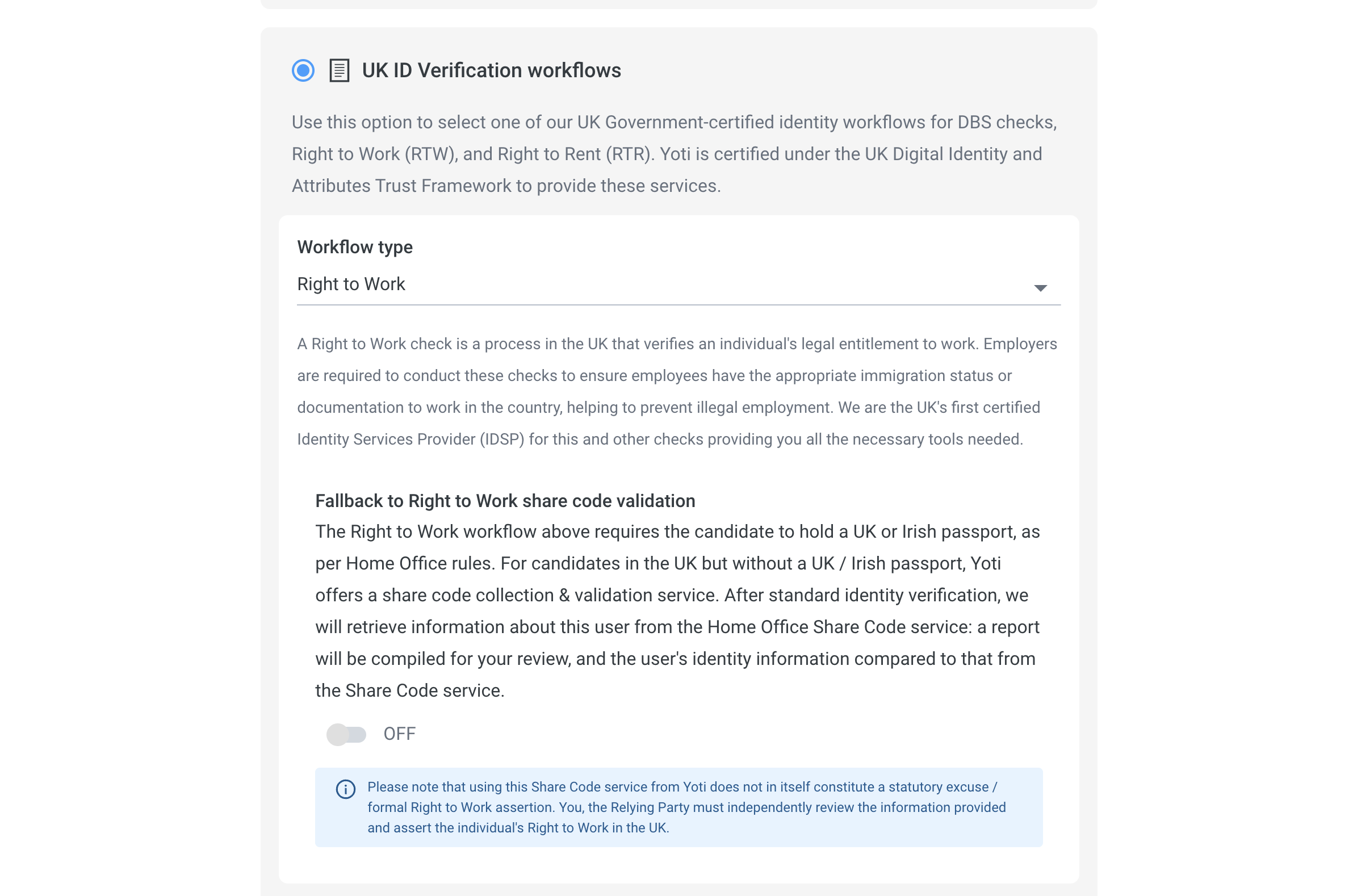
Share Code fallback
Yoti also provides a share code validation workflow that can be enabled as a fallback to the RTW scheme. When this is active, users are first asked to present a passport from either the United Kingdom or Ireland. If they do not have one, they are given the option to provide a UK RTW share code.
We will check that the share code is in the correct format (starting with 'W' and of the correct length) and that it has not expired. If validation fails, users will have another chance to enter a share code, along with guidance to help them generate the correct share code from the UK government website.
Combination
You also have the ability to use a combination or our ready-made workflows. This allows your users to meet multiple requirements within the same journey. For instance you can request a RTW workflow and a DBS workflow, users will be asked for a RTW documents first, then any additionally required DBS documents if DBS requirements have not already been met.
Custom workflows
When creating a custom workflow you will need to directly configure each check and task that you want Yoti to perform. More details about the checks and tasks can be found in the "Enable checks" section.
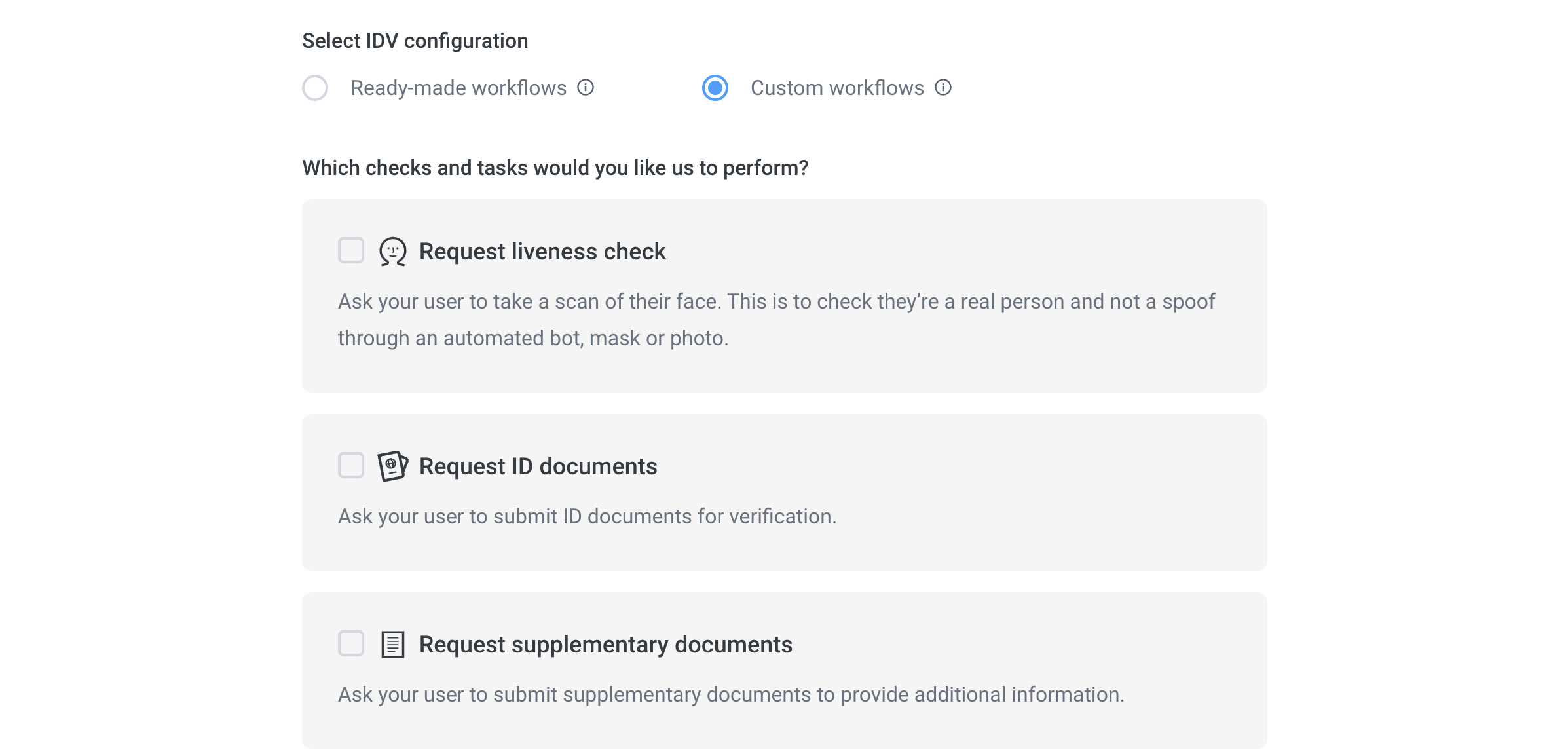
Below describes the multiple checks Yoti provides for identity verification. We offer a manual check for most of the checks. If you require a manual check, please select the following as part of your check:
Check type | Description |
|---|---|
Always | The requested check will always get manually check regardless of the success of the automated check. |
Never | The requested check will never get manual checked. |
Fallback | The requested check will be manually checked if the automated check fails. |
You can select your preference in within each tick box check.
Checks explained
If you understand what checks you want, you can skip this section.
Name | Manual check available |
|---|---|
Liveness check | ❌ |
Document authenticity | ✅ |
Text extraction | ✅ |
Face match check | ✅ |
Face Comparison | ❌ |
Supporting documents | ✅ |
Document comparison | ❌ |
Address check | ✅ |
AML check | ❌ |
For more information on our checks please head to our product guides above.