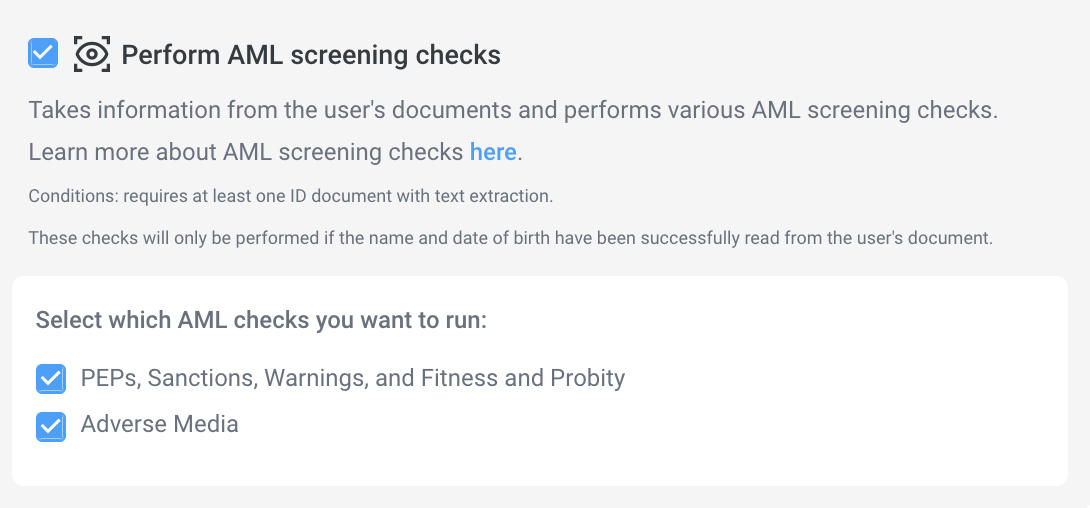
We strongly suggest you read the sections above and understand the user flow and checks you want to enable.
Enable Liveness
A requested check to assess whether the document scan is being performed by a real person, and not someone wearing a mask or an automated system.
You can choose the liveness type used in the flow. For more details on the different types, please see this page. We reccomend using 'Passive' liveness.
You can allocate how many retries you want the user to complete. We recommend a maximum of 3.
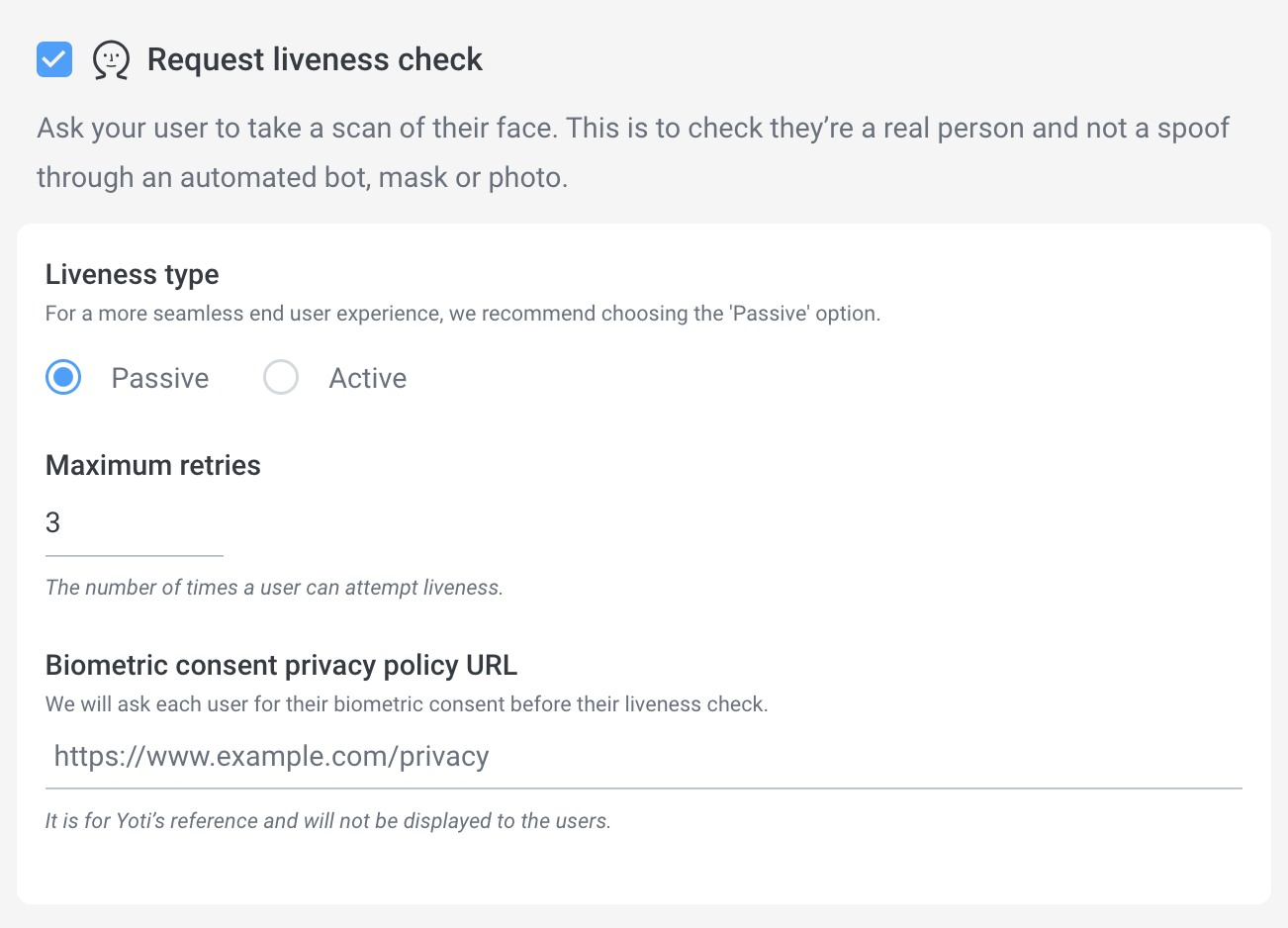
For several American states (currently Texas, Illinois and Washington US states*), the law mandates that you must collect the user’s specific consent to collect their biometric details for our liveness or face matching feature to be compliant with the US legislation.
*and any other countries or states within countries If you choose to only request specific consent in the above "territories" you must provide details of the effective geo-location software you use to prevent any individuals located in one of these territories accessing the Yoti service without prior giving specific consent.
Document Check
You can enable a request to assess the characteristics of a document and to determine the validity of the ID document. Yoti will perform multiple checks on a ID document.
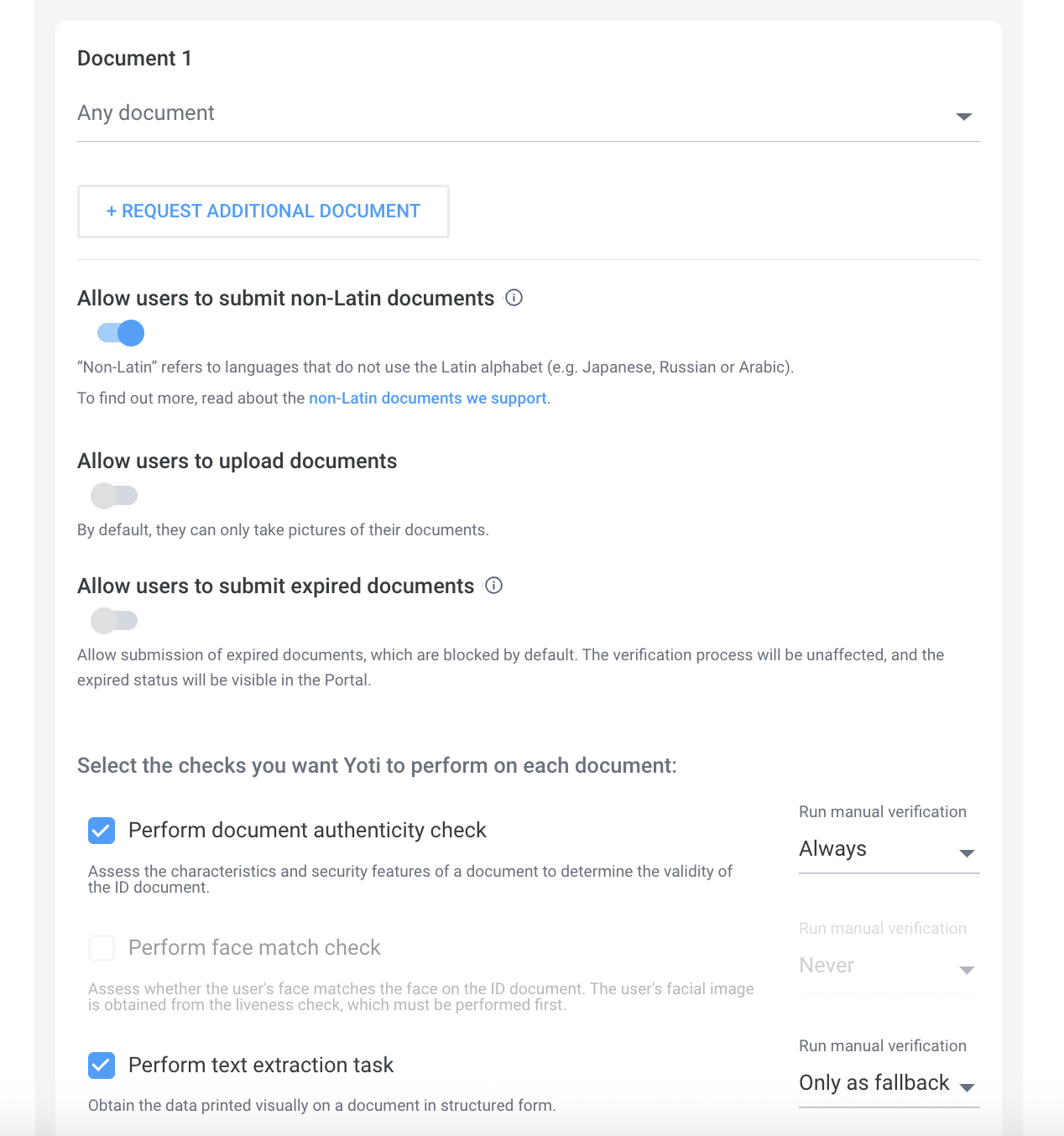
You can configure two options here:
Decide on capture mode. Users can either upload / take an image of their photo. You can configure which setting you want by ticking the box above.
Filter out document types you want to accept. Click on the small arrow under Document 1 and choose your preferences.
If you would like to collect two ID documents please click request additional document click Request additional document. If you request your users to upload more than one document we offer the ability to cross check the data. You must have text extraction on both documents enabled.
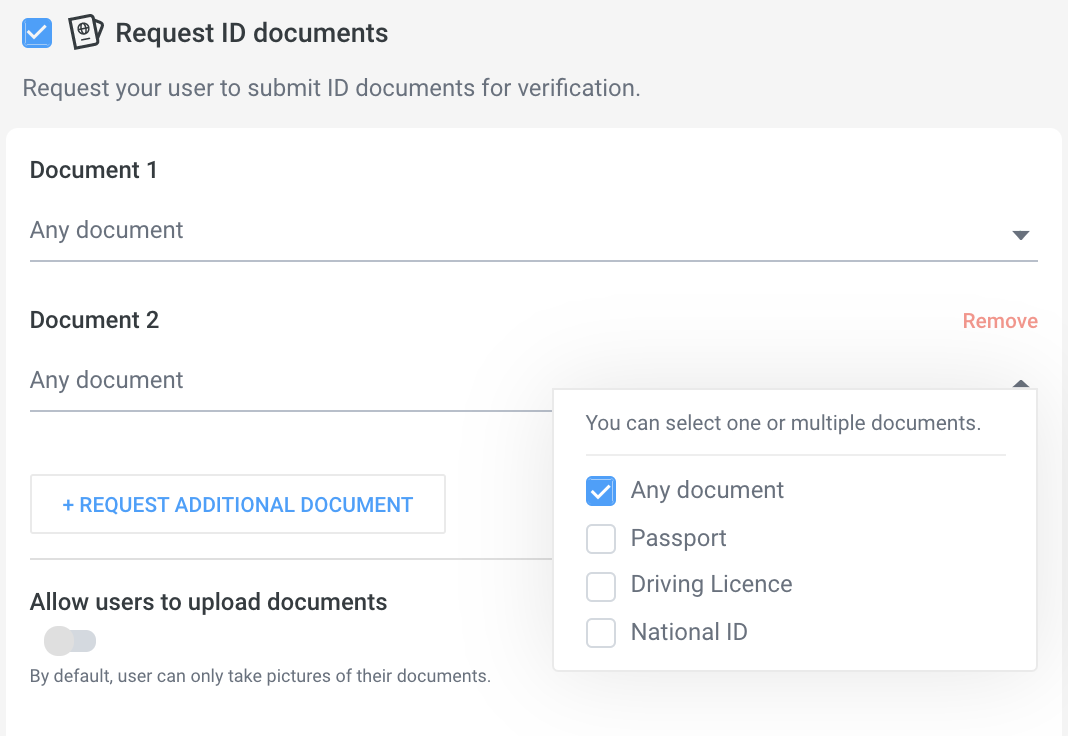
Enable Face Match
A request to assess whether the user's face matches the face on the ID document. You will need:

A liveness check is enabled
A document check is enabled
Enable Data extraction
To enable a request to obtain the data printed visually on a document, in structured form.

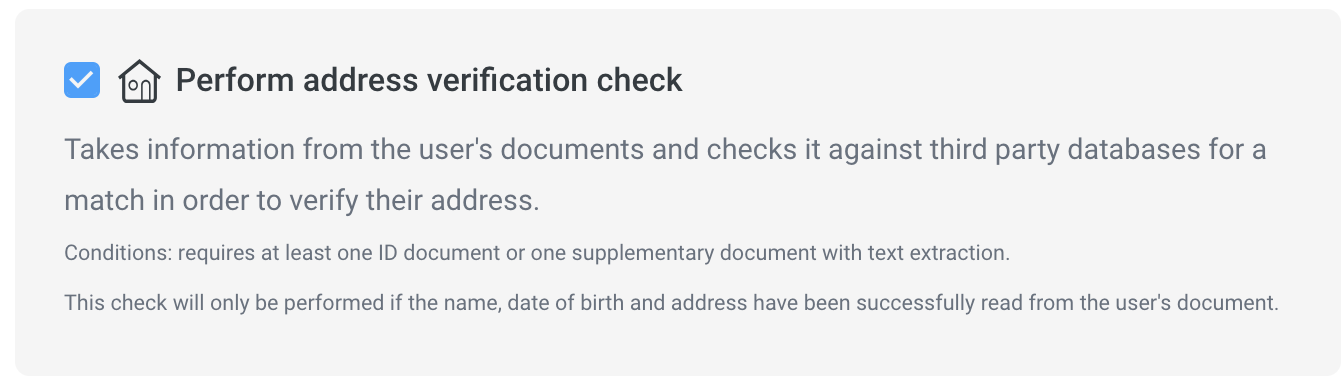
Enable Address Check
This check will facilitate an extra verification of a user by searching a person’s details against a collated database from various sources worldwide. To complete this check Yoti must be provided with successful data extraction on the ID document and a supplementary document with the following data:
Name - Must be ID sourced
Date of birth - Must be ID sourced
Address - Can be ID or supplementary sourced
Enable AML checks
It is possible to extend the Identity verification integration by requesting a watchlist, PEPs and sanctions check as part of a session. To complete this check, Yoti must be provided with successful data extraction on the ID document with the following data
Yoti will need to capture the following user attributes:
Name
Date of birth
Country ISO code