
Search
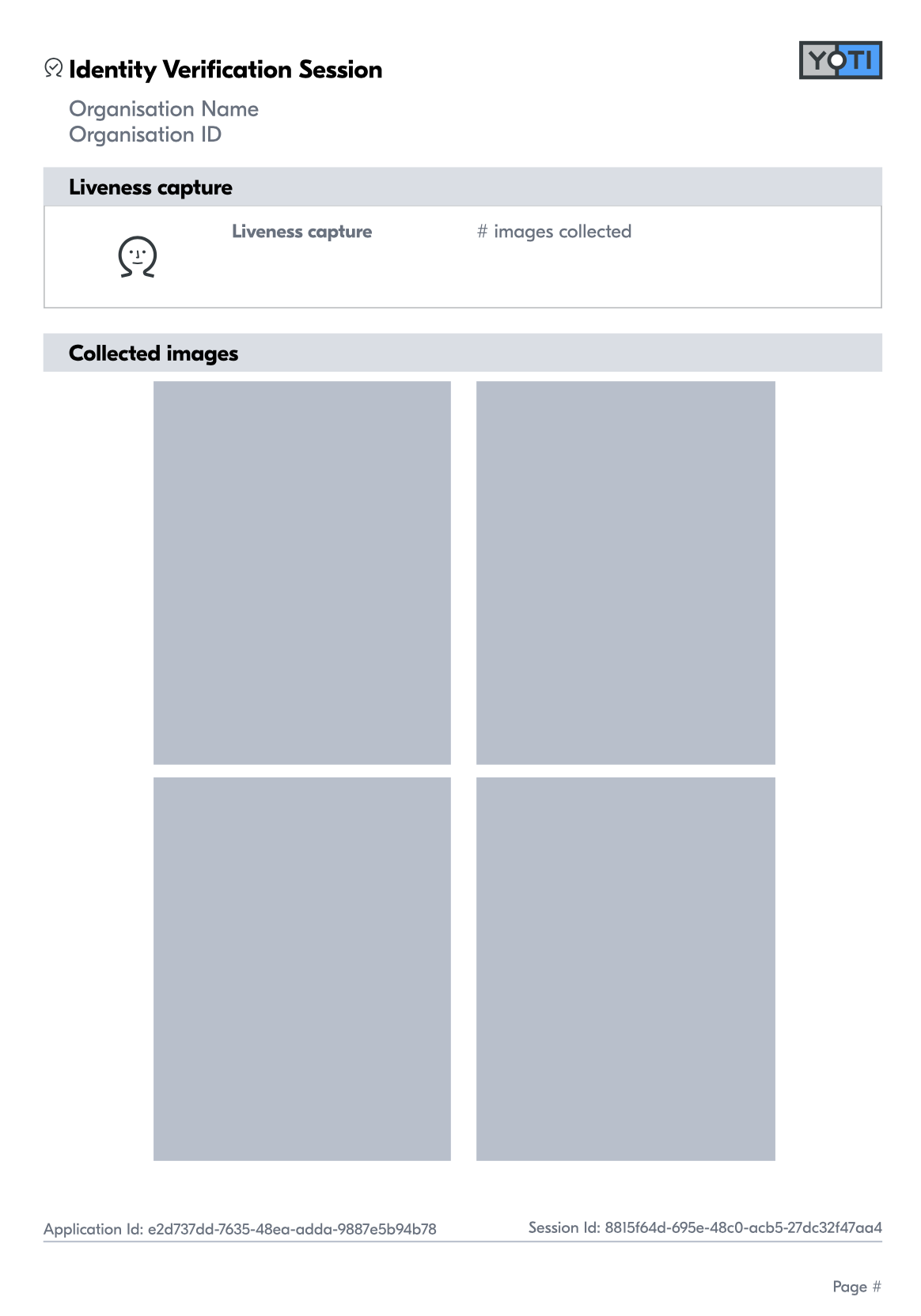
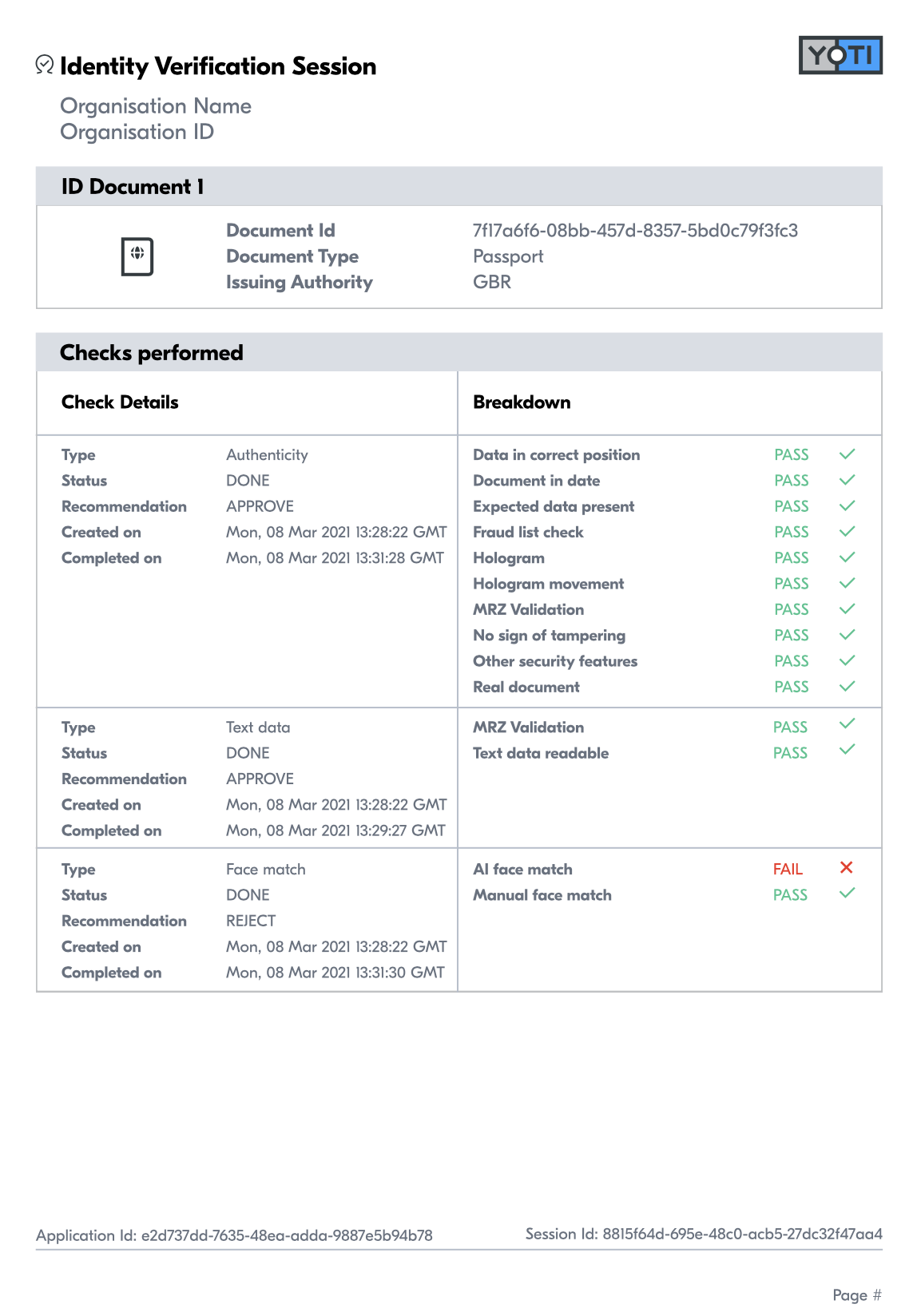
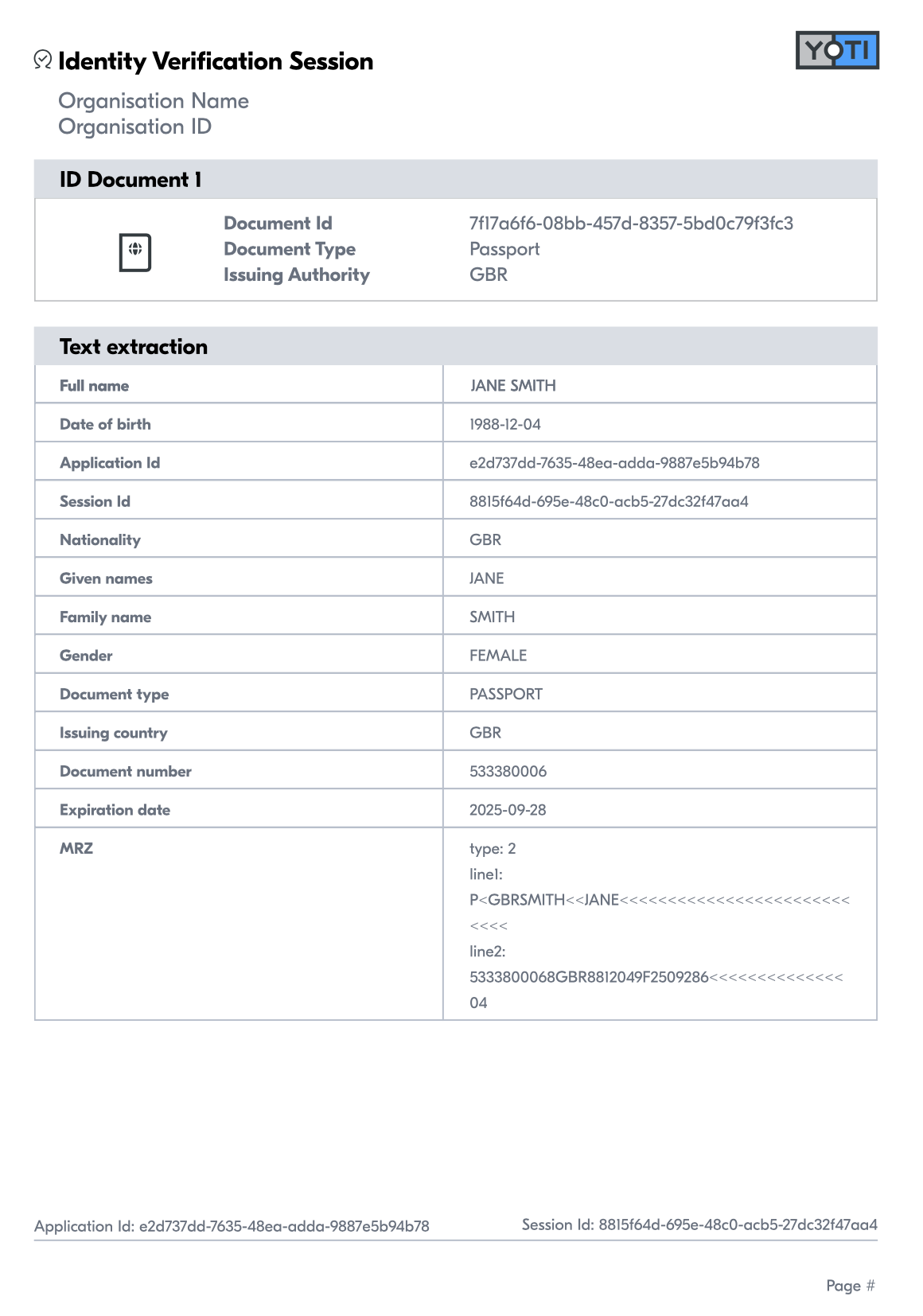
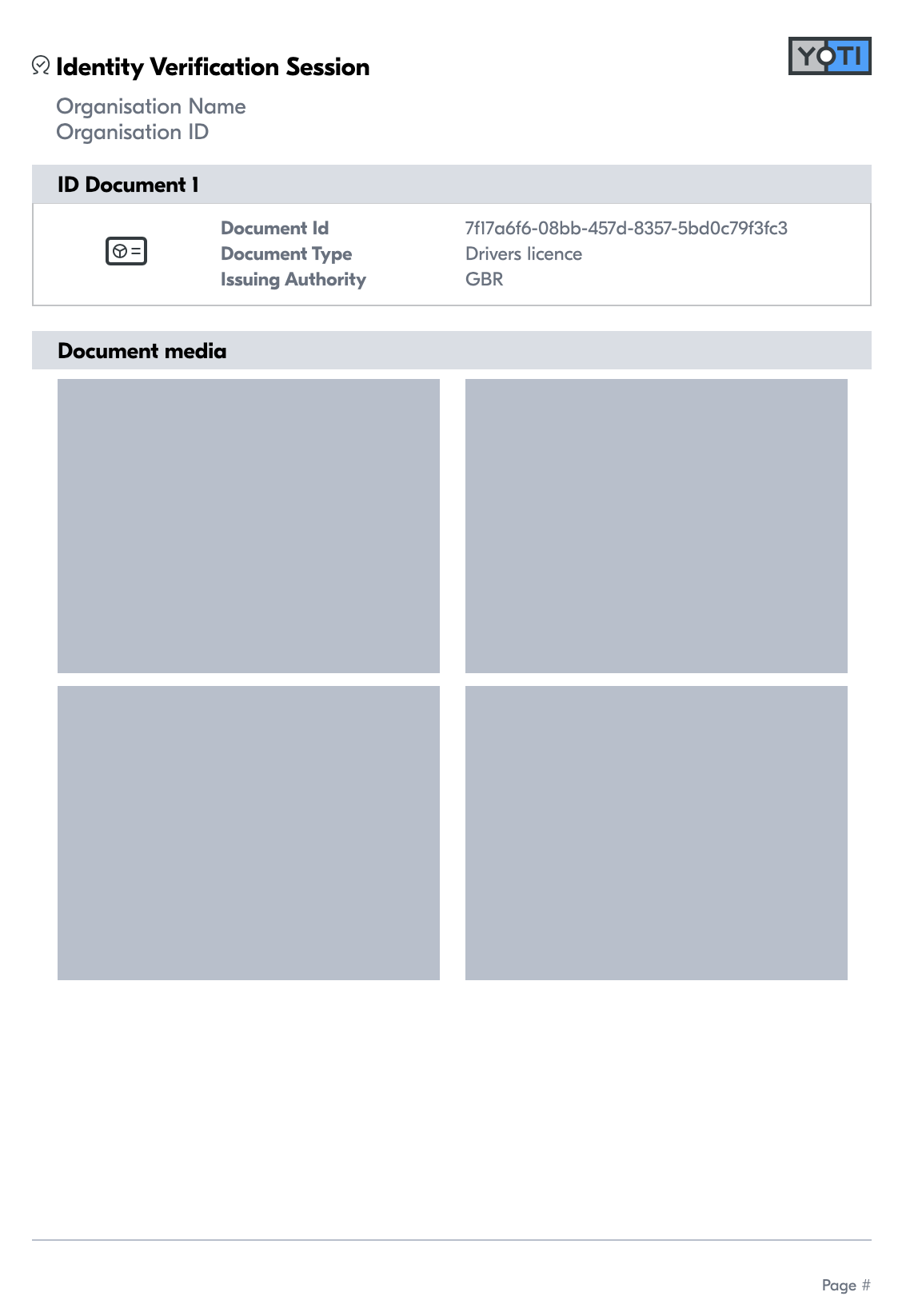
Once the session and all the checks have been completed, you can download a report version of the report.
Click on the session you wish to download.
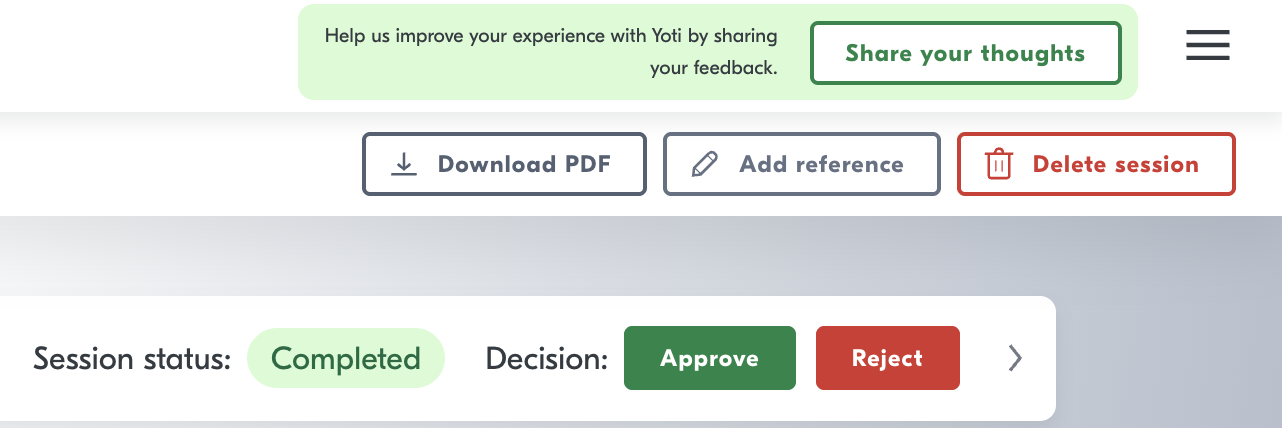
Click on the Download PDF button:
De-select if you do not want image or the users data.
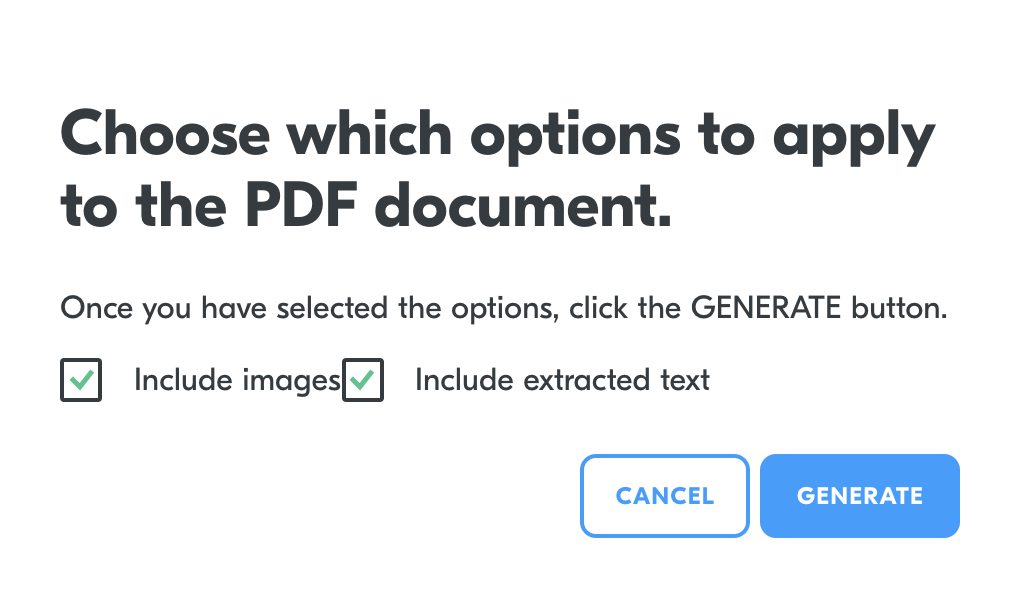
Press "GENERATE."
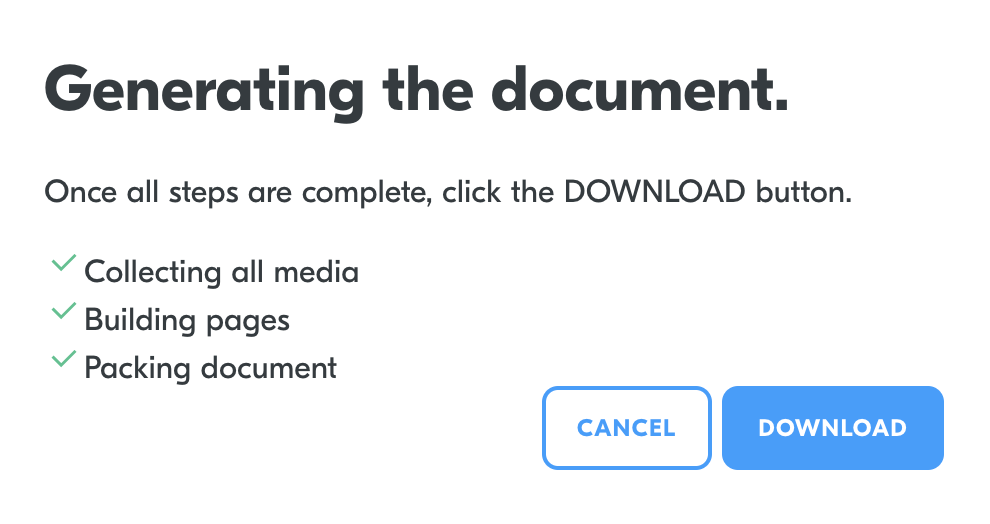
Once completed press "DOWNLOAD."
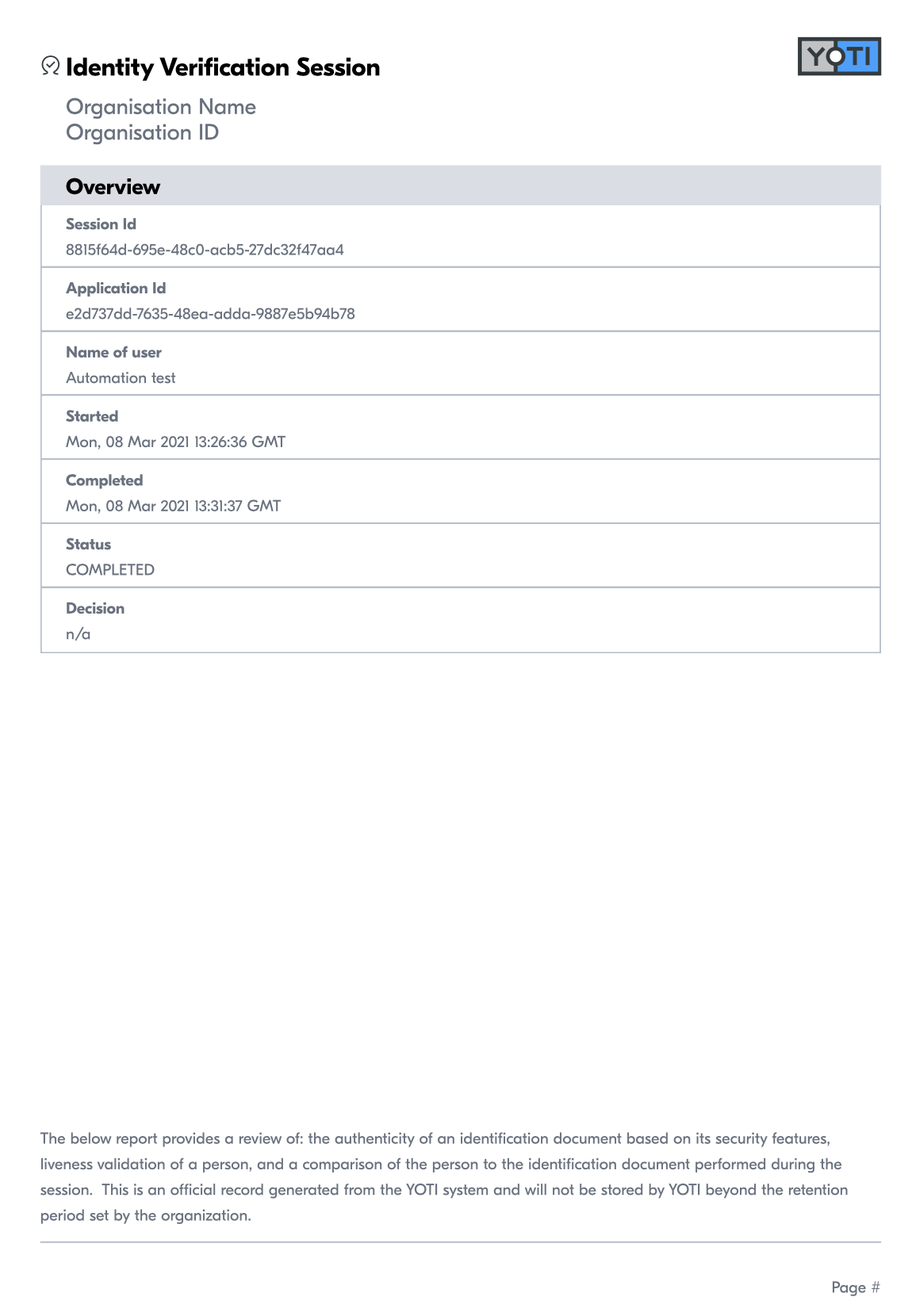
To see PDF report please click here or see below:
Export sessions
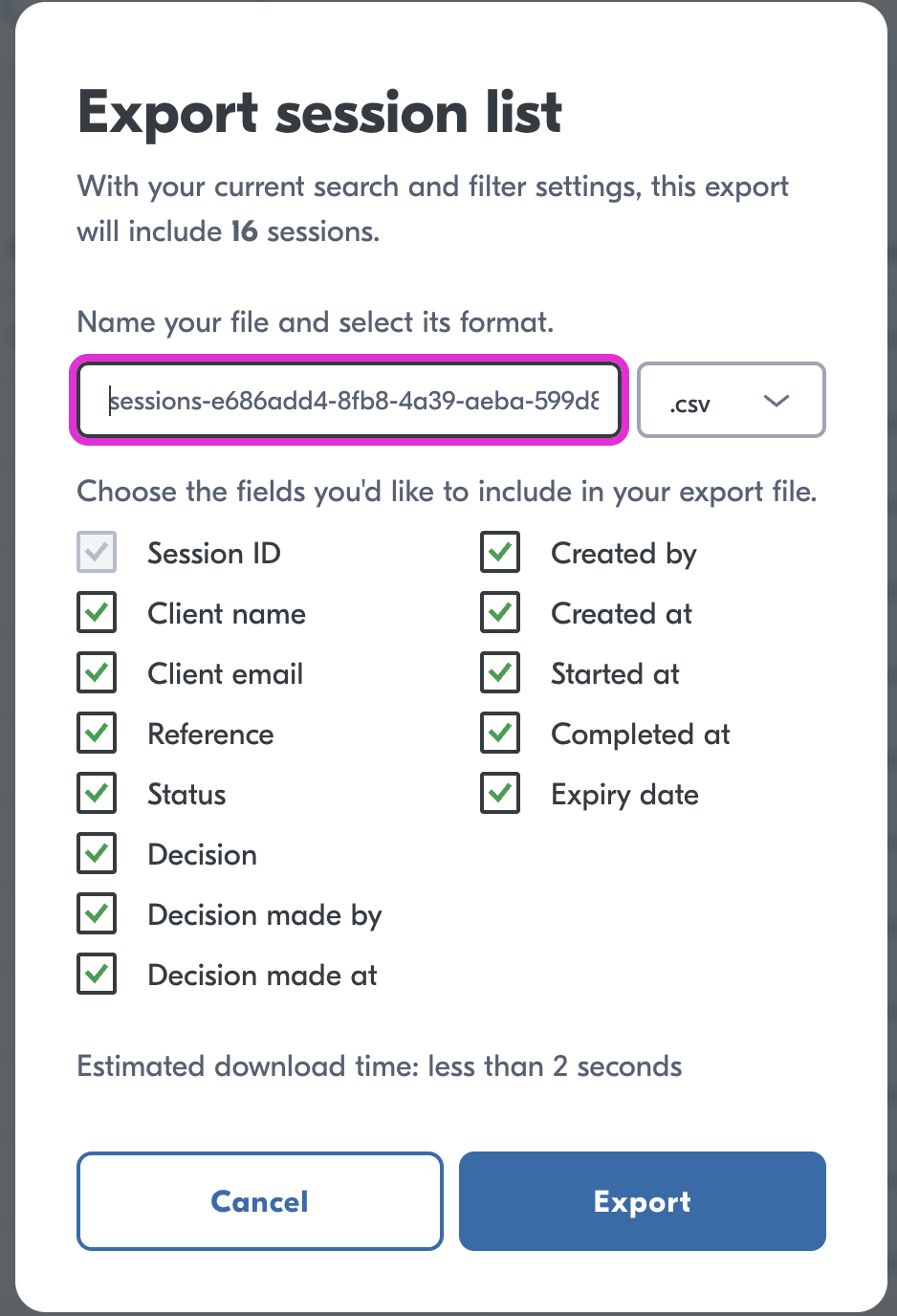
If you would like to export your IDV sessions, please see the Export button on the home screen of the IDV portal.

You will then need to select which data you want to export.
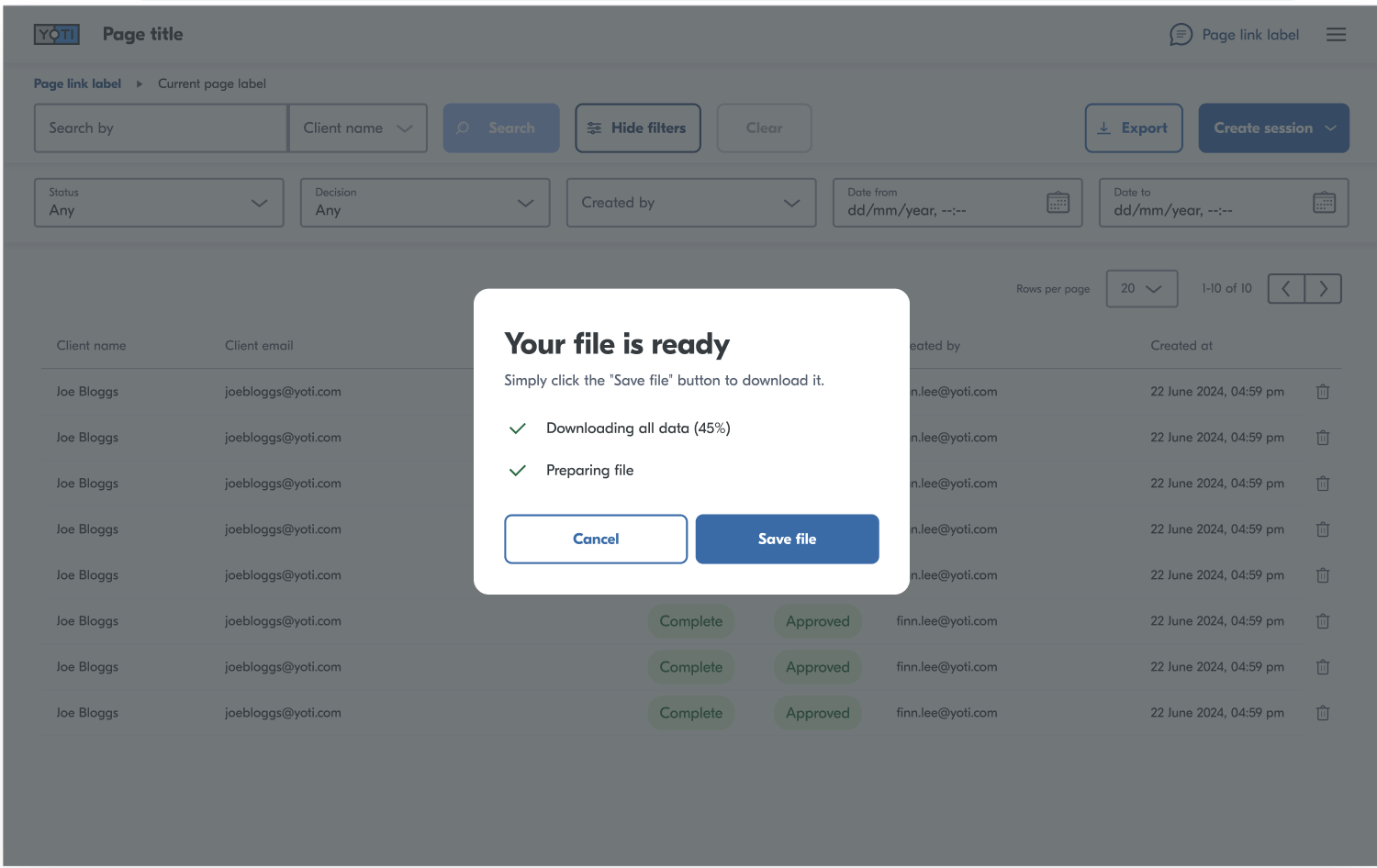
Once the export is completed you will see a confirmation.
Was this page helpful?