
The diagram below describes the login process and how a backend is integrated with the Yoti architecture.
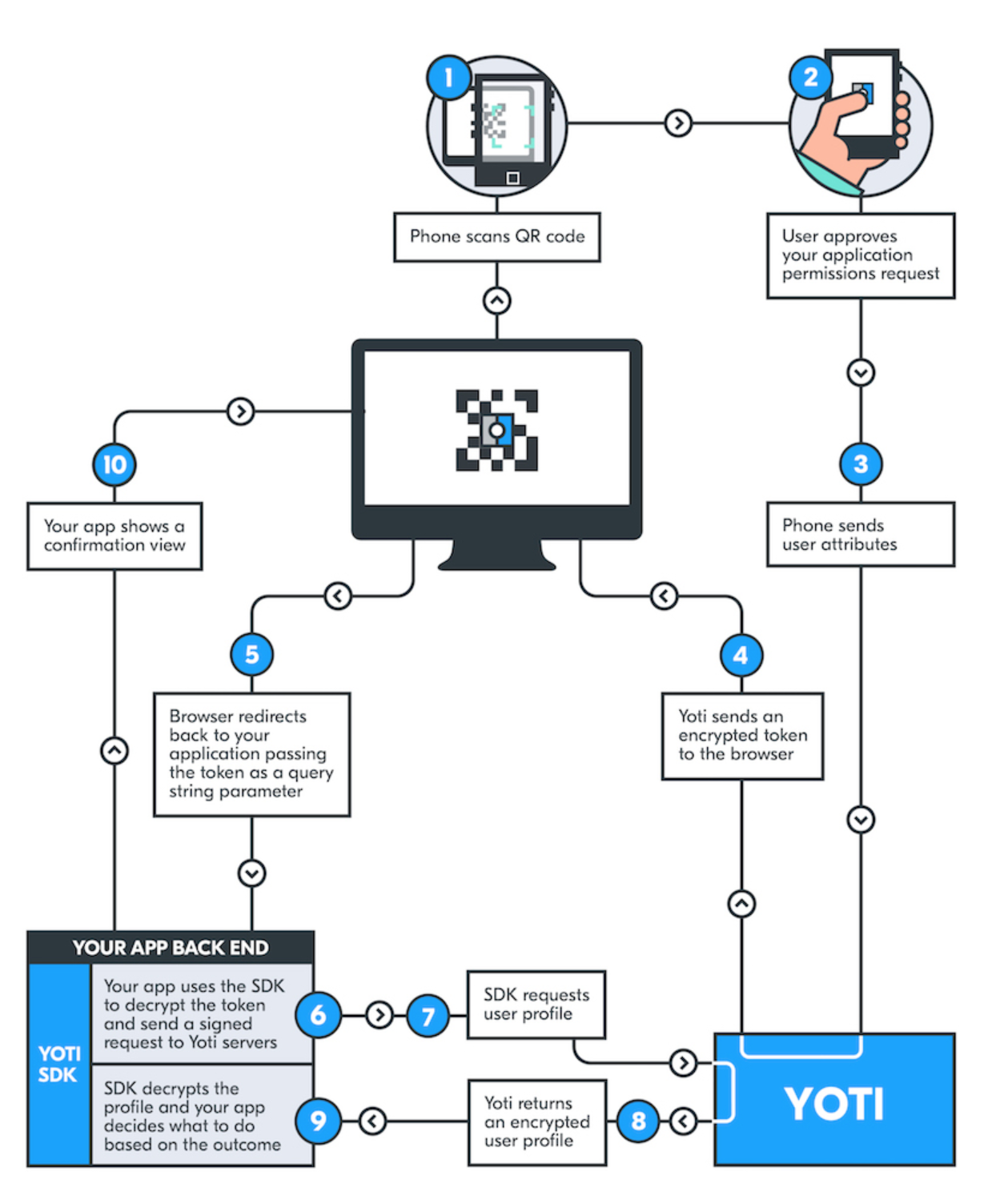
Integrating with Yoti lets your users securely share specific details using their Digital ID app. We call these details attributes. Please head over here to find out more information on what the attributes are.
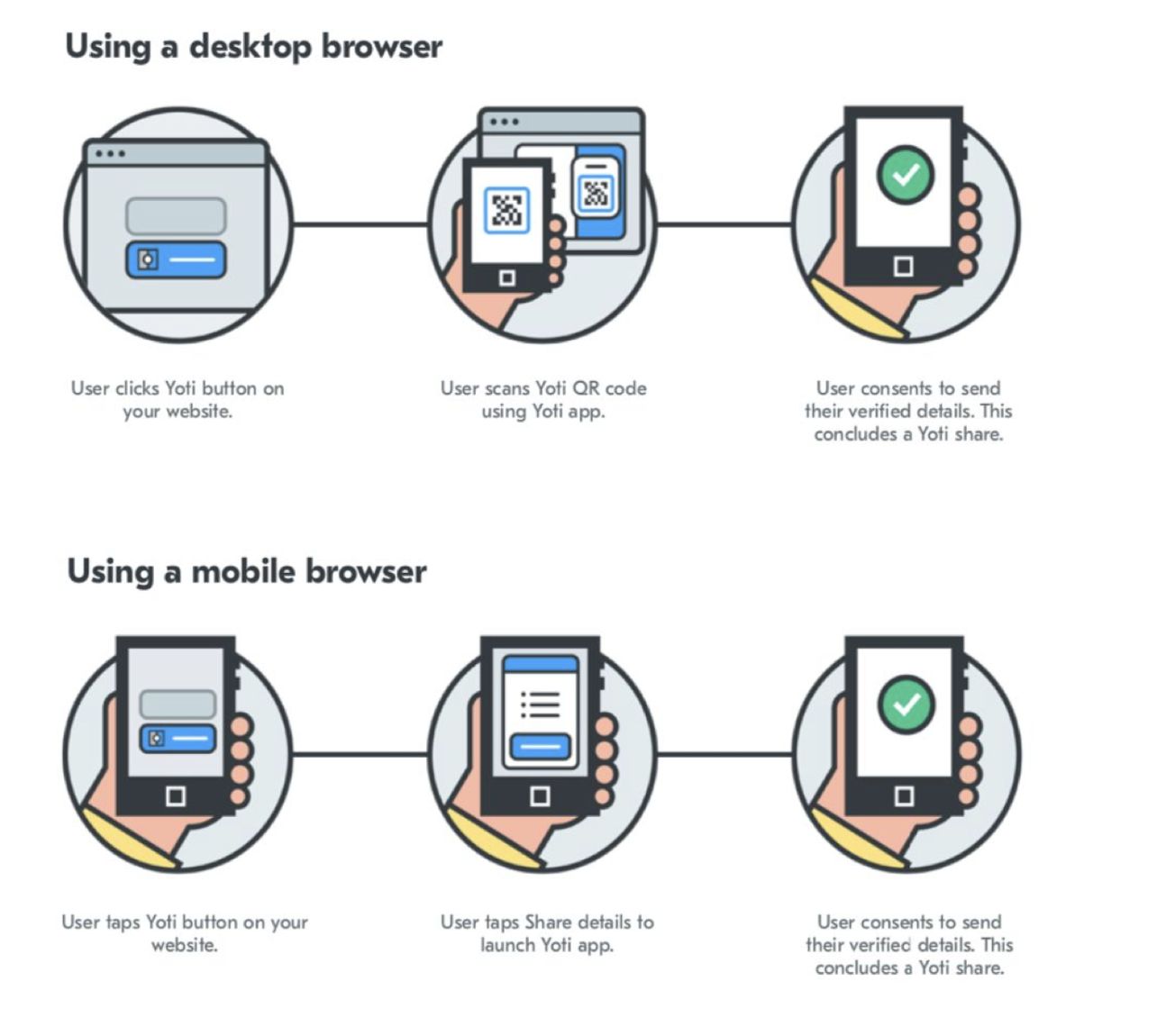
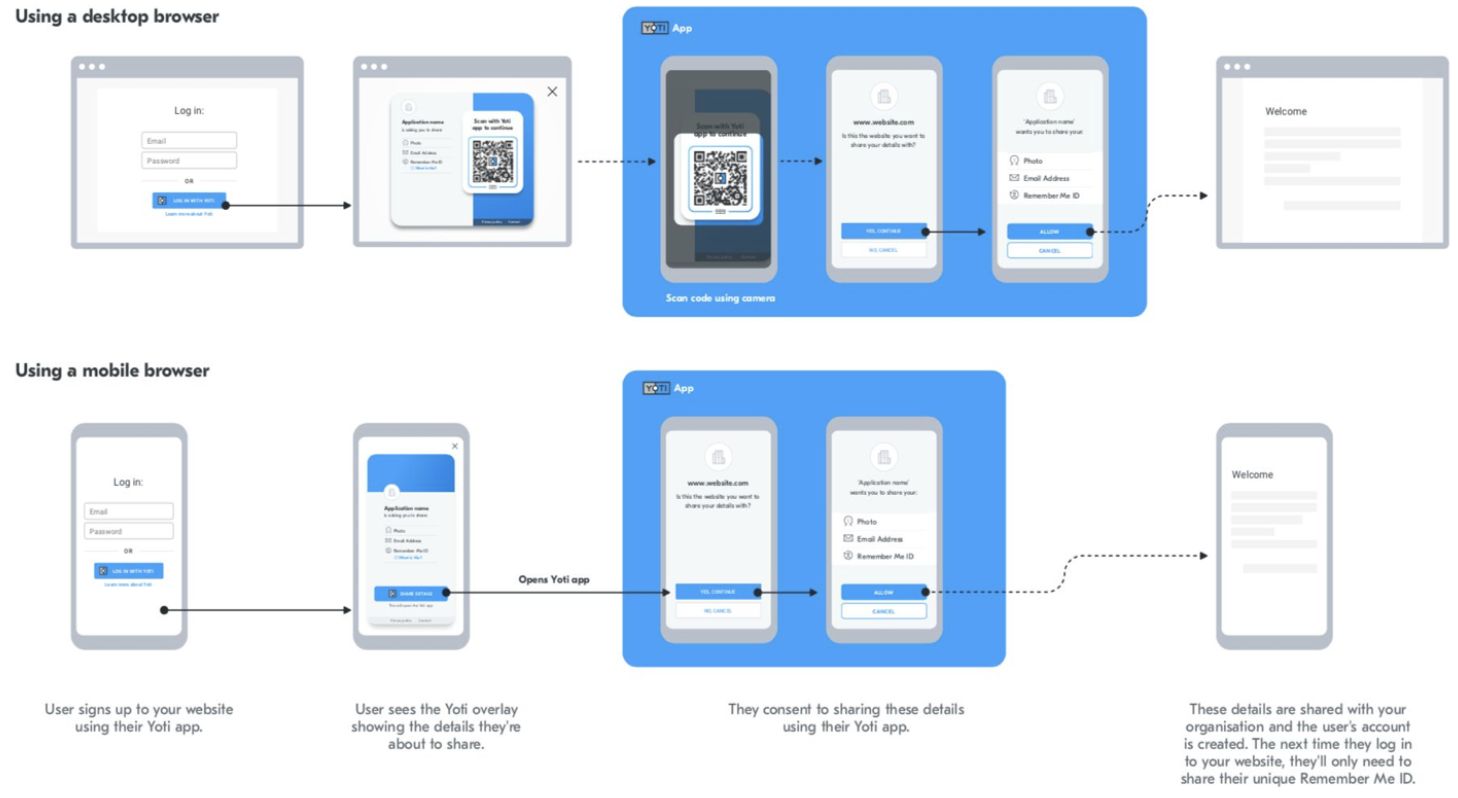
To get started, users need to click a Yoti button on your website or app. This button opens a full-page overlay on the webpage, showing the details users are about to share.
Once they confirm the share, their details are securely sent to your organisation. You can access them through a backend integration or from the Yoti Hub.
Feature list
The Digital ID service is very adaptable. Please see below for the functionality offered.
Name | Description |
|---|---|
QR codes | Yoti provides multiple QR code types for users to scan with their Digital ID app, including our partnership QR codes. |
Retrieve verified attributes | Customer details from a government issued ID is stored as attributes on the Digital ID app. You can request specific verified details and understand which source the attribute came from. |
Create your own credential | Yoti allows you to issue your own 'attribute' to a Yoti user, with the ability to share, receive and revoke this attribute via the app. |
Geolocation | Provide an expected location area where the device should be when doing the share. |
Learn more page | This provides a user guide for the user with the QR code. This is a useful tool and free to use! |
Remember me ID | Yoti generates a user identifier to your web application. Allowing you to use this attribute as a returning user. |
Source constraints | You can choose which type of document you want to retrieve the attributes from. |
Translations supported
Yoti offers translation of our Yoti app in the following languages:
Brazilian Portuguese (português brasileiro) 🇧🇷
English 🏴
French (Français) 🇫🇷
German (Deutsch) 🇩🇪
Italian (Italiano) 🇮🇹
Latin American Spanish (español latinoamericano) 🇪🇸
The user flow
When your user clicks the Yoti button on your website or app, a full-page overlay appears. This tells them exactly what details they'll be sharing and who they'll be sharing them with.
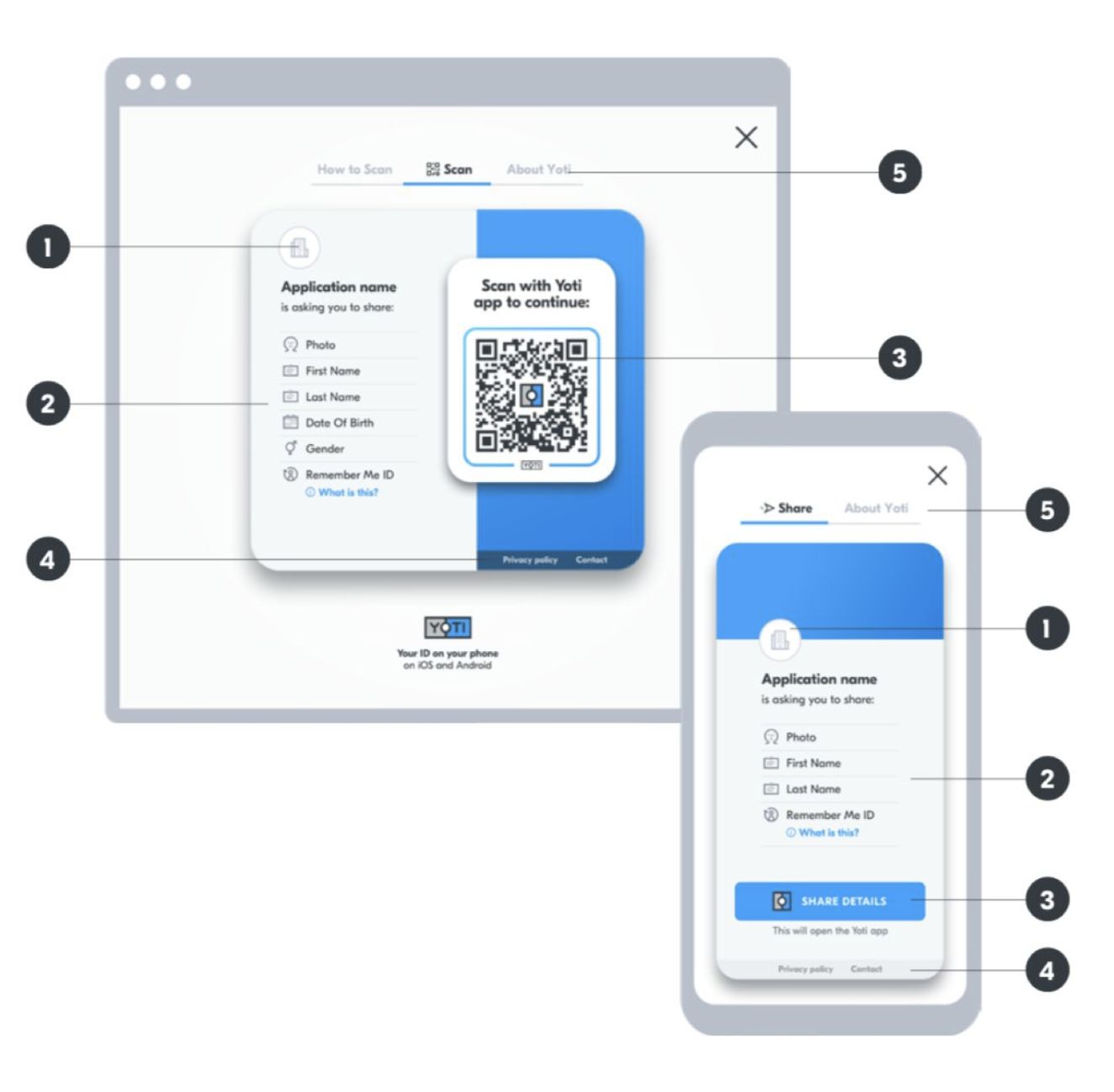
Your application's logo and name. Make sure they match what's on the website or app your user has come from.
The specific details you're requesting users to share.
On desktop browsers: a Yoti QR code that users scan with their Digital ID app. On mobile browsers: a share button that will automatically open the Digital ID app.
Your application's contact details and privacy policy. Make sure you provide these.
More information for users to find out how Yoti works and how to share details.
Once your user has scanned the QR code on their desktop or tapped the Share details button on their mobile, the Digital ID app automatically presents a share request screen.
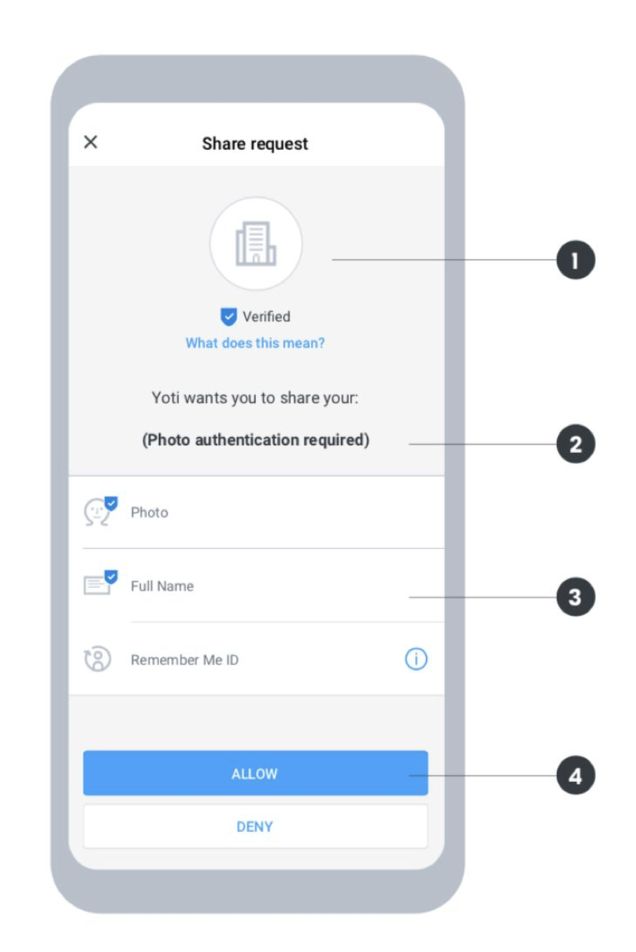
Your application's logo and name. Make sure they match what's on the website or app your user has come from.
This will only show if you've requested photo authentication in Yoti Hub. If you request this, the user will be asked to scan their face using their front-facing camera.
The specific details you are requesting users to share. Any details with a blue tick are verified by Yoti.
Tapping Allow shares the requested details with your organisation. The user will then receive a share receipt in their Digital ID app.
Yoti can be used in many different situations. It can be used in scenarios where someone would usually share personal, often private, information with an organisation or another person.
Video explainer
Using Yoti responsibly
We pride ourselves on how we handle our users' data. We use tech for good and enable users to securely prove their identity or age, always being transparent about what happens to their details.
Be transparent about why you're collecting data and only use this data for those reasons.
Only collect the information you actually need. Data minimisation is one of the main benefits of Yoti, so people don't have to provide more information than is actually necessary.
Make sure any information you export to your own systems is stored securely. Data security is at the heart of what we do and we think it should be important to every organisation.

$plugin[19ag7p8lxst]