
Yoti provides you with a simple dashboard management tool called Yoti Hub to get you up and running with our products. The Yoti hub allows you to generate your API keys, add your billing information and more.
Once your organisation has been created, our onboarding team will aim to review your application within 2-3 business hours. We will send you an onboarding email once your account is verified.
To start integrating our products, you will need to:
- Set up an account on the Hub and get verified.
- Generate API keys.
This section walks you through how to complete this. You will need to know information about your organisation, key contact details and billing details.
If you don't have this to hand, don't worry, you can return anytime to continue with your application.
Create your business account
Get access to Yoti Hub here
You will be directed to a screen, where you can register an organisation or log in to an existing one:
Registering a new organisation will first require you to create an account on the Yoti Hub. You can use the Yoti digital ID app to create an account; sign up using Google or use an email, password and a multi-factor authentication app.
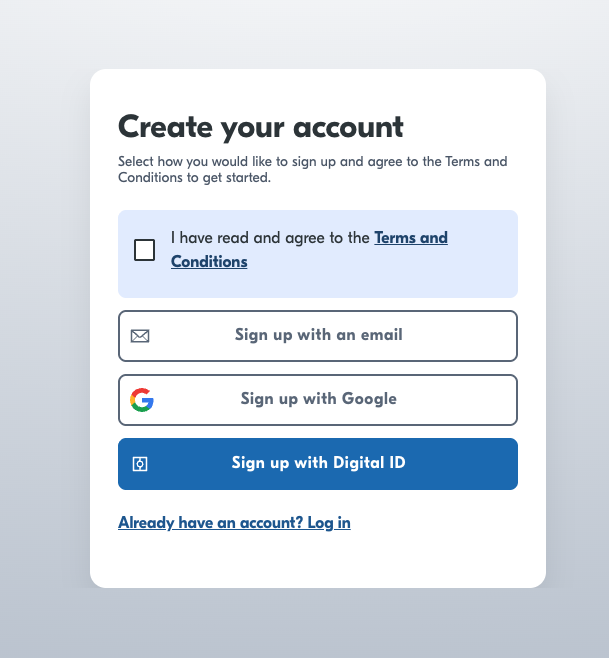
Onboarding page
Once your Hub account is created, there is a short form to fill out. We aim to verify your account within 2-4 hours. If we have any questions about your application, we will email you. You will receive an email if all is approved.
Congratulations, your account is set up and you should see the screen below! At this point, you will also receive an email from Yoti welcoming you on board.
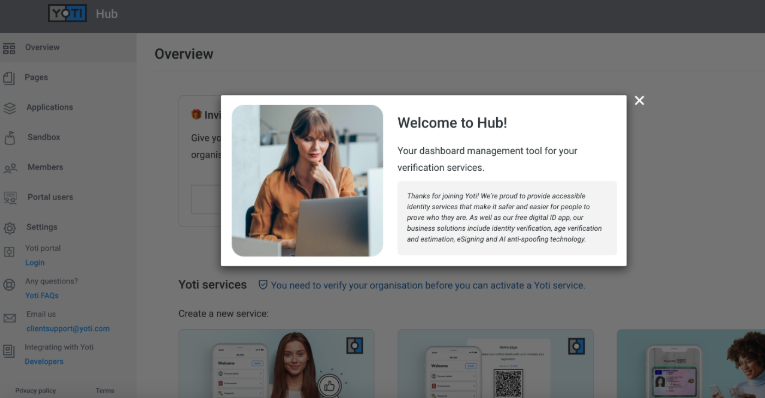
As the applicant, you will instantly gain full access to your organisation's Yoti Hub account. You can go ahead and create a service from this point.
We appreciate that your organisation details may not remain the same as when you first registered. If you need to change any information, please contact us at organisations@yoti.com so we can update it. This ensures that we can verify any changes and keep information aligned.
Now you just have to create your service to generate API keys, and you're ready to start integrating.
Generate API keys
To create your service, you will need to ensure you are logged into the hub and inside your organisation.
You will need to create a service in the hub to obtain your API keys. You can do this in two ways either:
- Head to the left hand nav bar and select Services > Create a service.
- Or select the blue button labelled CREATE.

- Then pick which product or service you are integrating - in this case Age checks > Age estimation.
You can create multiple services within your organisation, each service refers to a domain and has its own user base.
Once you have selected a service you can create the service by filling in the following details:
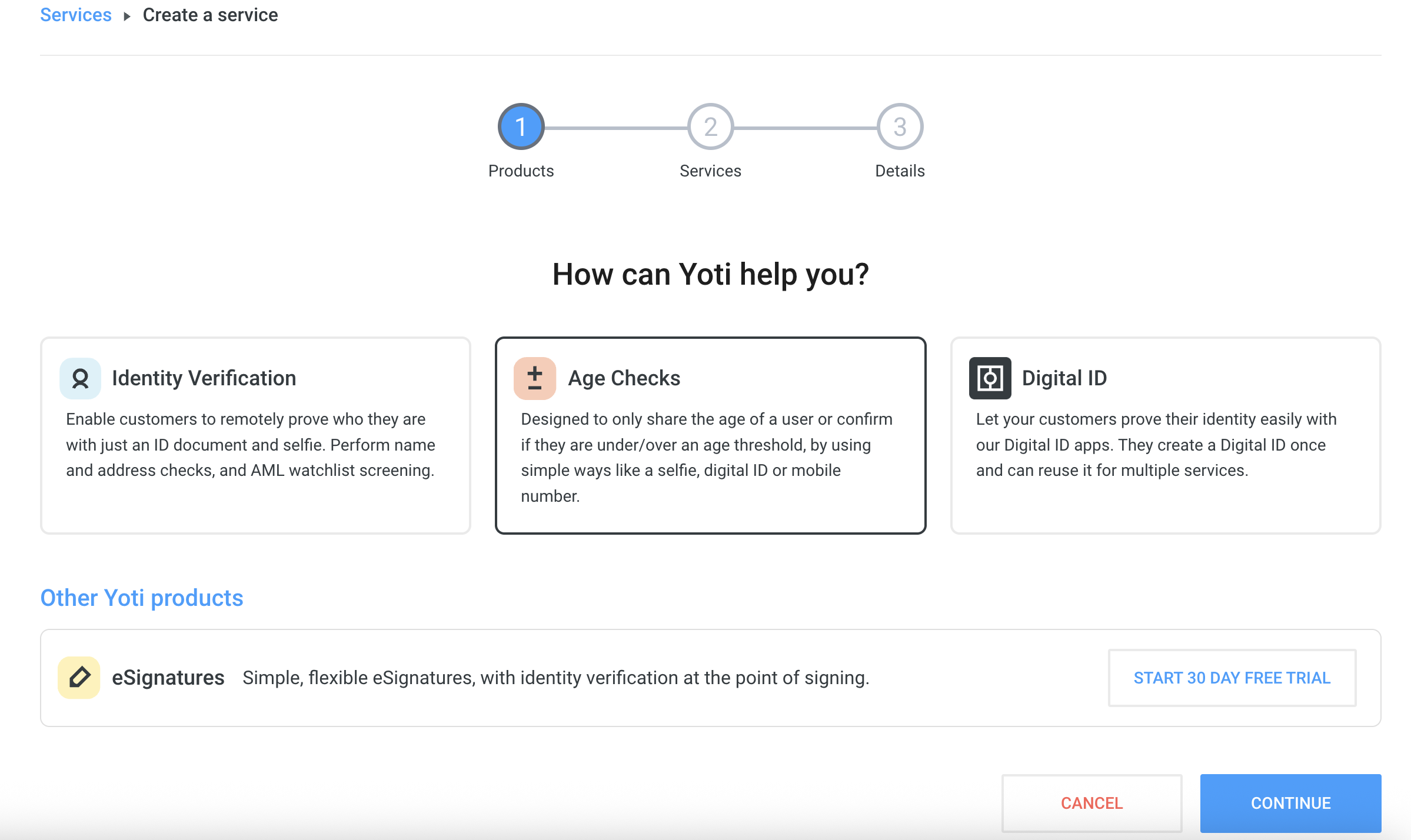
- Specify the service name and click on 'CREATE'.
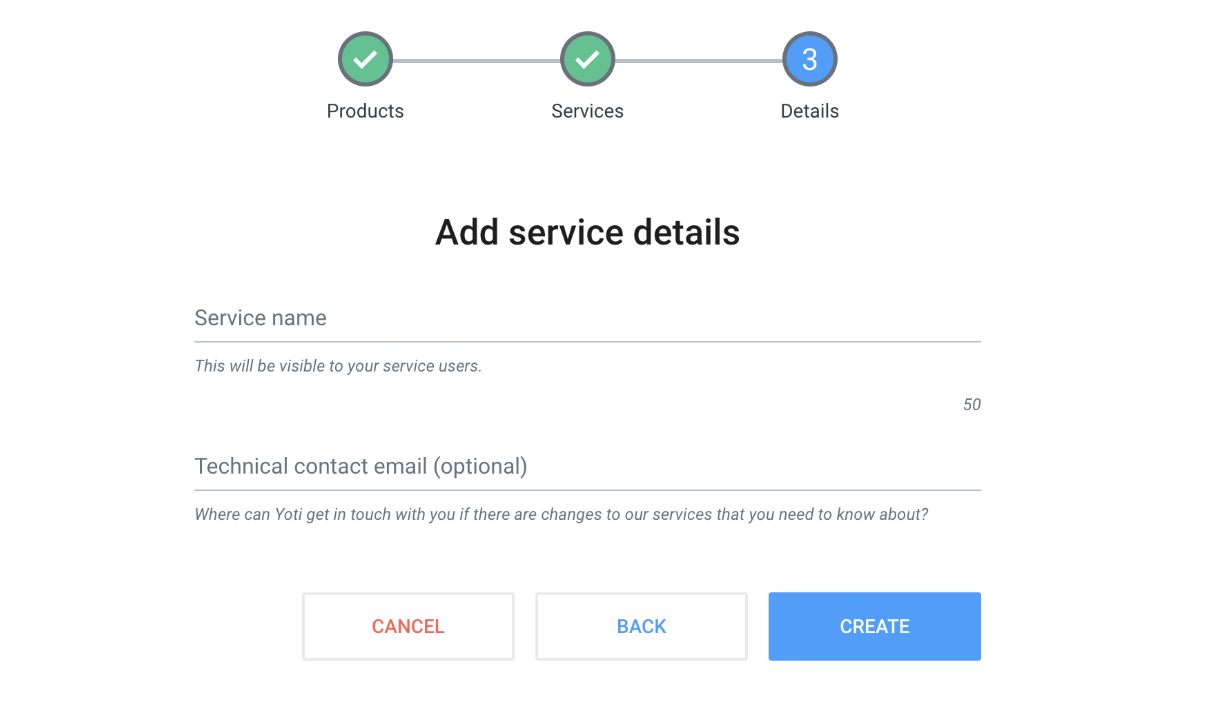
Create an Age Estimation service
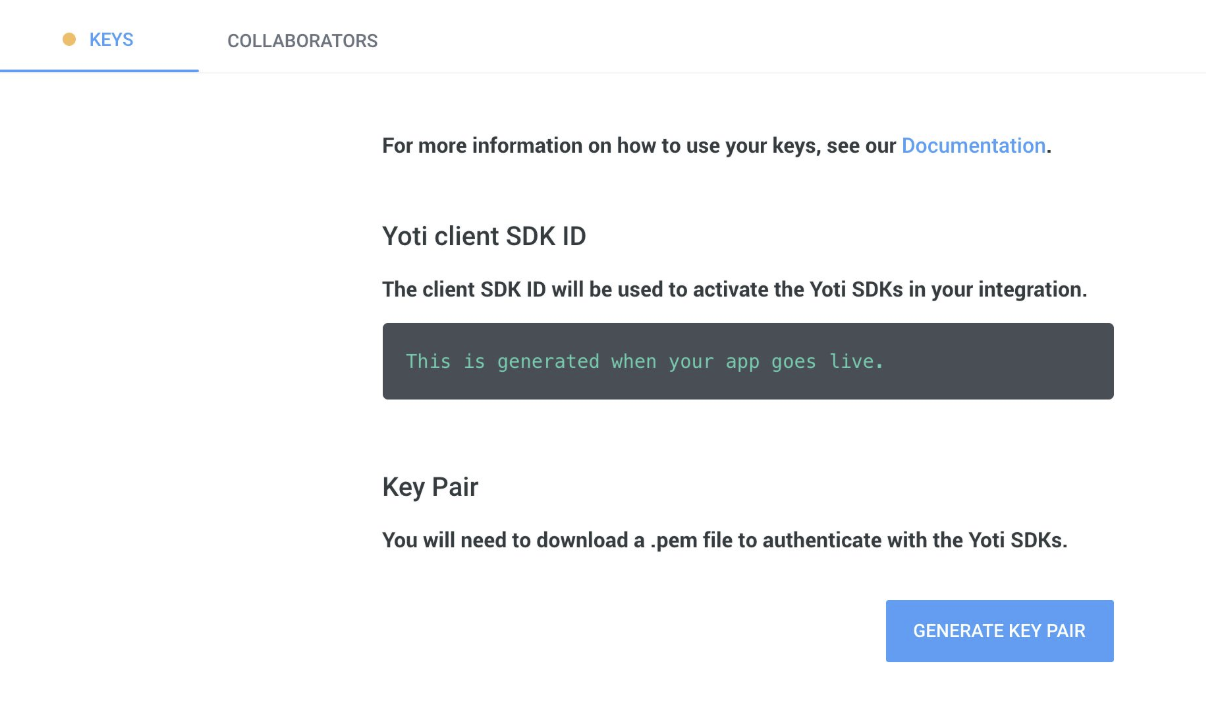
The next stage is to collect various IDs for your service.
| Key | Description |
|---|---|
| Yoti Client SDK ID | You will need this on your backend to initialise the API and it is passed in each call to our servers. |
| Pem File | You need to download a PEM file containing your private key in order for your app to connect with Yoti. • Click the Generate key pair button in the Keys tab to download. • Please keep this safe as this PEM file is essential to a Yoti integration. If you lose or corrupt your PEM file you will be able to generate a new one. Re-generating your key pair will break your current service by invalidating your current PEM file and generated keys. This means you will be unable to decrypt new tokens until these are replaced by the newly generated ones. |
If you have multiple websites/platforms it can be useful to create separate services for all your different websites/platforms. This way Yoti can report on each of these different services separately.
Once you've onboarded your organisation in Yoti Hub and have generated your API keys, you can continue with integrating your chosen Yoti products or services.
Access Control
By default, as the applicant of the organisation, you will have full access to your organisations account. You will have the ability to add members to your organisation.
Permissions let users perform certain actions within organisations, applications and pages.
To add members, log in to your organisation and go to the side menu and click Members:
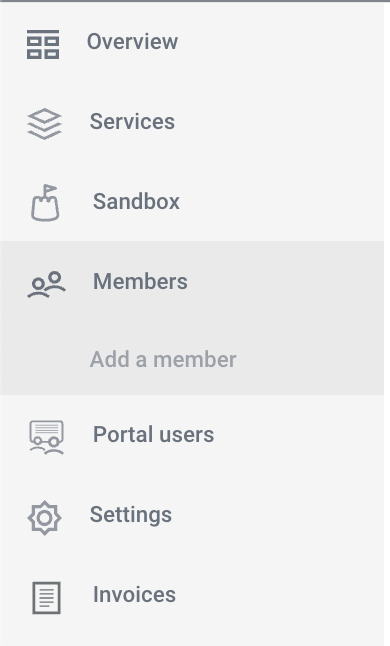
Click Add a member and fill in the details - please make sure the email address you use to invite a colleague to your organisation is the same as the email address they have added to their Yoti.
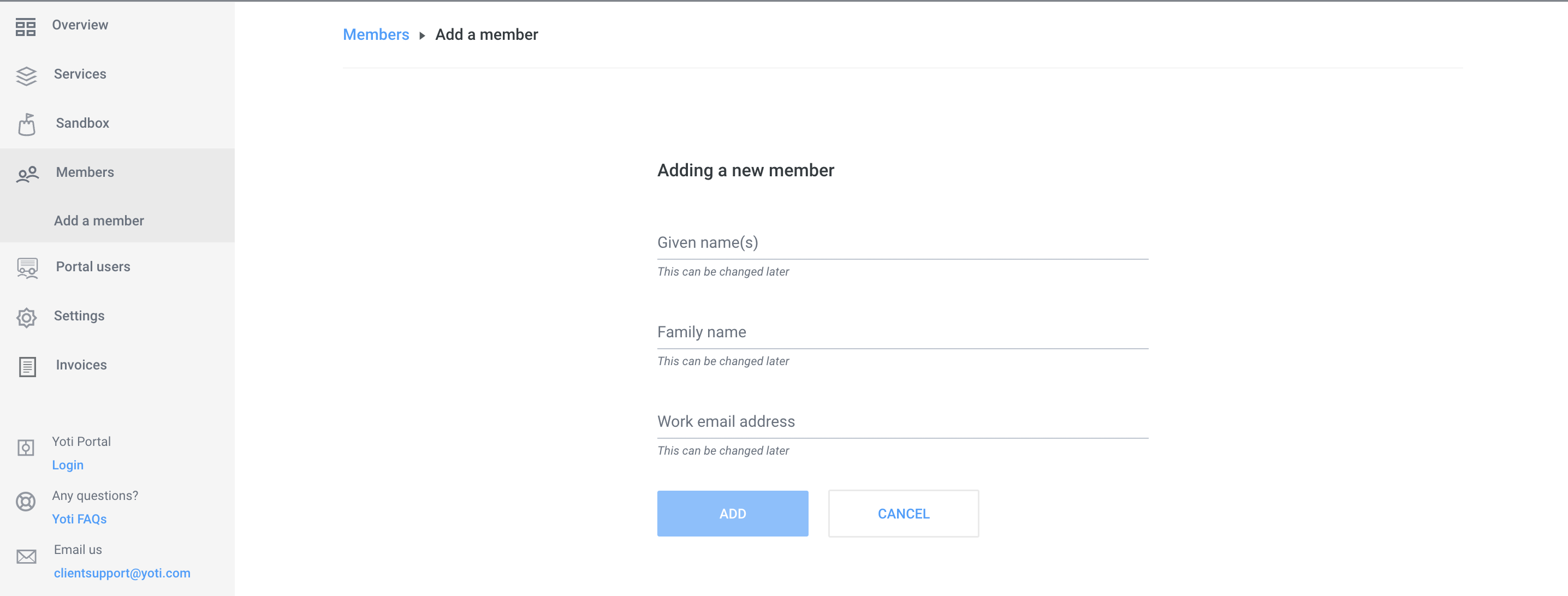
Once you have completed this the user will receive an email and will gain access to your Hub account when they scan the QR code sent to them.
Organisation Permissions
You need to be an admin to assign organisation permissions to users.
When a user gets invited to an organisation, they don't have any permissions by default. But they can still accept the invitation and access the organisation.
An organisation admin is able to give permissions to a user from the Permissions tab on their profile page.
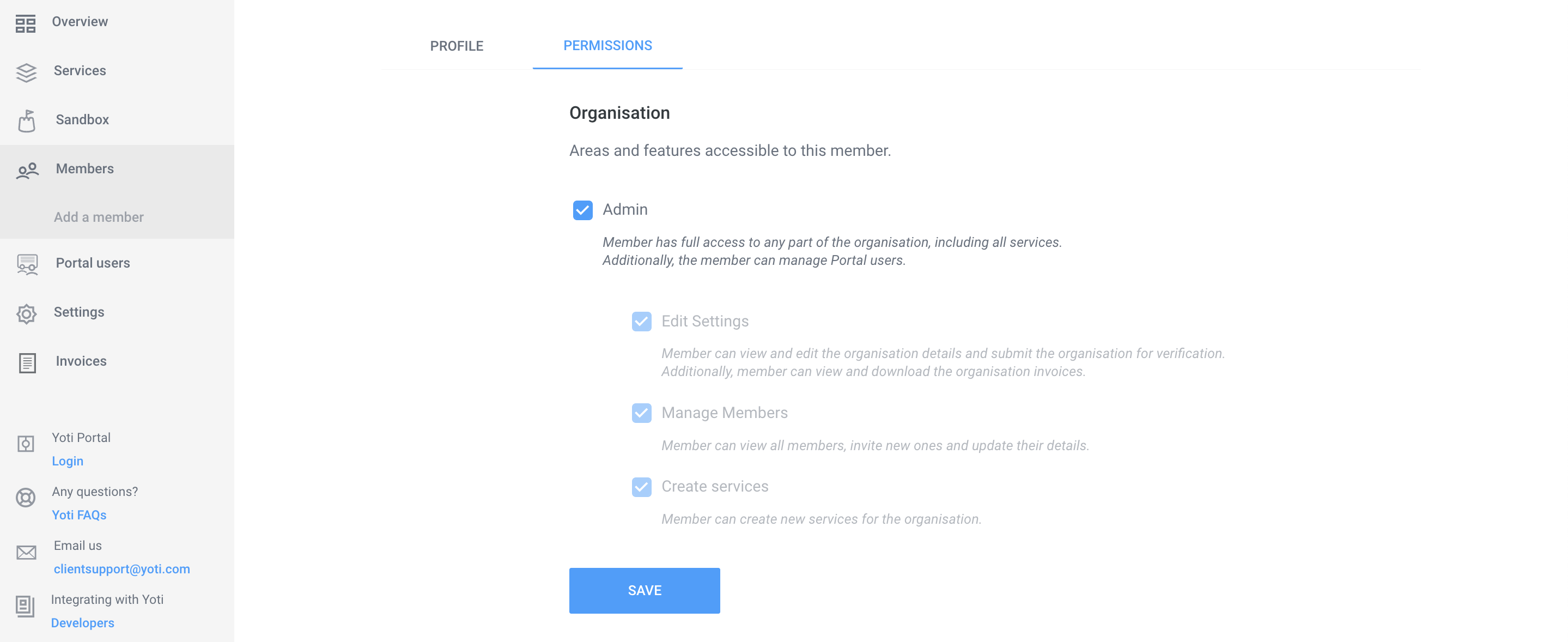
| Permission | Description |
|---|---|
| No permissions | Users can view the overview page, the list of the organisation's services and the list of members. |
| Create Applications and Pages | Users can create services within the organisation. They will become an admin of those services. |
| Edit Settings | Users can view the organisation's settings, manage payment cards and add missing organisation details. |
| Manage Members | Users can view and edit member information, invite new users and remove pending users. |
| Admin | Admins inherit all of the permissions above. They can also set and update permissions for users, delete active users and will gain admin access to every service within the organisation. |
Service Permissions
Once a user is part of an organisation, they can be invited as collaborators for individual services. An organisation can set collaborator permissions for a user in their profile page, or they can be set in the Collaborator tab within the service.
Once a user is added as a collaborator of an service they automatically get collaborator permissions.
| Permission | Description |
|---|---|
| No permissions | All members of an organisation can see all services in the overview page. |
| Collaborator | Users can view the Scenarios and Keys tabs. |
| Access Receipts | Users can view, filter and download receipts. |
| Edit | Users can edit services details, create, update and delete scenarios, generate keys and update the states of services. |
| Admin | Admins inherit all of the permissions above. They can also add collaborators, set permissions for them and delete services and receipts. |
Delete a user
If you have a leaver the administrator of the account will need to do the following:
- Log into the hub
- Navigate to their organisation
- Click on Members
- Click on the user they want to remove
- Click REMOVE MEMBER
This will prevent the user from logging in the hub from their Digital ID app. Yoti does not administer Hub accounts for you, it's all under your control and responsibility.
Deleting your service
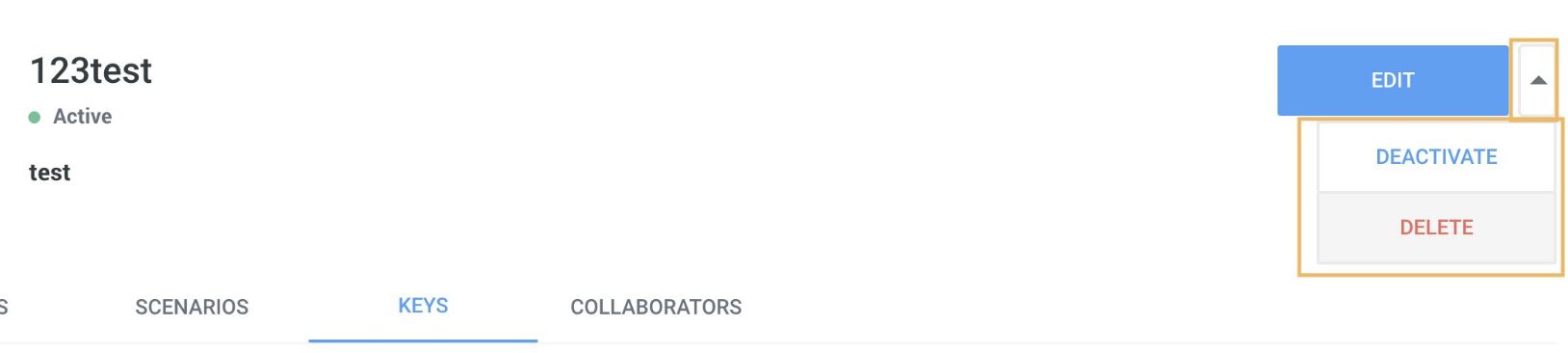
To delete your service go Service > Arrow icon > press Delete.
There is also an option to deactivate your service which will hold your integration as a paused state. Users will not be able use your integration until it gets activated again.
Deleting your service