
The next step is to load the Yoti client SDK. Here we describe how to launch the web client.
Web client
In the previous section we saw how to create a request, which returns:
Session ID
Session Token
We then use these to construct a URL which loads the Yoti Client SDK. The URL can be used in the following ways:
Within an iframe on your webpage
As a link on your webpage
As a link shared securely with a user
URL Component | Description |
|---|---|
sessionID | The session ID from the Yoti response. |
sessionToken | The session token from the Yoti response. |
The example below demonstrates the use of an iframe:
Once the Yoti Client SDK has launched it will take the user through the ID document capture flow.
Please note: allow="camera" is required when using Yoti Identity verification on mobiles (web or native), and is serving the website over HTTPS. For the best user experience, the height of the iframe is recommended to set to 100vh and the parent height to 100% .
Event notifications (Post messaging)
Yoti recommend using POST messaging if you would like to be notified for one of the following situations :
When the iFrame flow has successfully completed
If an error occurs during the flow. See below for full error list.
A POST message for either of these events is structured as follows:
Below is a javascript example that can be used to listen to these messages.
Please note if a success URL or error URL is supplied as part of the session preferences then the iFrame will redirect after button click at the end of the flow. To utilize POST messaging, a success URL and error URL should be omitted.
Manual launch - iFrame
Step 1: Render the Iframe with just the base Yoti URL, without the URL parameters:
https://api.yoti.com/idverify/v1/web/index.html
Step 2: Using the postMessage JavaScript functionality the session will be launched with the correct configuration, posting the following
Step 3: User proceeds as normal. No other implementation changes are required to enable this functionality.
In-session feedback
OCR failure on the document is a good sign that there’s something wrong with the submission.
Yoti will process the image and provide feedback to the user based on the result of the image capture. In unsuccessful prompting the user to try to upload once again and why if unsuccessful.
In session feedback should help:
Notify the user something is wrong with the submission
Provide the user with a chance to re-upload the document within the same session
Increase number of successful checks
By default Yoti will allow 1 extra attempt. The screen that will be shown to the user on unsuccessful attempts is:
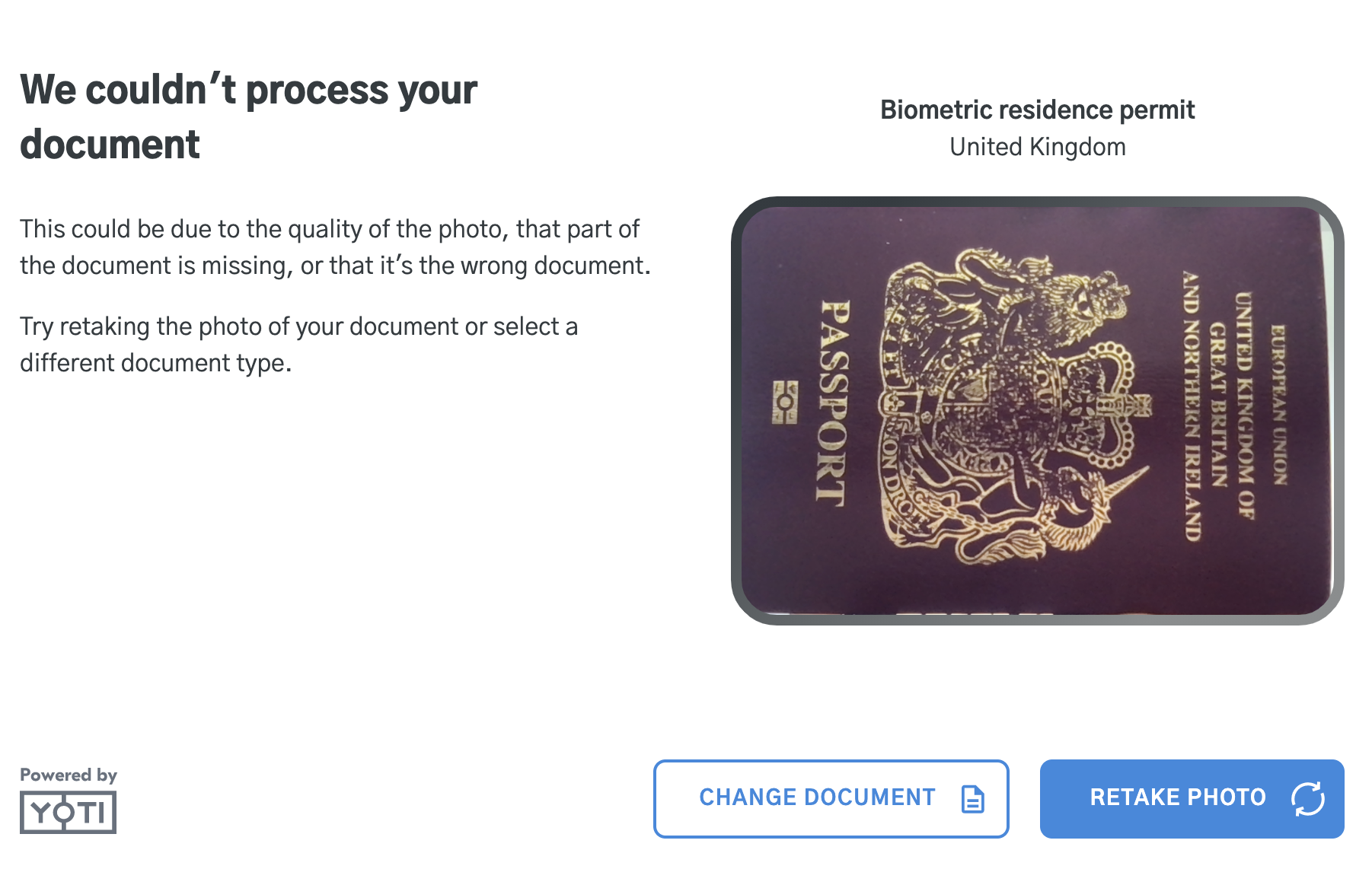
The user flow is as follows:
The user will select document type and country.
The user will upload / take a photo of the document.
If the document can be OCR’d it will go through.
If it cannot due to user error, they will be asked to retry or change their document type.
If the user has reached their maximum attempts the session will end there.
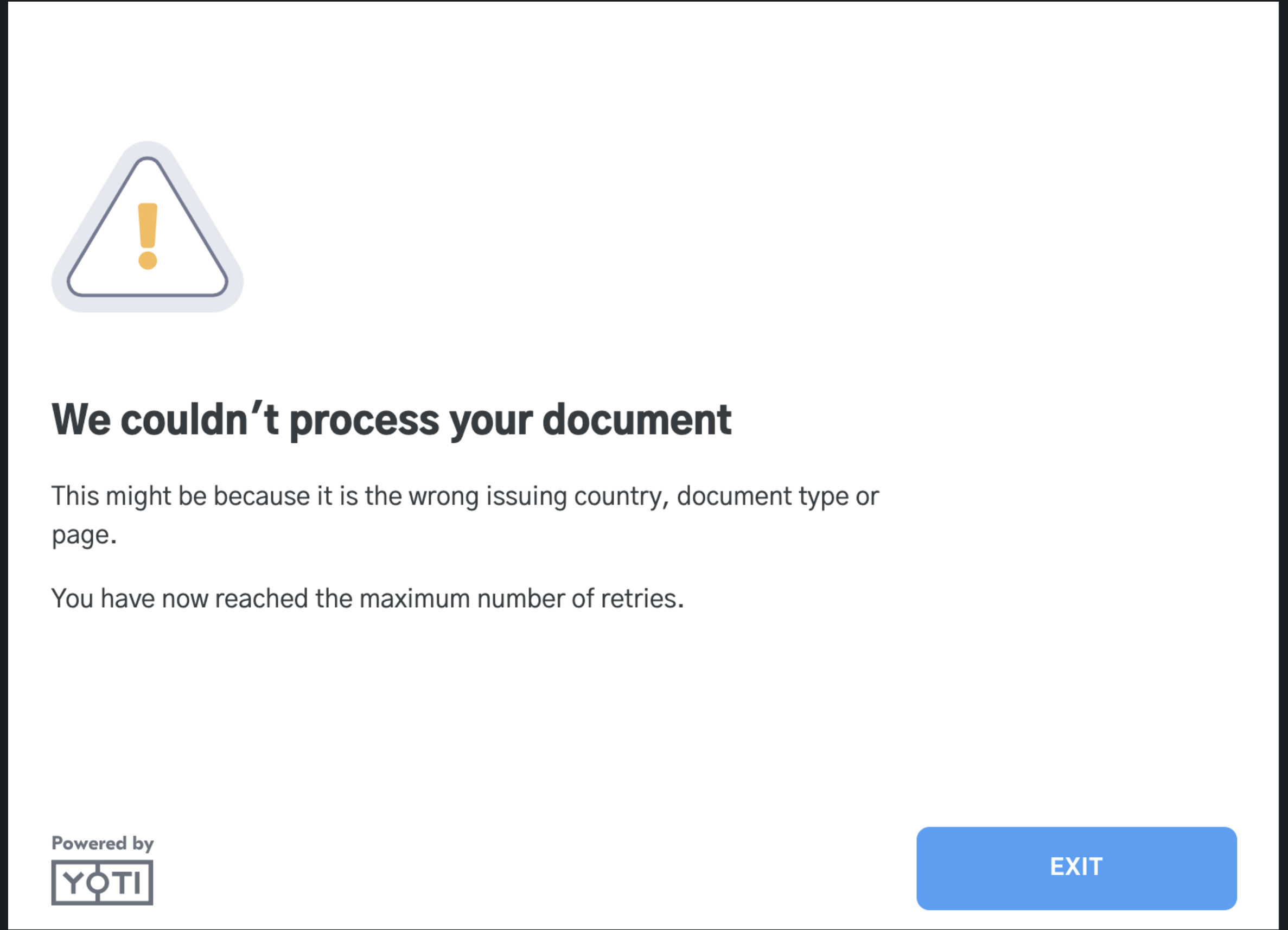
Reclassification
If the wrong document is uploaded Yoti will attempt to reclassify the document. That means, that if the submitted document type or / and country would be different from the ones user selected Yoti will save it under the detected one if the data is extracted successfully.
Translation
Yoti Identity verification has configuration settings to change the language of the information displayed to the client.
Supported languages are:
American English 🇺🇸
Arabic (العربية) 🇦🇪
Bosnian (bosanski) 🇧🇦
Brazilian Portuguese (português brasileiro) 🇧🇷
Canadian English 🇨🇦
Simplified Chinese (Mainland China) (简体中文) 🇨🇳
Simplified Chinese (Singapore) (简体中文) 🇸🇬
Czech (čeština) 🇨🇿
Danish (Dansk) 🇩🇰
Dutch (Nederlands) 🇳🇱
English 🇬🇧
Finnish (Suomi) 🇫🇮
French (Français) 🇫🇷
German (Deutsch) 🇩🇪
Greek (Ελληνικά) 🇬🇷
Hindi (हिन्दी) 🇮🇳
Hungarian (Magyar) 🇭🇺
Indonesian (Bahasa Indonesia) 🇮🇩
Italian (Italiano) 🇮🇹
Japanese (日本語) 🇯🇵
Latin American Spanish (Español latinoamericano) 🌎
Malay (Bahasa Melayu) 🇲🇾
Norwegian Bokmål (Norsk bokmål) 🇳🇴
Polish (polski) 🇵🇱
Romanian (Română) 🇷🇴
Russian (русский) 🇷🇺
Serbian (Latin) 🇷🇸
Spanish (Español) 🇪🇸
Swedish (Svenska) 🇸🇪
Tamil (தமிழ்) 🇱🇰
Thai (ภาษาไทย) 🇹🇭
Turkish (Türkçe) 🇹🇷
Vietnamese (Tiếng Việt) 🇻🇳
For information on how to do this please go to Client preferences.
Hint See this page for information on integrating our native SDKs.
Error codes
Error Codes | Platform - Mobile or Web | Description | Retry Possible |
|---|---|---|---|
1000 | Mobile | No error occurred – the end-user cancelled the session for an unknown reason. | Yes |
2000 | Mobile/Web | Unauthorised request (wrong or expired session token). | Yes, a new session is required. |
2001 | Mobile/Web | Session not found. | Yes, a new session is required. |
2002 | Mobile/Web | Session expired. | Yes, a new session is required. |
2003 | Mobile/Web | SDK launched without session Token. | Yes, a new session is required. |
2004 | Mobile/Web | SDK launched without session ID. | Yes, a new session is required. |
3000 | Mobile/Web | Yoti's services are down or unable to process the request. | Yes |
3001 | Mobile | An error occurred during a network request. | Yes |
3002 | Mobile/Web | User has no network. | Yes |
4000 | Mobile/Web | The user did not grant permissions to the camera. | Yes, the end-user will be asked again to grant permissions to the camera. |
4001 | Web | The user has submitted a document that does not match the selection, or the user has exceed attempts to submit an in date document. | Yes, a new session is required. |
5000 | Mobile/Web | No camera. (When user's camera was not found and file upload is not allowed) | No |
5001 | Web | Unsupported browser/platform by the liveness flow. | No |
5002 | Mobile/Web | No more local tries for the liveness flow. | Yes |
5003 | Mobile | SDK is out-of-date - please update the SDK to the latest version - (see GitHub pages). | No |
5004 | Mobile/Web | Unexpected internal error. | No |
5005 | Mobile | Unexpected document scanning error. | No |
5006 | Mobile/Web | Unexpected liveness error. | No |
5007 | Web | iOS browser in use other than Safari. Only Safari on iOS may access camera. | No |
5008 | Mobile/Web | Unsupported configuration. | No |
5009 | Mobile | There was not enough storage available to write to the device. | No |
5010 | Web | Camera access failed and no alternative capture method available. | No |
5011 | Web | The camera does not meet the minimum required resolution. | No |
6000 | Mobile | Document Capture dependency not found error. | No |
6001 | Mobile | Liveness dependency not found error. | No |
6002 | Mobile | Supplementary Document capture dependency not found error. | No |
6003 | Mobile | Face capture dependency could not be found. Only applicable to Native SDK. | Yes, with dependency installed |
7000 | Web | The user did not have the required documents. | No |
7001 | Web | The user tried to update an address with invalid values more than 3 times. | Yes |
7002 | Web | The user has failed liveness in a identity profile session. | No |