
Yoti provides you with a simple dashboard management tool called Yoti Hub to get you up and running with our products. The Yoti hub allows you to generate your API keys, add your billing information and more.
Once your organisation has been created, our onboarding team will aim to review your application within 2-3 business hours. We will send you an onboarding email once you are verified.
To start integrating our products you will need to:
Set up an account on the Hub and get verified.
Generate API keys.
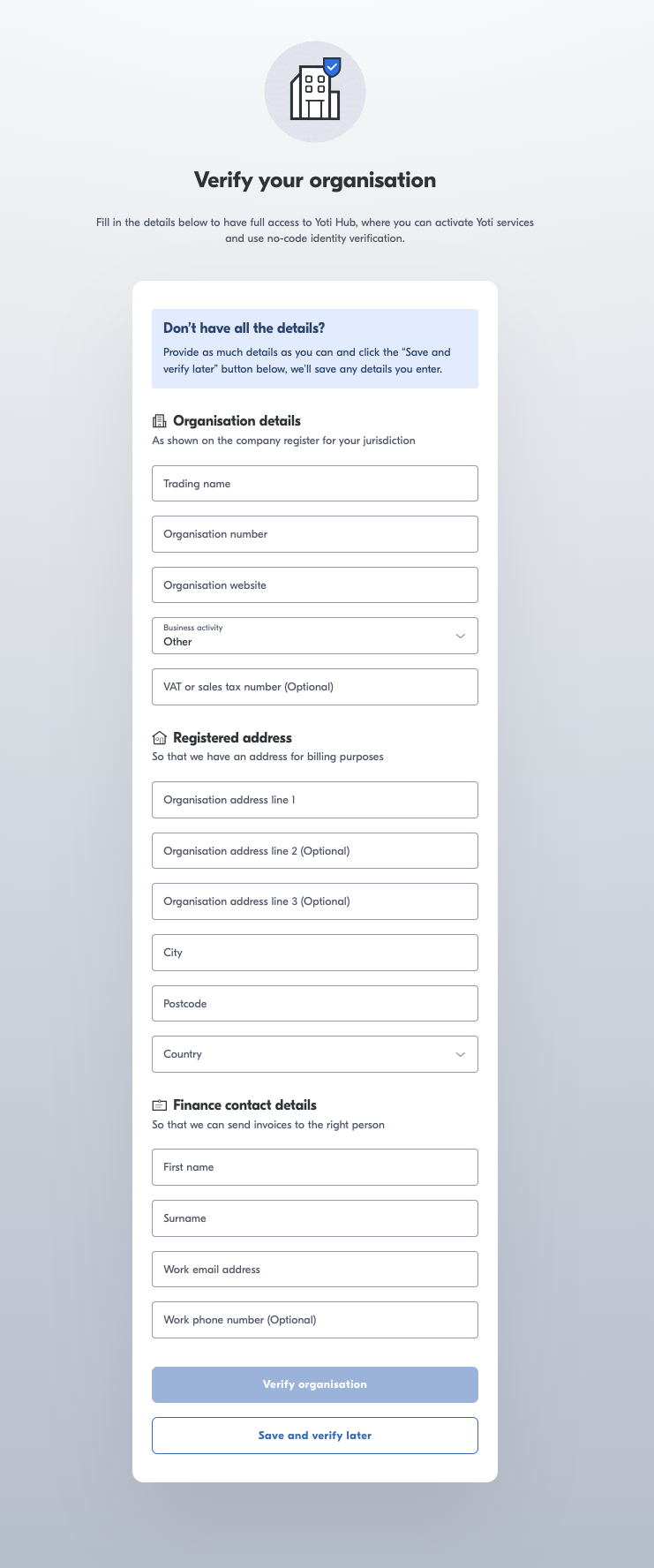
This section walks you through how to complete this. You will need to know information about your organisation, key contact details and billing details.
If you don't have this to hand, don't worry you can return anytime to continue with your application.
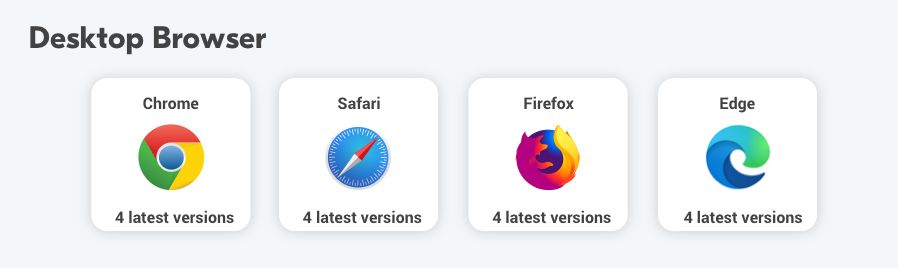
Supported browsers
Hint Yoti Hub is only supported on web.
Verify your organisation
Get access to Yoti Hub here
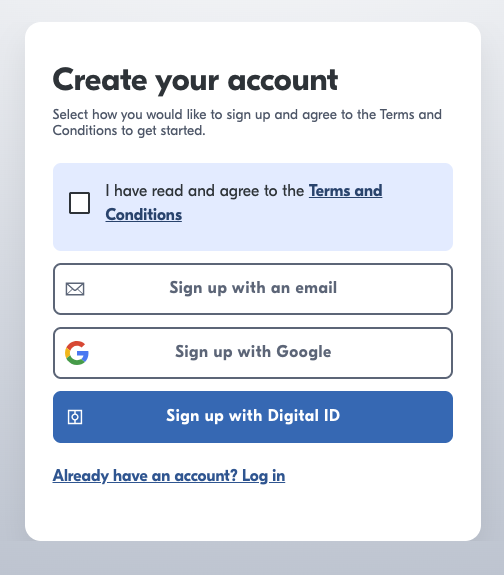
You will be directed to a screen, where you can register an organisation or log in to an existing one:
Registering a new organisation will first require you to create an account on the Yoti Hub. You can use the Yoti digital ID app to create an account; sign up using Google or use an email, password and a multi-factor authentication app.
Once your Hub account is created there is a short form to fill out. Please see the image below of the form:
Congratulations, your account is set up and you should see the screen below! At this point, you will also receive an email from Yoti welcoming you on board.
If we have any questions about your application we will email you. You will receive an email if all is approved.
As the applicant, you will instantly gain full access to your organisation's Yoti Hub account. You can go ahead and create a service from this point.
We appreciate that your organisation details may not remain the same as when you first registered. If you need to change any information, please contact us at organisations@yoti.com so we can update it. This ensures that we can verify any changes and keep information aligned.
Now you just have to create your service to generate API keys and you're integration ready. If you are using our portals, you will still need to create services.
Generate Key Pair
To create your service, you will need to ensure you are logged into the hub and inside your organisation.
You will need to create a service in the hub to obtain your API keys. You can do this in two ways either:
Head to the left hand nav bar and select Services > Create a service.
Or select the blue button labelled CREATE.

Then pick which product or service you are integrating - in this case we recommend you use Digital ID > Integration.
Note: Proof of Age API doesn't have a dedicated service in Yoti Hub yet. But this will not affect the integration process.
If required, you can create multiple services within your organisation, each service refers to a domain and has its own user base.
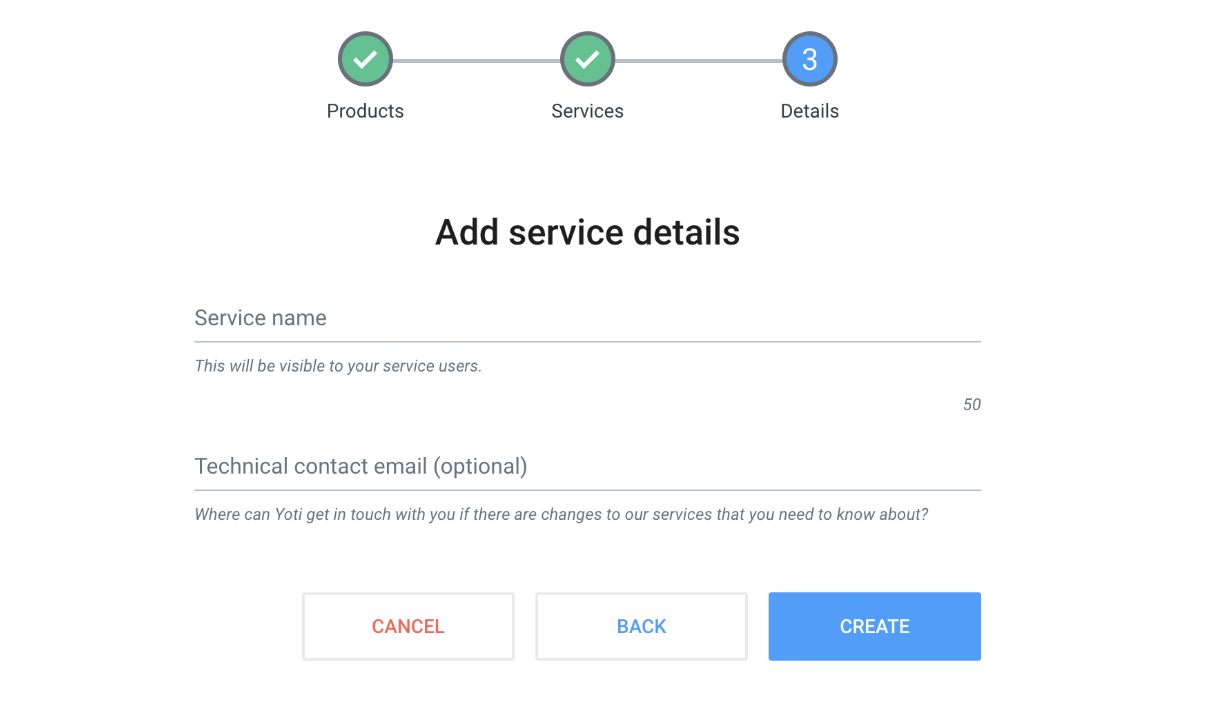
Once you have selected a service you can create the service by filling in the following details:
The next stage is to collect various IDs for your service.
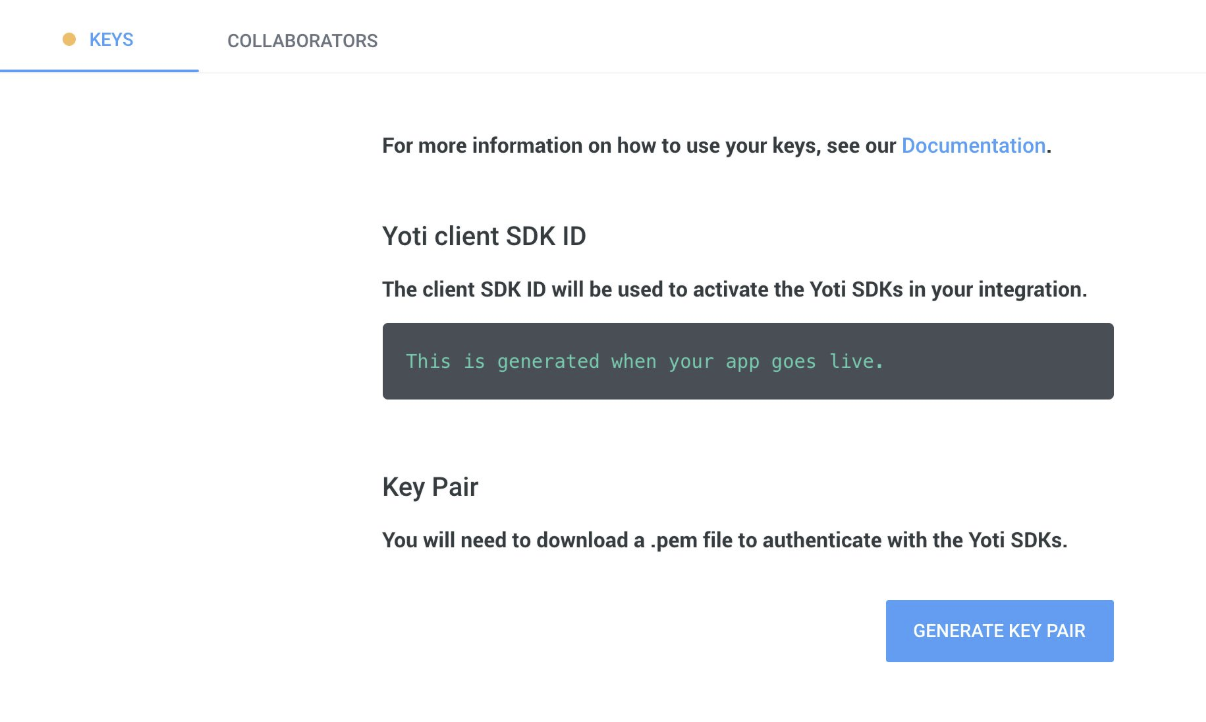
Key | Description |
|---|---|
Yoti Client SDK ID | You will need this on your backend to initialise the API and it is passed in each call to our servers. |
Pem File | You need to download a PEM file containing your private key in order for your app to connect with Yoti. • Click the Generate key pair button in the Keys tab to download. • Please keep this safe as this PEM file is essential to a Yoti integration. If you lose or corrupt your PEM file you will be able to generate a new one. Re-generating your key pair will break your current service by invalidating your current PEM file and generated keys. This means you will be unable to decrypt new tokens until these are replaced by the newly generated ones. |