
If you wish to request a document from the user this section will provide you context on what this check entails. Yoti will provide a report of the result from the document check.
The user will have the option to upload an image or capture a photo of their document. This is configurable in your session creation via our API / SDK or Portal settings. Yoti recommends you have both options available.
This section will describe:
What document checks are performed.
How to enhance your document check.
Outcome report with recovery suggestions.
Our hybrid approach uses both automatic and manual processes to check the security features of each unique ID document to make sure it’s genuine.
The below checks are related to document checks available at Yoti:
Name | Description | Resources | Manual check available |
|---|---|---|---|
Document authenticity | A request to assess the characteristics of a document, to determine the validity of the ID document. Yoti will perform multiple checks on a ID document. | 1x Document Resource | ✅ |
Text extraction | A request to obtain the data printed visually on a document, in structured form. | 1x Document Resource | ✅ |
Enhance your check
Add these features to enhance your check for a stronger verification.
Name | Description | Resources | Manual check available |
|---|---|---|---|
Filters | Restriction of document types / countries. If you do not wish to accept all documents or countries you can configure your session to add / remove which countries and document types are displayed to the user on the user view. | N/A | N/A |
Supporting documents | Yoti offers the ability to request additional documents to enhance the verification of the user. Supporting documents:
| 1x Document Resource | ✅ |
Document comparison | If you request your users to upload more than one document we offer the ability to cross check the data | 2x Document Resource | ❌ |
NFC | Enable Near Field Communication (NFC) for native integrations. | 1x Document Resource | ❌ |
Translations | Change the language of the information displayed to the end user. | N/A | N/A |
User flow
The user will be presented with a drop down of countries and types of ID to pick from. If you like you can preset which country is shown first, you can also remove countries and document types you do not want to support.
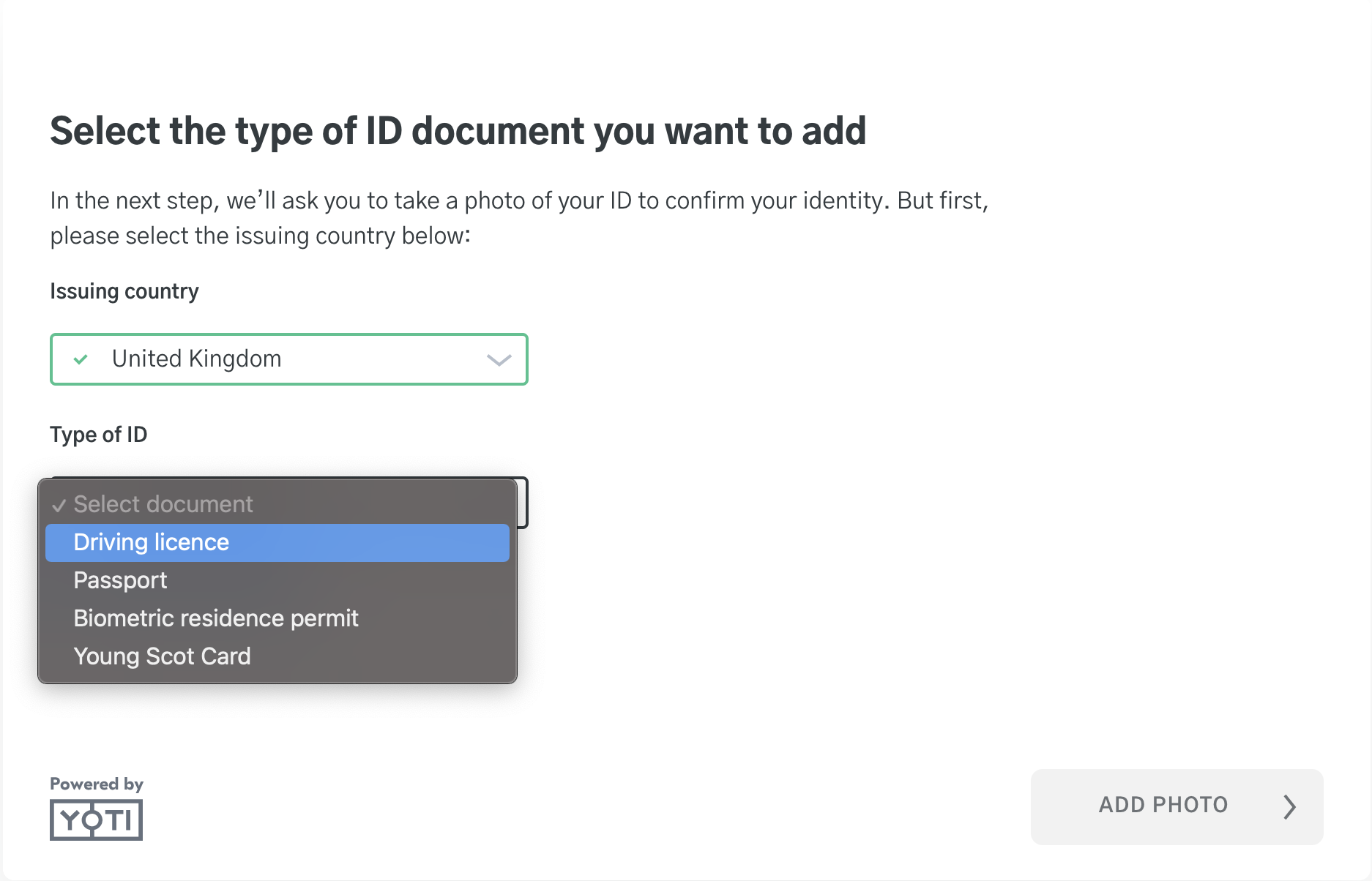
The user will take a photo of their ID or upload their ID. Yoti will predominately highlight taking a live capture over upload. You can remove the option to upload if you wish.
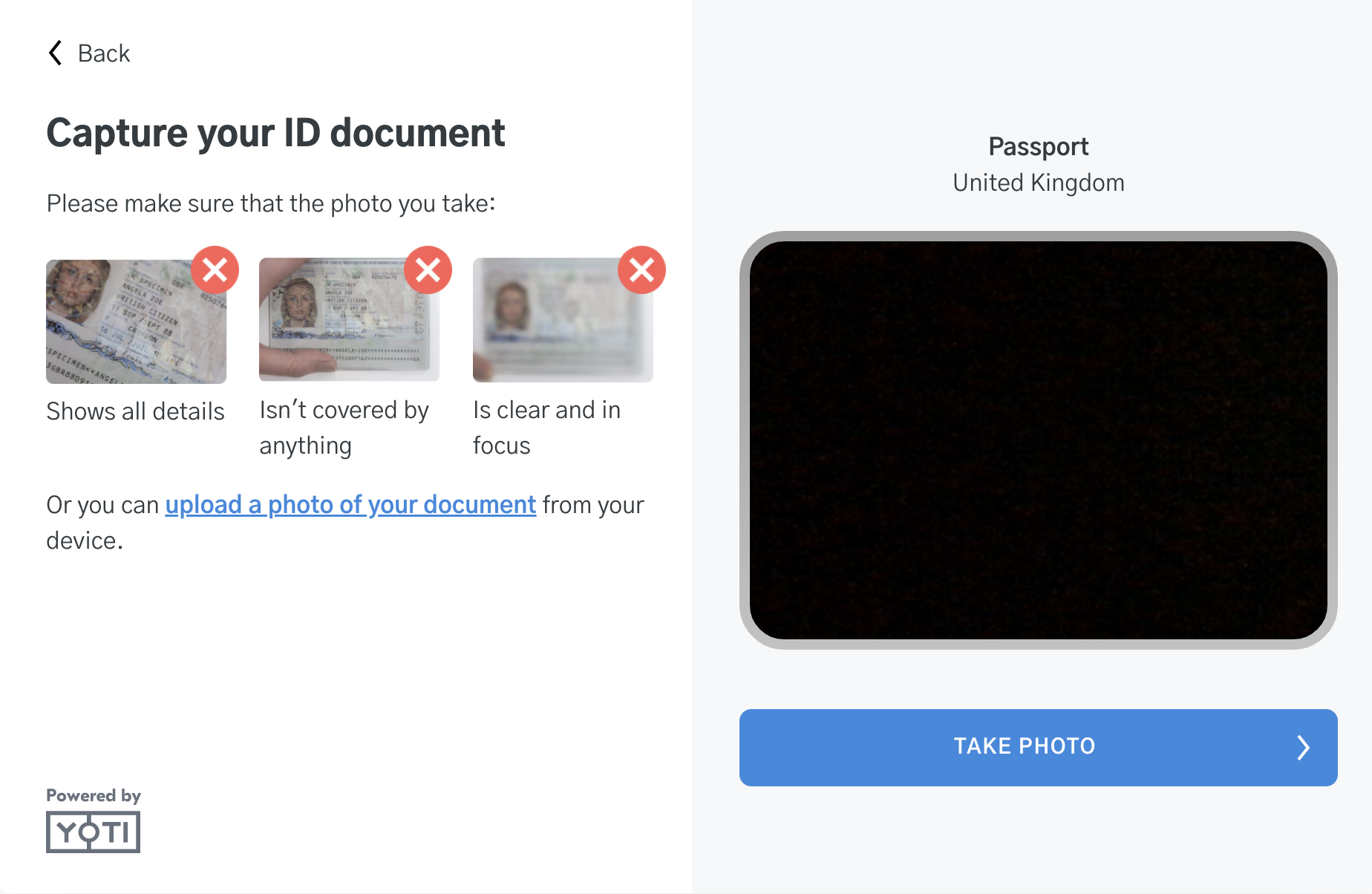
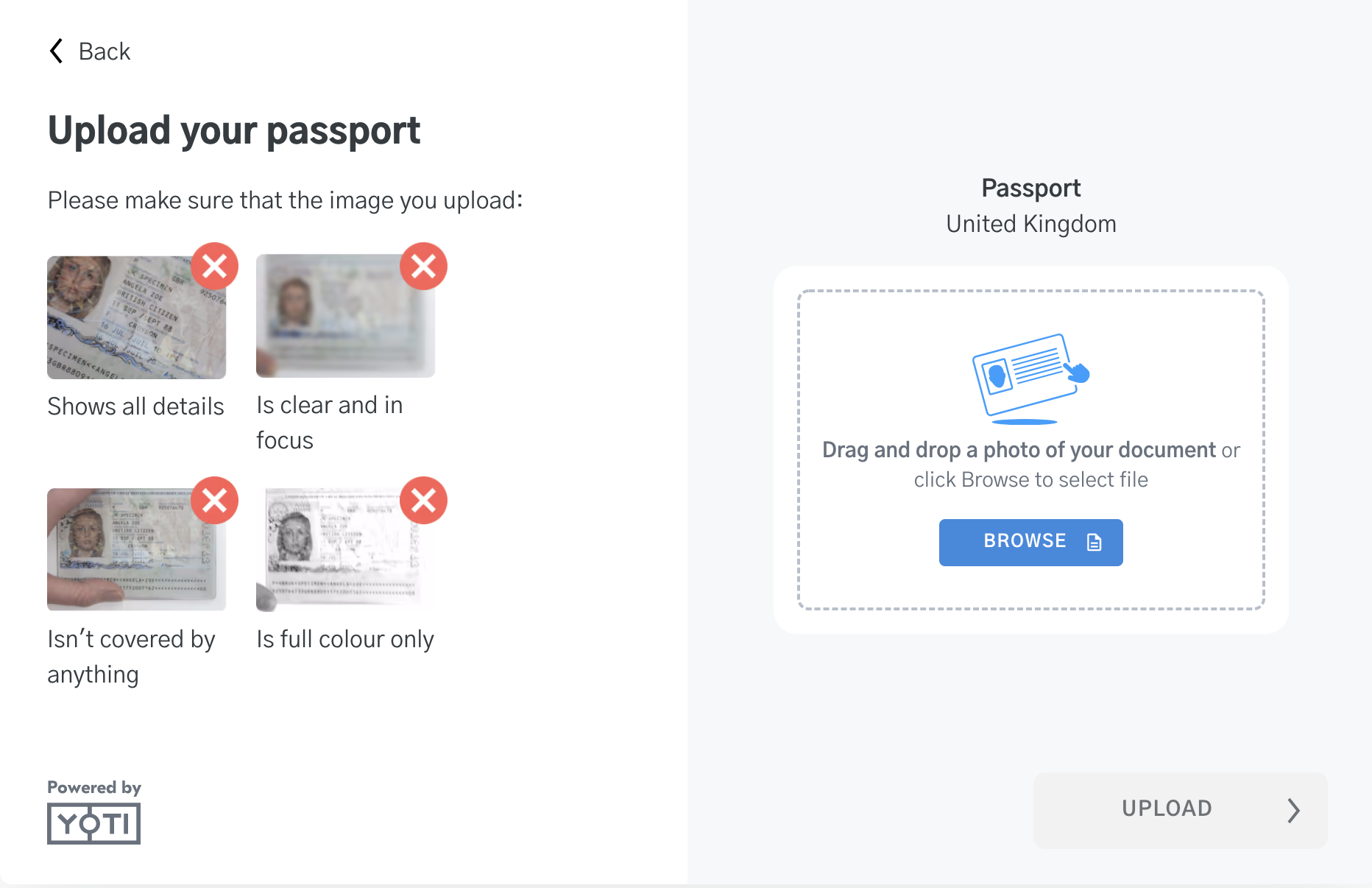
Note: Some documents may ask for the front and the back of the document. If the document has been uploaded incorrectly we will trigger in session feedback to prompt the user to try and upload again.
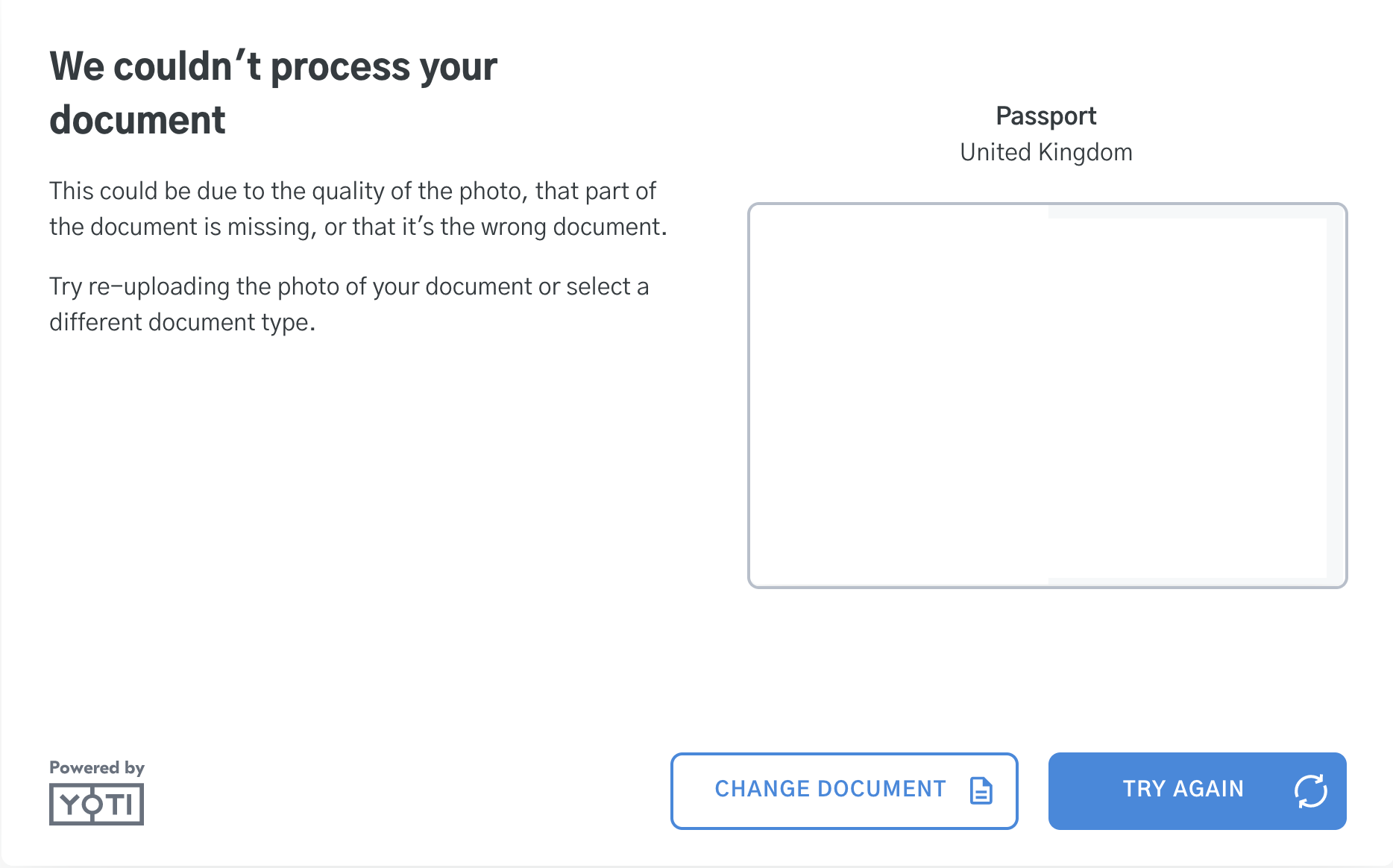
The user will need to either Change the document or try again.
The user will be presented with a complete screen.
At this point you can redirect the user to a success URL / Error URL.