
In the previous section, we demonstrated how to create a session that returns a Session ID.
Construct a service URL
This Session ID is then used to build a service URL that launches the Yoti web client. The generated URL can be used in several ways:
On-demand session creation via a button click
Embedded within an iFrame on your webpage
Integrated using a WebView in your mobile app
Displayed as an encoded QR code
Hint: This is only intended for sessions where the user interface needs to be launched.
URL Parameter | Description |
|---|---|
sessionId | The ID returned in the response when you create a Yoti AVS session. |
sdkId | The SDK ID for your application, obtained from the Yoti Hub. |
locale | (Optional) Override the browser locale to render the user interface in a specified language. Details can be found in the next section. |
Override the browser locale
By default, the language presented in the user view is automatically configured by detecting the browser's locale. However, it is possible to override the language by specifying the locale query parameter in the service URL. If the locale is not explicitly set, the default browser language will be utilised.
If an invalid/unsupported locale is specified, it will be silently rejected. The user view will fall back to using the browser languages. If a valid locale is specified but the language is unsupported by the method, the first supported locale based on the browser settings will be used. A list of supported locales can be found here.
Switching locale mid-flow is supported provided the session is fully re-rendered with a session ID, SDK ID, and locale parameter. However, once an IDV session (using the Doc Scan method) is created, the user view is locked to the locale it was created with.
Locale should persist when navigating between session pages, even on refresh.
Open the service URL
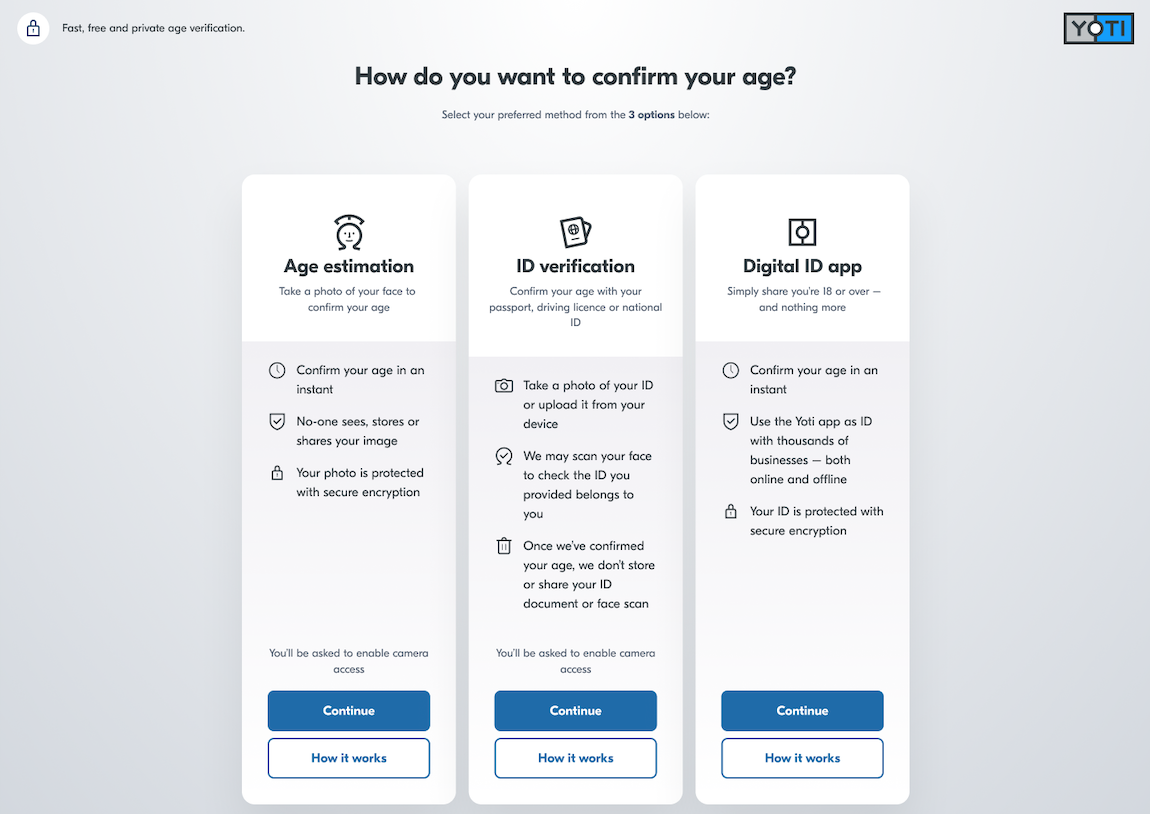
Once the Yoti web client is launched, it guides the user through the age verification flow. Upon successful completion of one of the age verification methods, the user will be seamlessly redirected to the designated callback URL.
On-demand session creation
You can easily render a button on your webpage that allows users to request on-demand age verification sessions.
To do this, you'll need to implement client-side JavaScript to manage the button click event. When a user clicks the button, it should initiate an API request to your backend server, which is responsible for creating a new age verification session.
In your backend server, you will need to prepare an endpoint (e.g., /api/create-yoti-session in the above example). When the frontend calls this endpoint, your backend should create a new session. Upon successful creation, your backend server should return the service URL. Your frontend UI can then redirect the user to it, providing a seamless experience for age verification.
Iframe implementation
The example below demonstrates the use of an iframe:
Please note: allow="camera" is required when the age estimation or document scan methods are used.
While it is possible to use this solution in an iFrame, using a new browser window will guarantee an optimal user experience.
WebView implementation
The examples below show how to use the session within a WebView for mobile apps:
Note: Enabling inline media playback is necessary to allow the phone’s camera to open within the WebView, rather than in full-screen mode.
Specific permissions must also be enabled to allow camera access and provide an optimal experience.
QR code display
A QR code provides an alternative method for launching the Yoti AVS session. You can encode the session URL as a QR code and display it on a screen for users to scan with their mobile devices, which opens the web client in their browser. This allows customers to complete age verification securely on their own devices.
Before displaying the QR code, you should implement authentication to ensure the user is logged in or otherwise uniquely identified. In addition, you can also use the reference_id field in the Session payload to associate the AVS session with your unique user ID. This helps you track the session and tie results back to the correct user.
Alternatively, you can proxy the Yoti AVS Session URL behind your own service, allowing you to attach an auth cookie or token. This approach reduces the risk of the Session URL being forwarded or reused by someone else.
Important: Remember to subscribe to webhook notifications and track session results to update the user journey on the main screen as appropriate.
Below are some example code snippets. You may also use other libraries to generate the QR code.