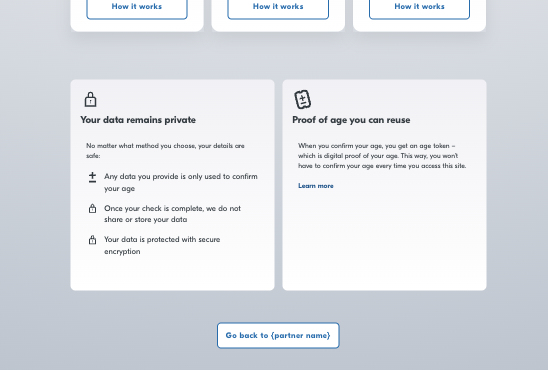
The user interface can be customised to make the UI appear closer to your branding. Theming allows your user to have a consistent experience navigating through your website and into the age verification flow.
Both Standard and advanced customisation options are available, and some customisations may incur additional charges. It is recommended to contact your Yoti account manager with your requirements first.
The following items can be customised:
Background colour
Body font colour
Button's background colour
Cancel URL button text
Logo
Menu layout
Each Yoti Hub application can be assigned only one theme. If you require different themes for different markets, you will need to create separate applications. We can then apply the appropriate variations by mapping the SDK IDs accordingly.
If you wish to customise your integration, please fill out the Customisation Request Form.
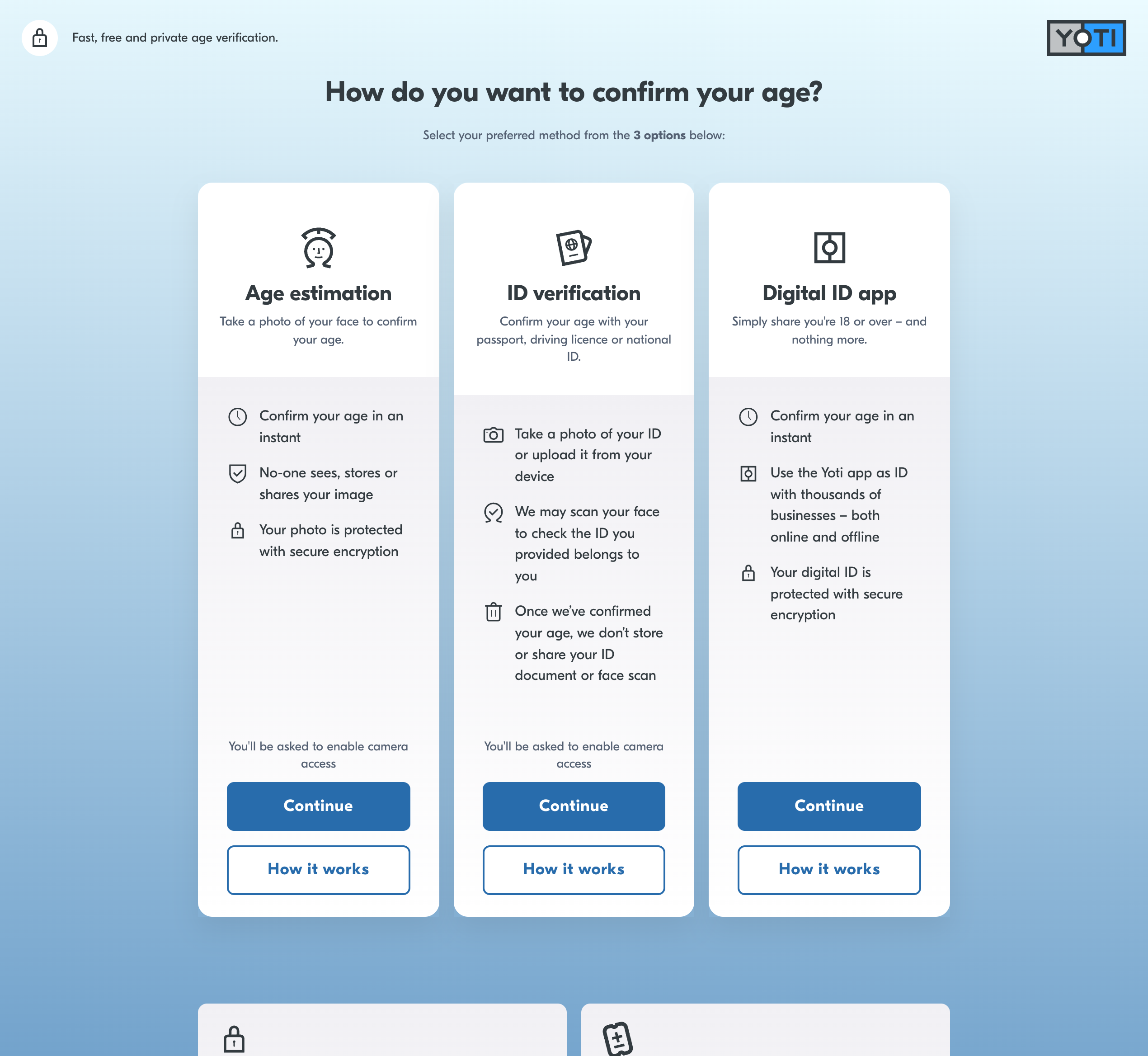
Background colour
Background colour is grey by default. It can be altered to:
Plain pattern (one-colour only)
Linear gradient pattern (two colours)
Radial gradient pattern (two colours)
This background colour will apply across all screens.
Body font colour
The font colour applies to all text outside the cards. It will also change the colour of the help icons displayed at the bottom of the page.
Buttons and Hyperlinks
There are three theming options for buttons and hyperlinks inside the cards
Options | Description |
|---|---|
Base Colour | Colour of the buttons and hyperlinks on the cards |
Hover Colour | Colour of the buttons and hyperlinks when being hovered. |
Click Colour | Colour of the buttons and hyperlinks when being clicked. |
Menu configuration
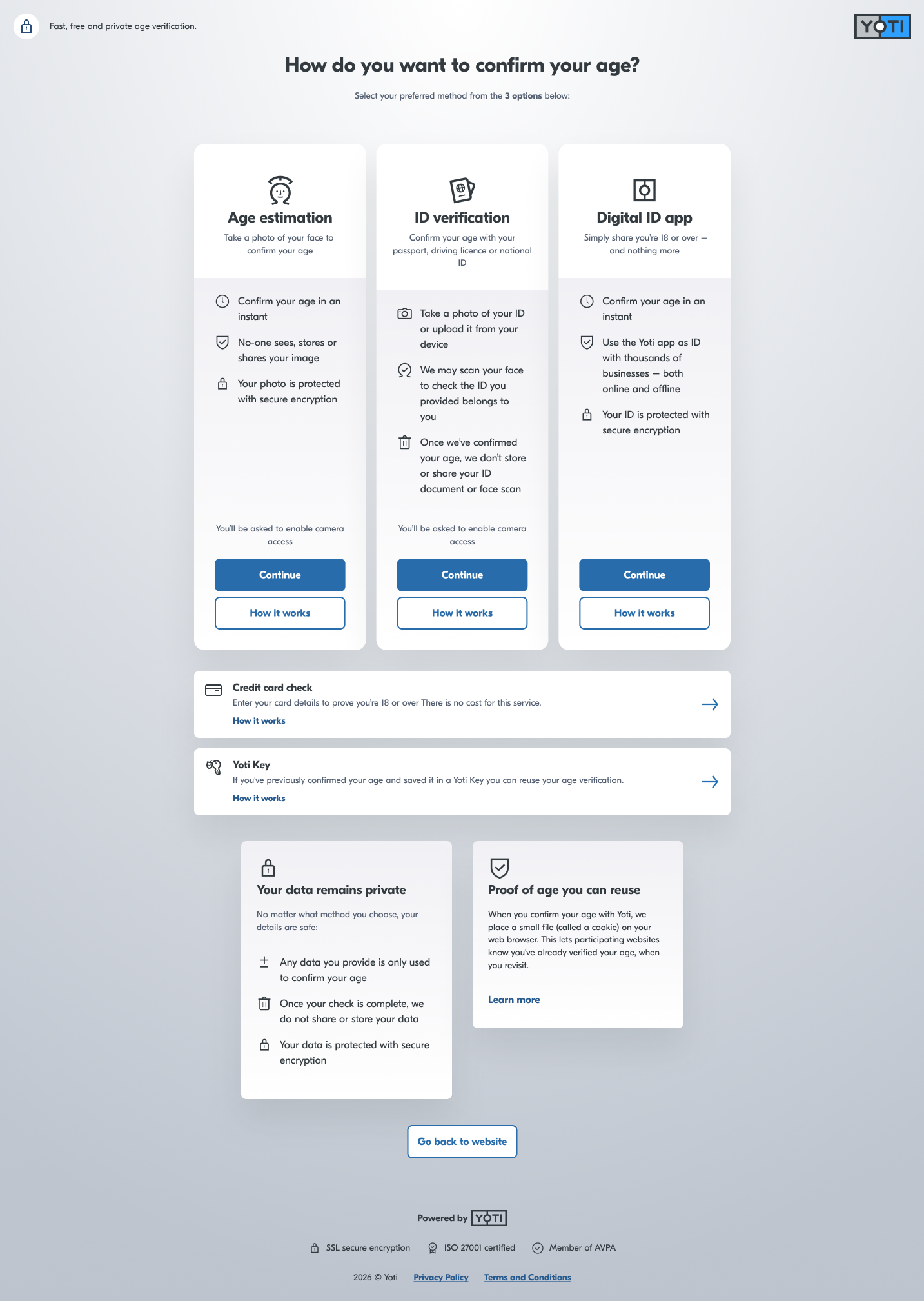
We offer the opportunity to edit the layout of the methods, either as cards, as a list or a hybrid of the two. If you opt for the hybrid layout, you can select which methods appear as the cards and which will populate as a list below them.
Another great feature is that you can choose the order in which to display the cards.
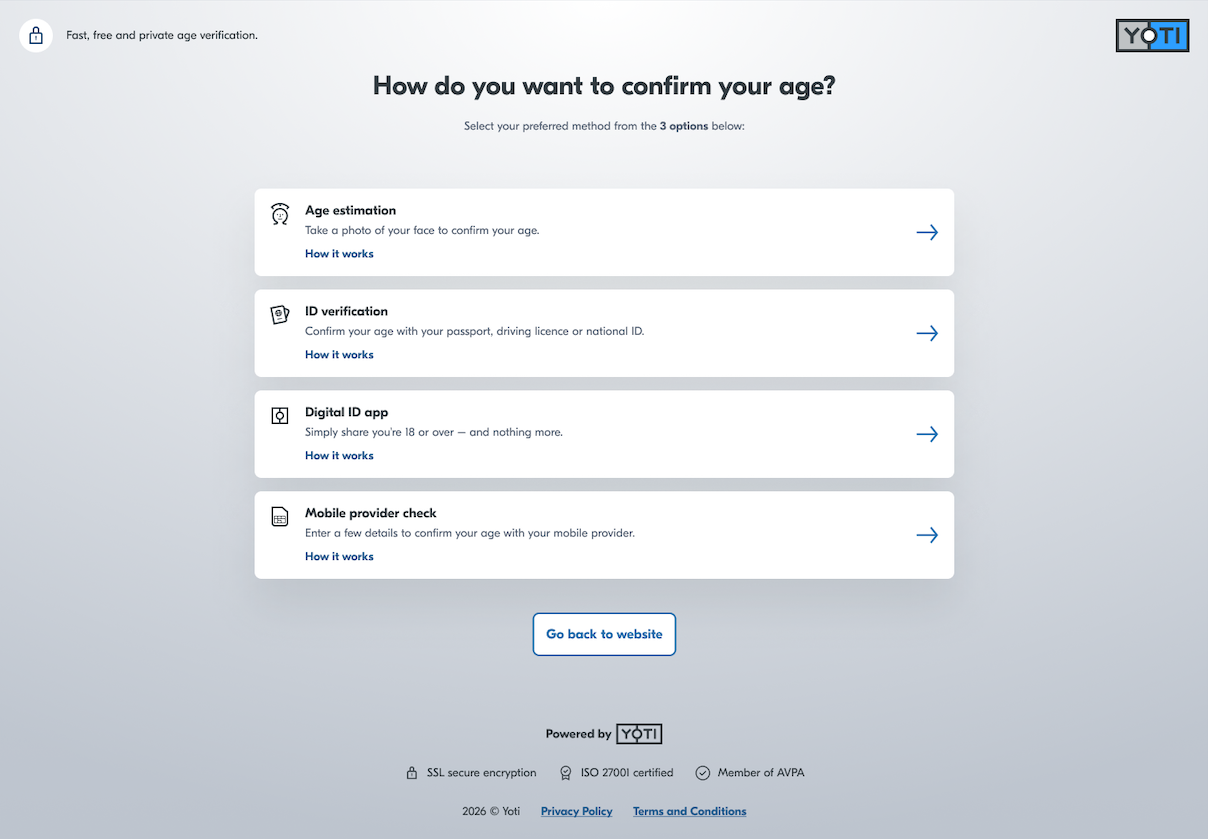
List Layout
Yoti recommends that if you have more than 3 cards, go for this option:
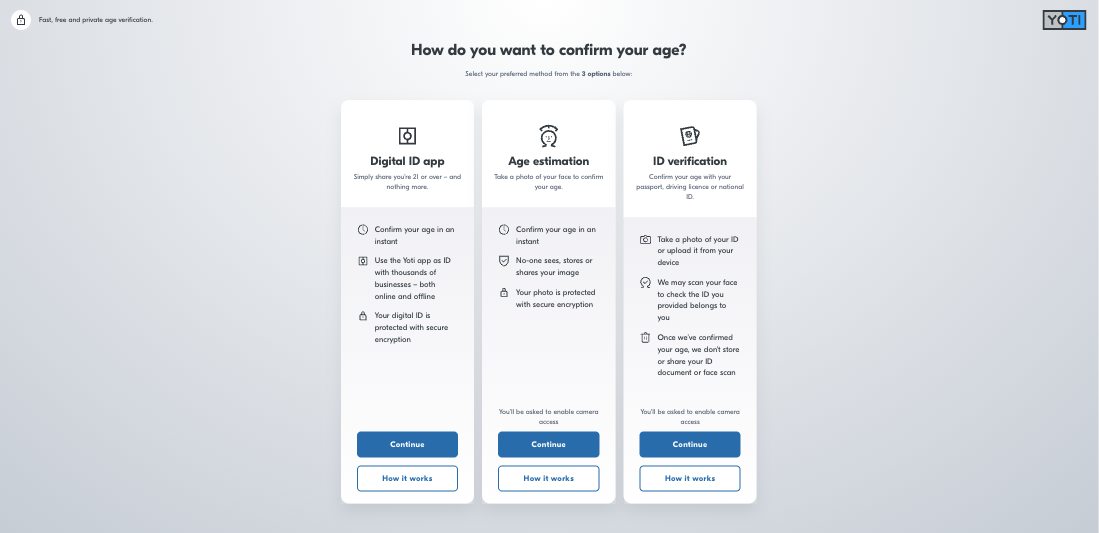
Card Layout
Yoti recommends you keep this view if you have 3 or fewer cards.
Hybrid Layout
A layout mixing cards and lists. Methods that the users are recommended to attempt should be displayed as cards.
Logo
Our default Yoti logo in the top right-hand side of the screen can be switched out with a logo of your own choice.
Please fill in the form above and ensure the logo is transparent and in a SVG or PNG format.
Cancel URL Button
You can specify a cancel URL; if the user opens AVS and decides that they don't want to continue, then they can be taken to a specific place rather than going back in the browser. This can have your business name added.