This integration is in BETA. Please help us improve by providing feedback.
Welcome to the documentation for integrating Yoti Age verification (AV) with WordPress.
Following are the integration steps:
Download the plugin
Install the plugin
Add your keys and configure the plugin options
Enable Age verification for relevant posts/pages
Download the plugin
Download the plugin installation file from this link.
Install the plugin
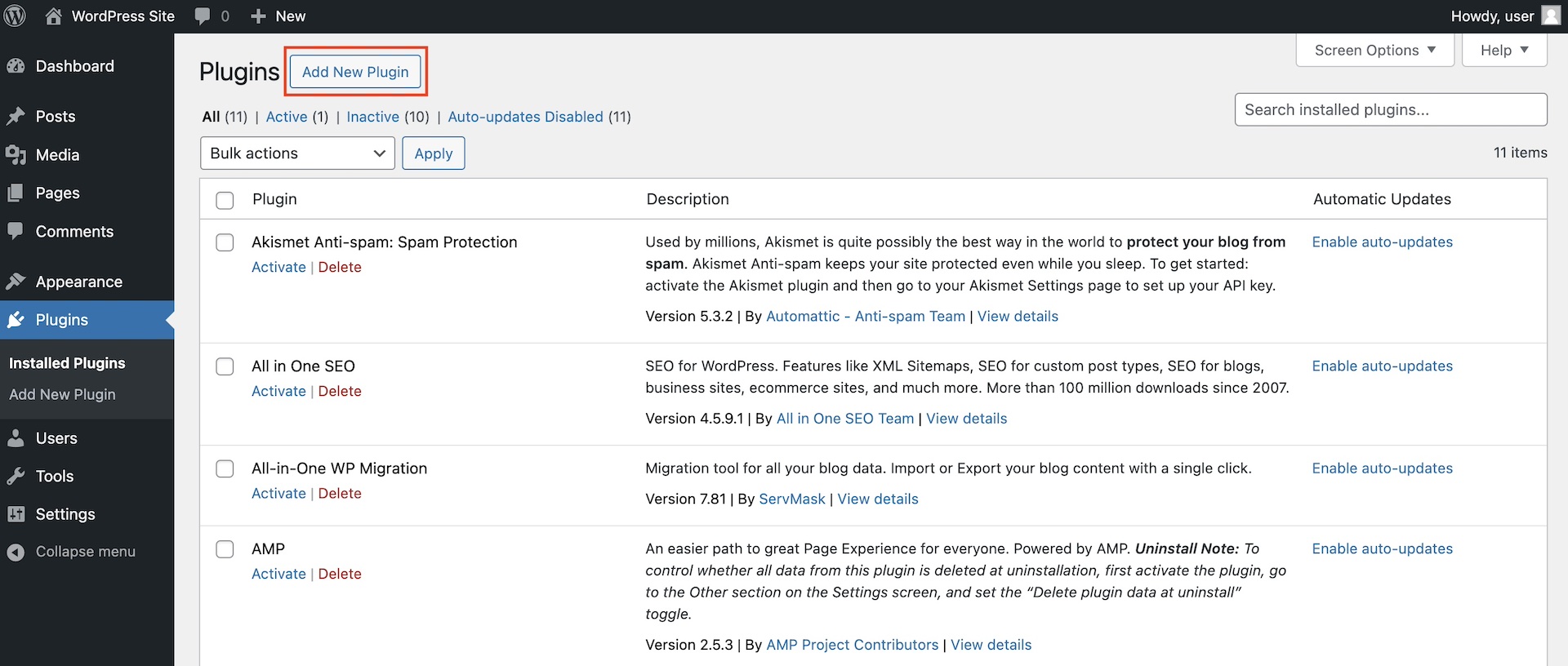
Head to your WordPress admin panel.
Open Plugins page from the left menu
Then, click the ‘Add New Plugin’ button
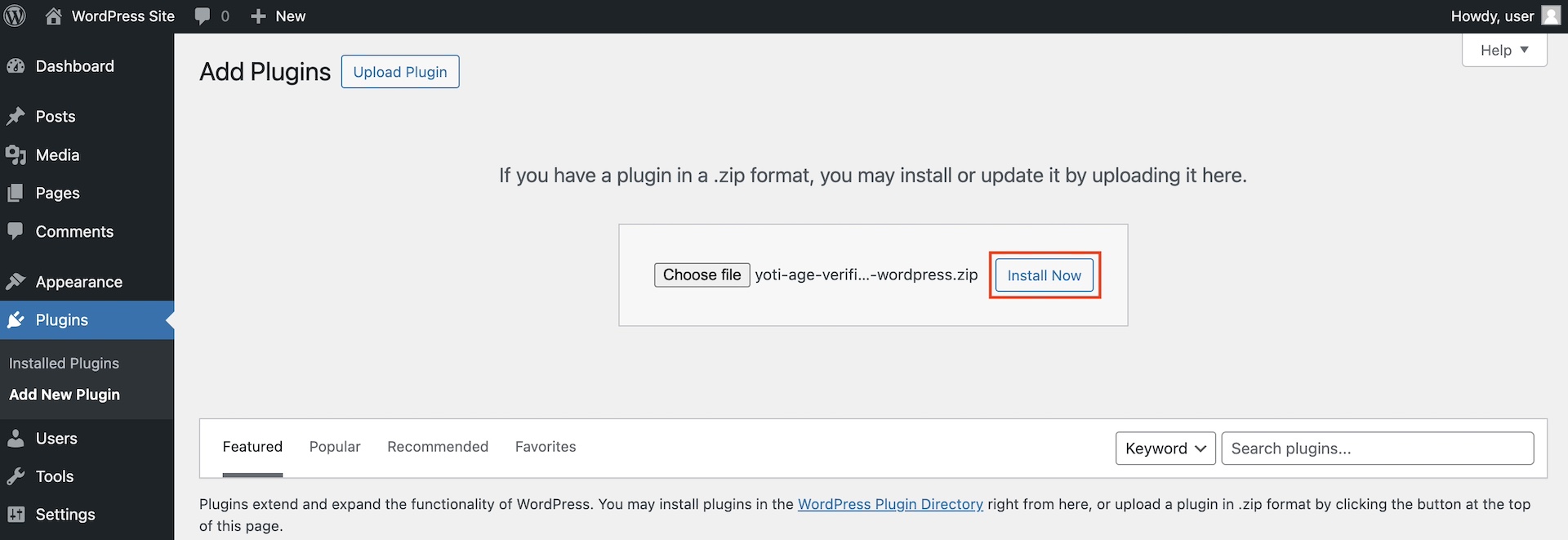
After, click the ‘Upload Plugin’ button
Click the ‘Choose file’ button and select the plugin zip file
Then click the ‘Install Now’ button
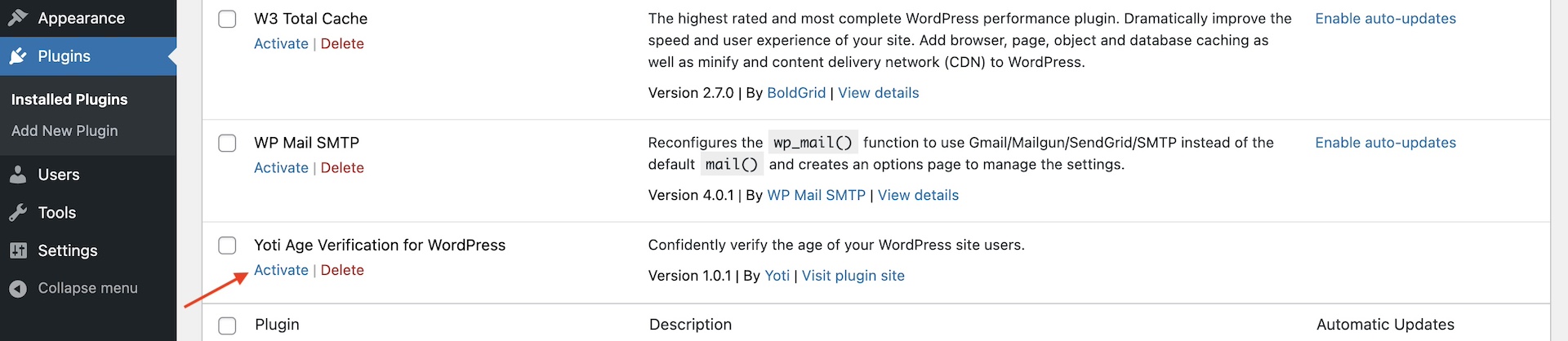
Finally, click on ‘Activate’ link below the installed plugin name
Add keys and configure the plugin
You will need to have completed Onboarding and generated API keys.
Open the plugin settings page by going to 'Settings -> Yoti Age Verification' from the left menu
Add the SDK ID and API Key
Set the default age threshold and enable verification methods
Configure the Notifications webhook

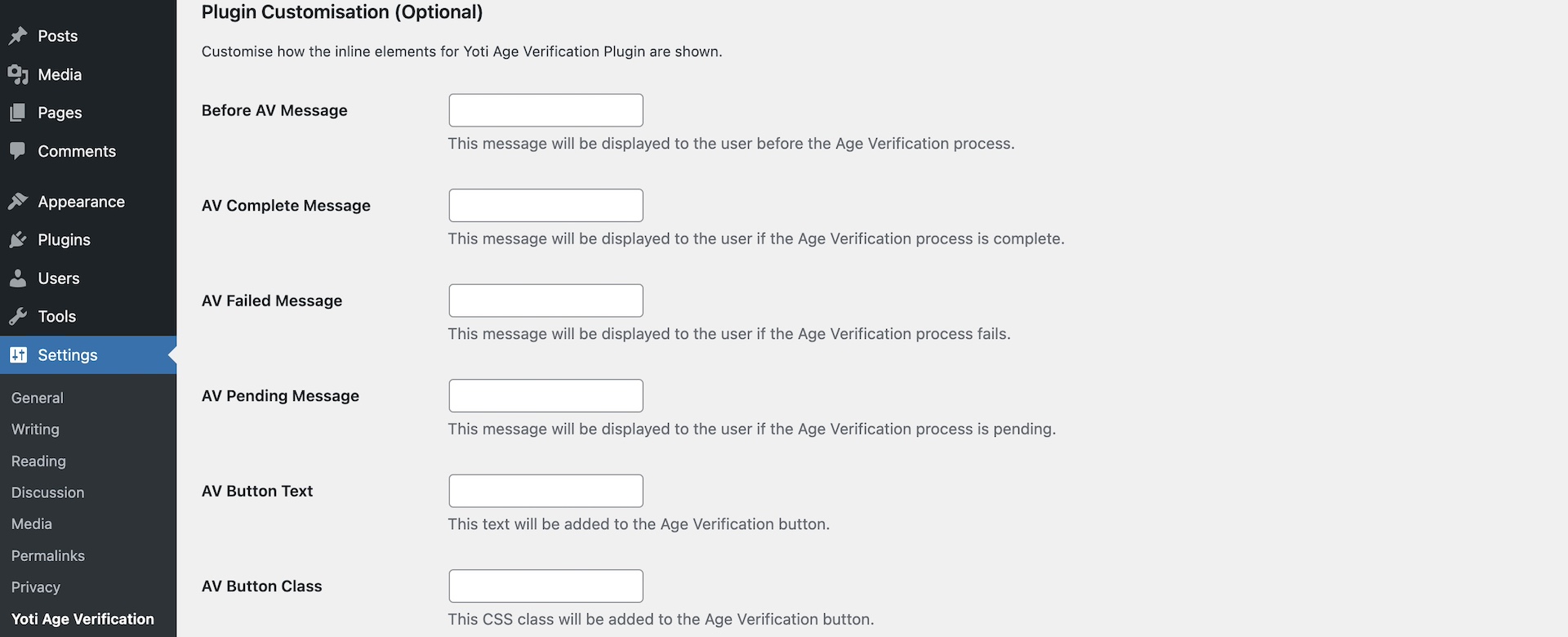
Optionally, customise the plugin inline elements
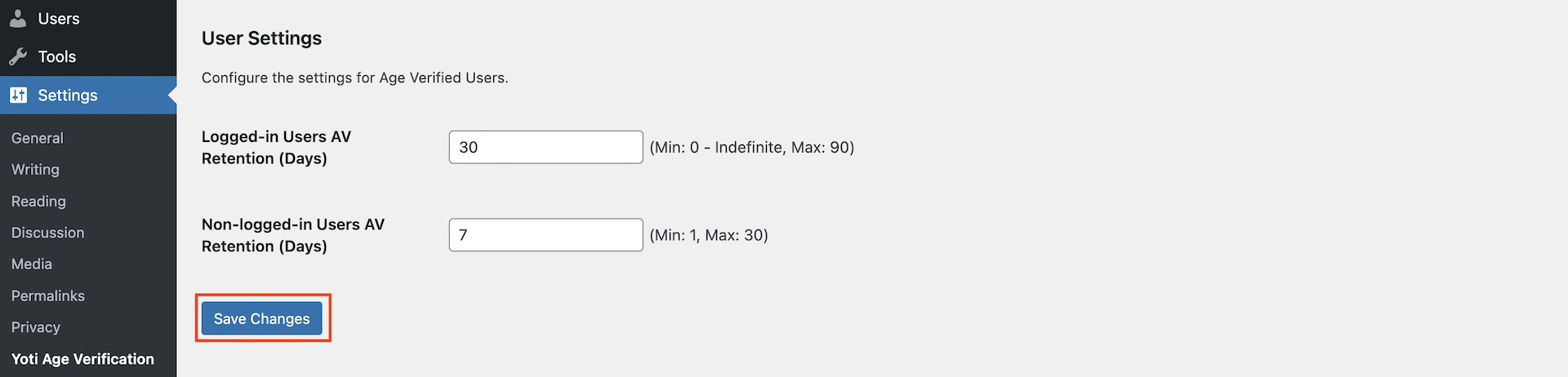
Set the AV retention period for logged-in and non logged-in users
Then, click the 'Save Changes' button
Congratulations - the setup is complete.
Enable age verification for content
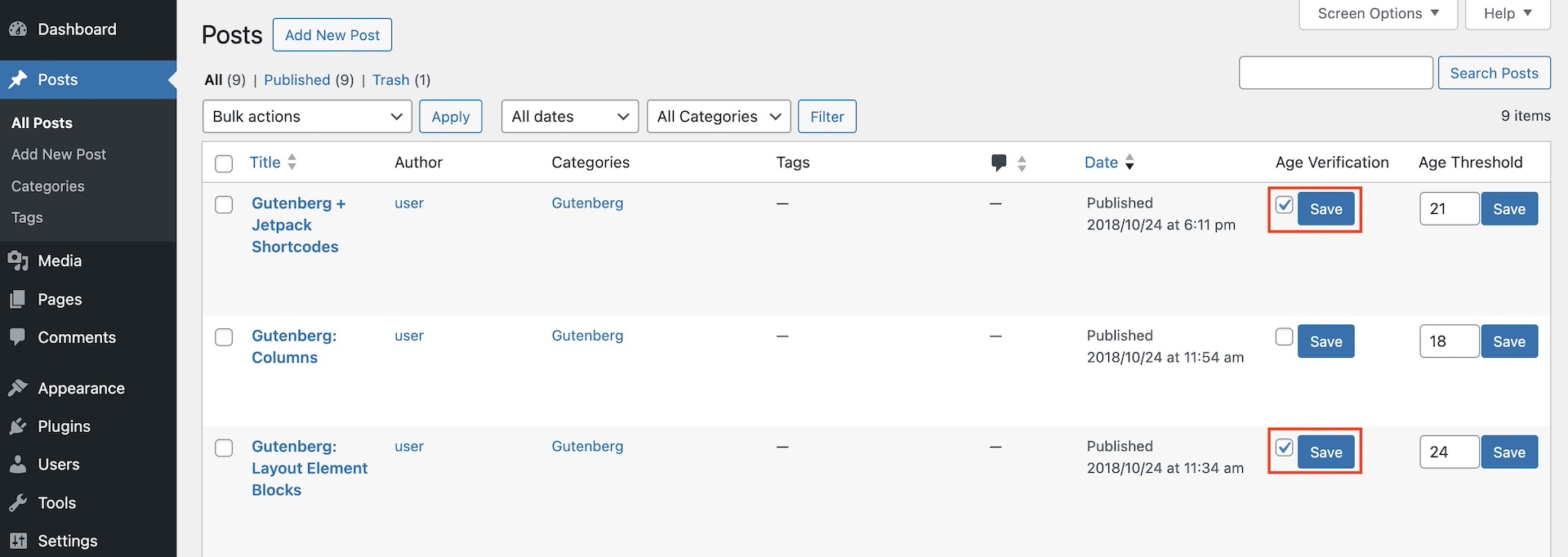
Now that the plugin is installed head to your posts or pages by going to 'Posts -> All Posts' or 'Pages -> All Pages'
For each relevant post/page, set the Age threshold and enable/disable Age verification. Make sure to click the individual 'Save' buttons after changing the configuration.
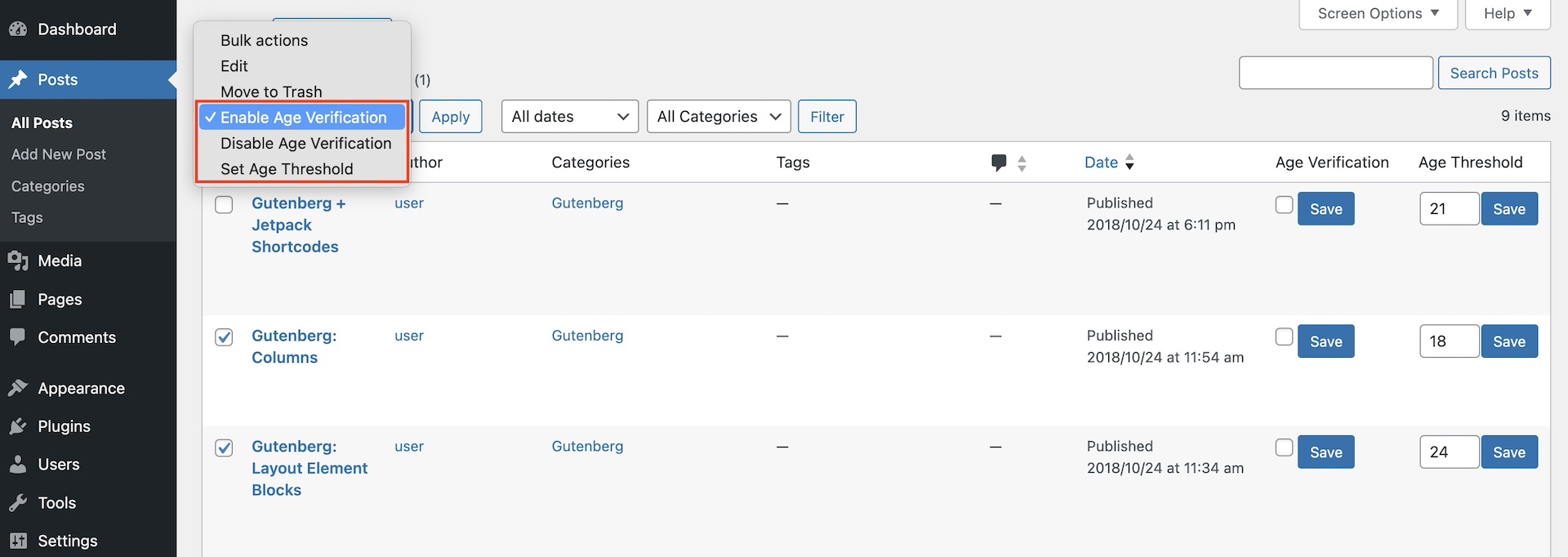
It's also possible to use 'Bulk actions' dropdown to set Age threshold and enable/disable Age verification for multiple posts/pages simultaneously. Click 'Apply' after selecting the relevant items and desired action.
End-user flow
The age verification flow will automatically be triggered for restricted content.
Whenever a user reaches an Age-restricted post or page, they will be asked to prove their age.
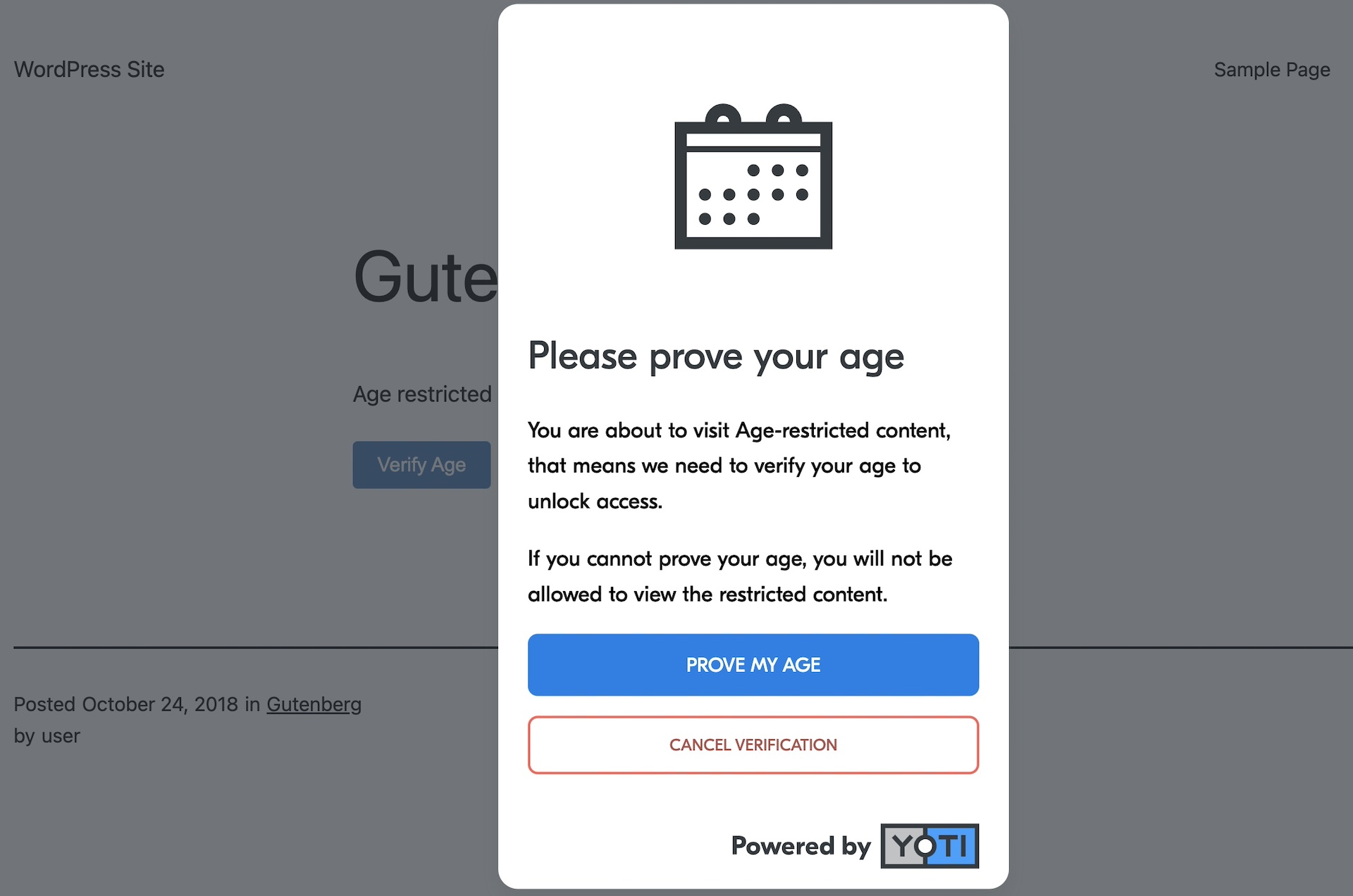
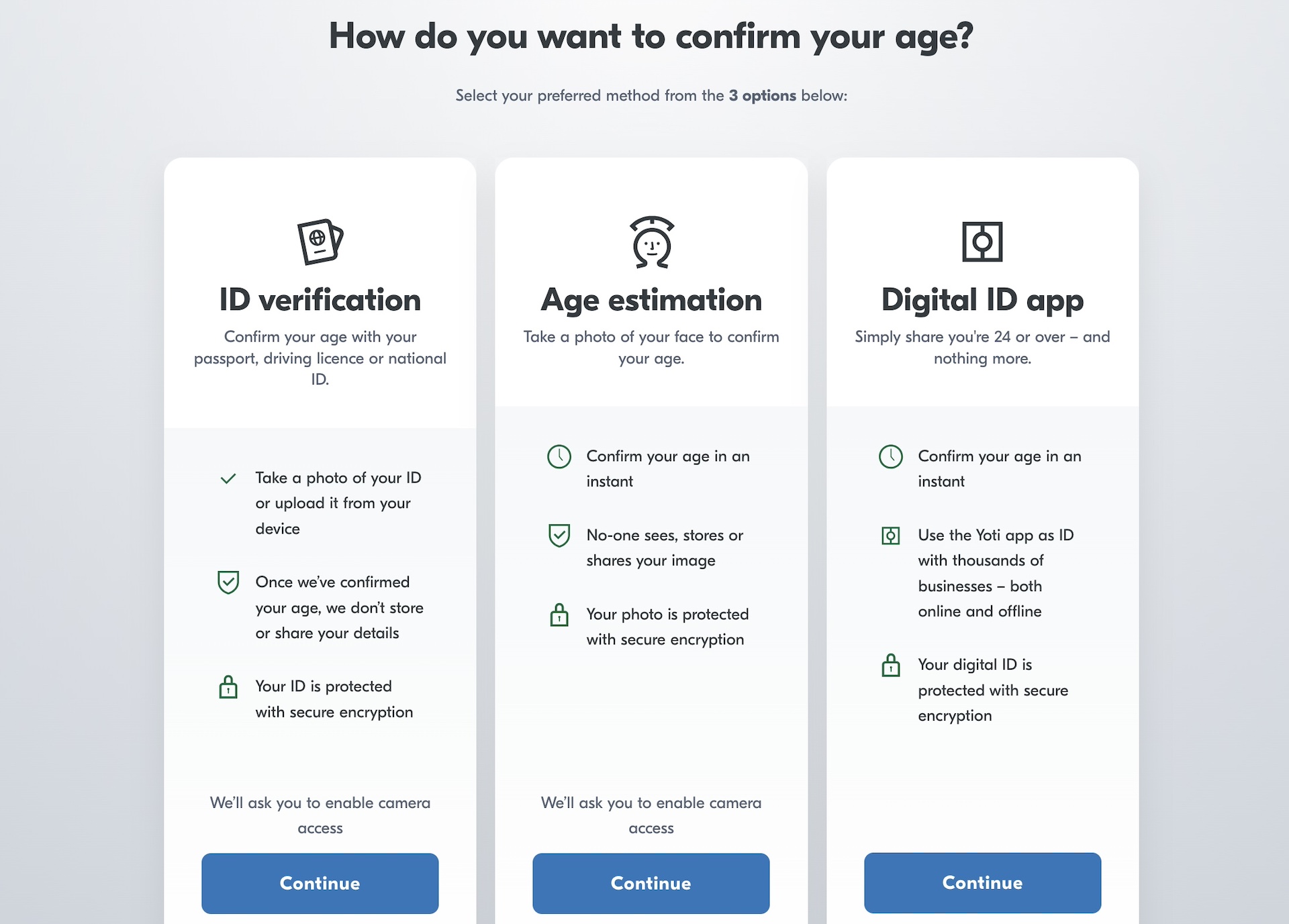
They will be able to confirm their age using any of the allowed methods.
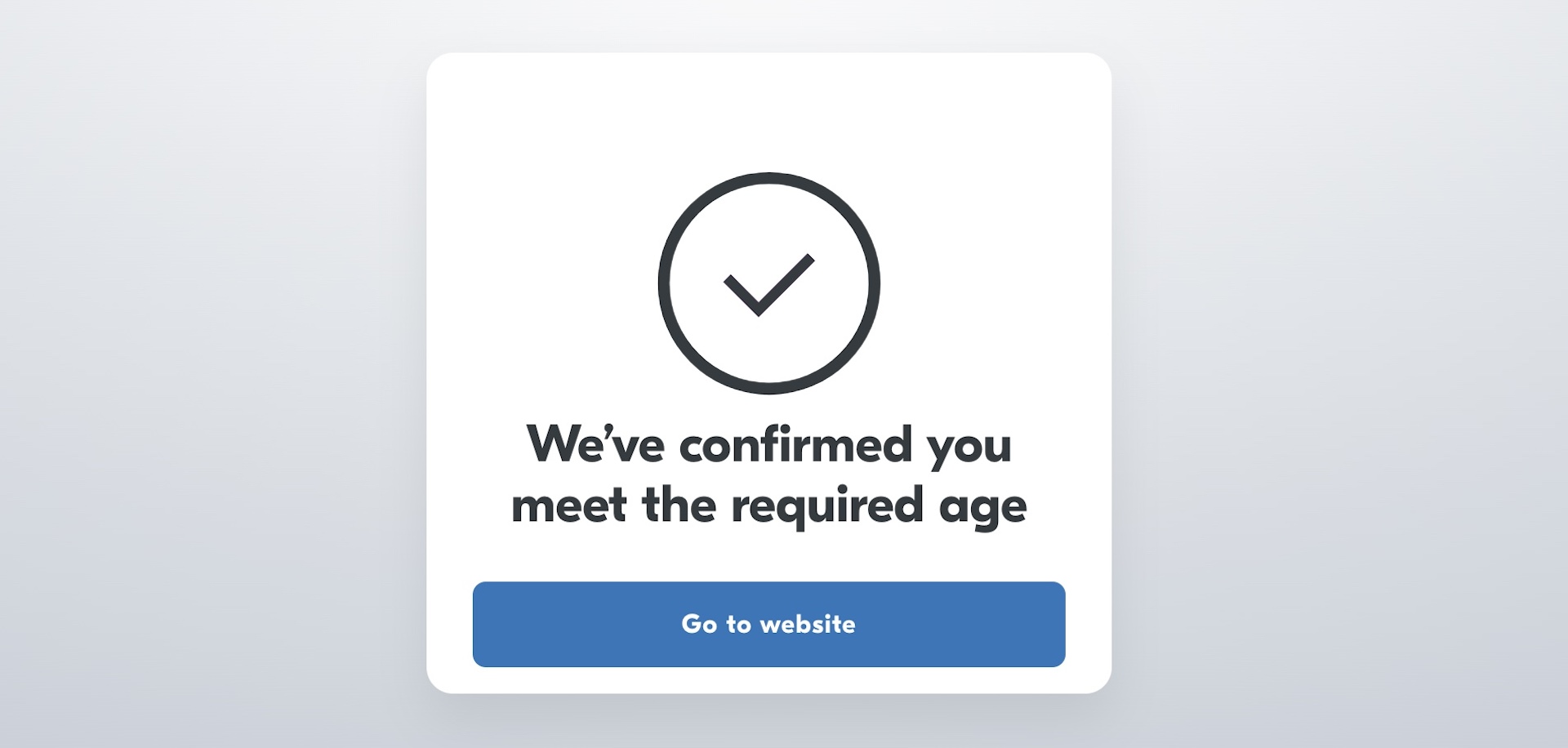
The user will get a confirmation once their age is confirmed, and a button will be shown to go back to the website.
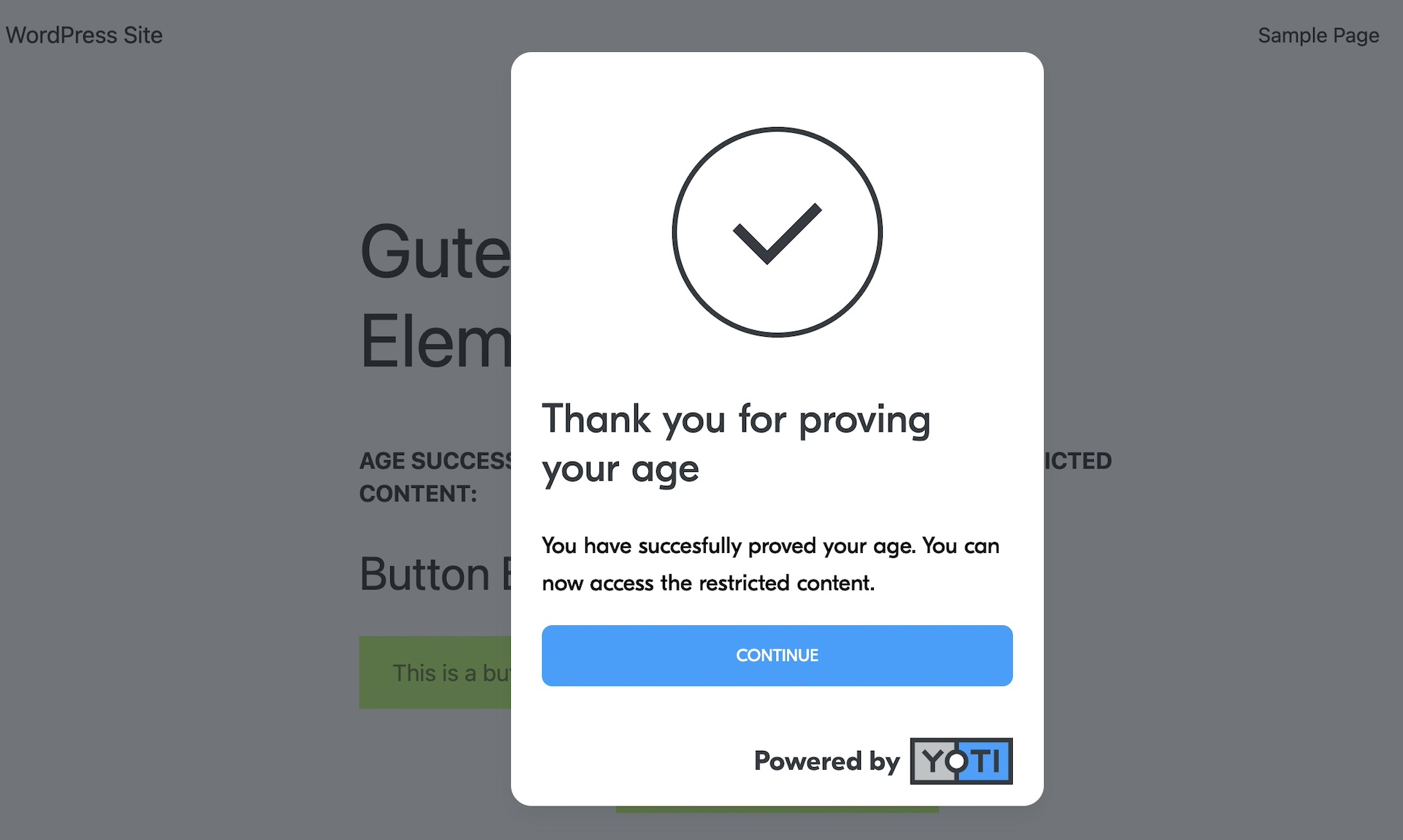
They will then be redirected to the WordPress site and a thank-you message will be shown.
Review the results
Head to your WordPress admin page.
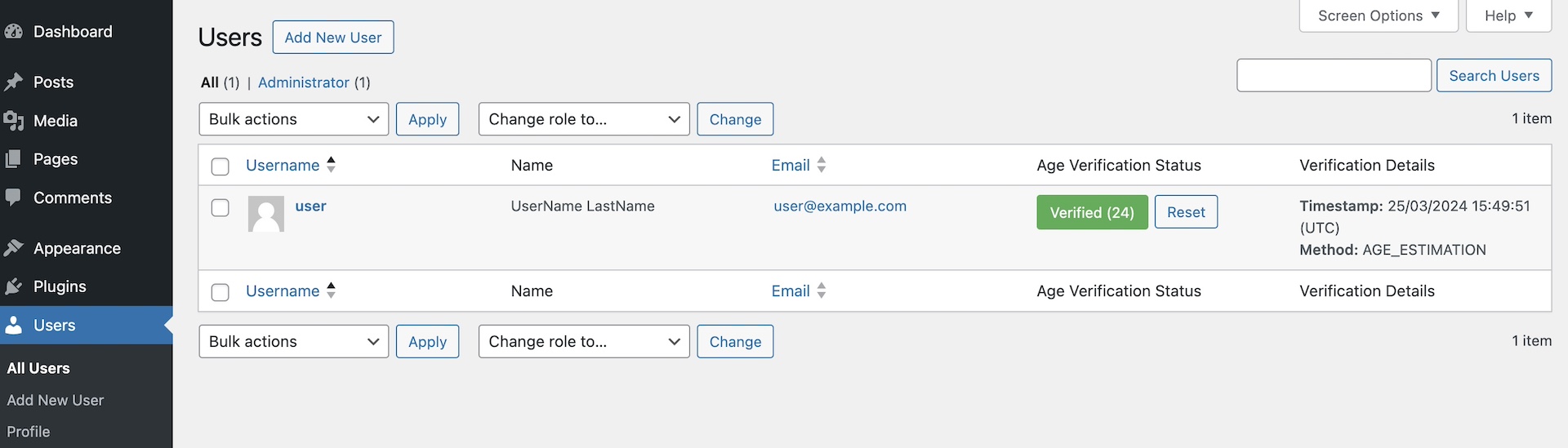
Open the Users page by going to 'Users -> All Users'
The 'Age Verification Status' for each user will be shown along with the verification details