
Each session has a configured 'time to live' (TTL) which must be above 300 seconds (5 minutes). When a session is created, it remains active until its time to live is reached. For any active session, you can use the Yoti SDK to retrieve a report on the session (containing all the end-user's uploaded documents and associated metadata).
This section explains how to:
Retrieve the results of the session
Display checks and results associated with an ID Document in a session
The structure of the full response is shown below:
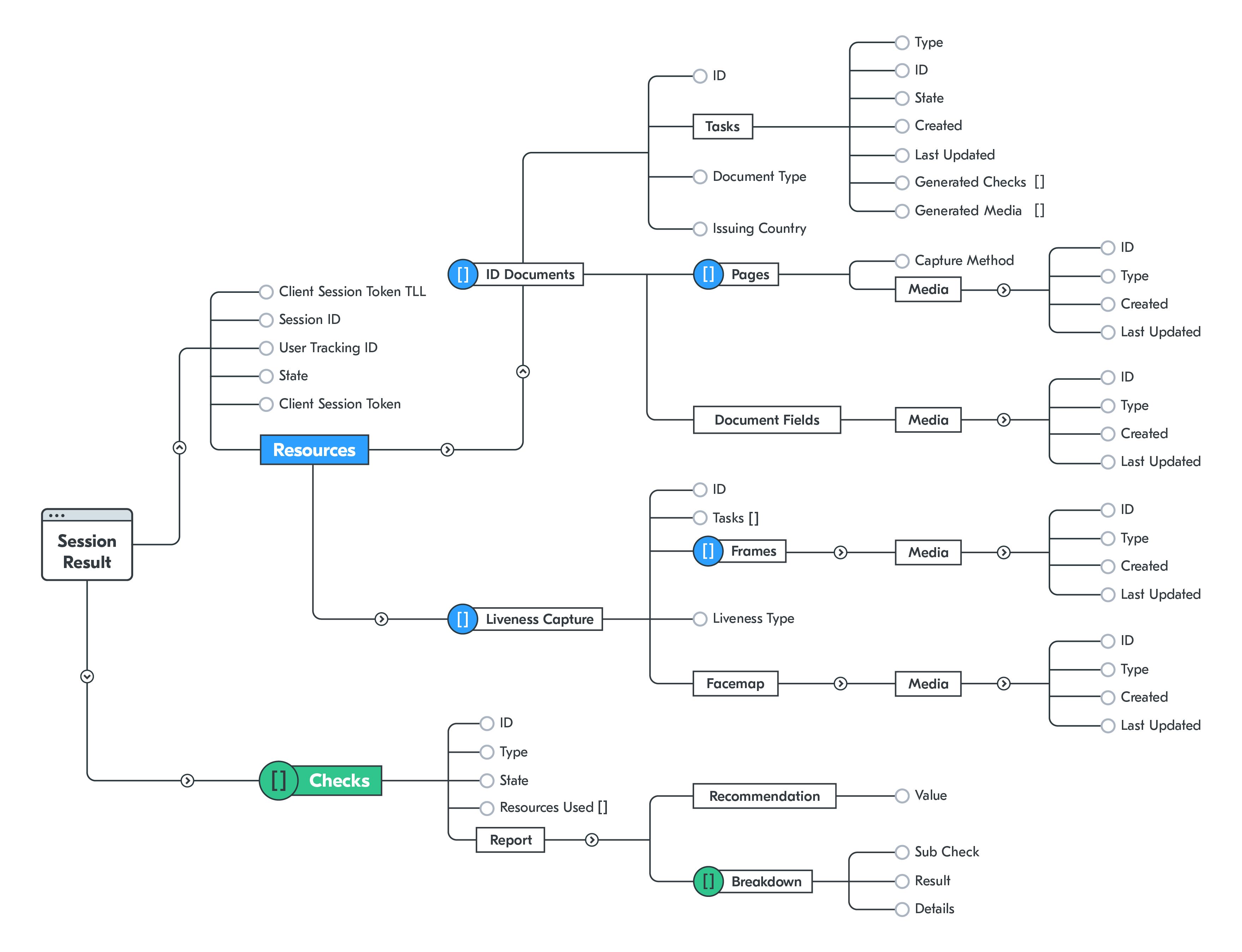
The report includes a recommendation for each check. Please read this section and then head over to Understanding the results for more information.
Result of the session
Session retrieval requires a session ID, this is generated from the create a session endpoint. Below is a basic example of what retrieving a session looks like:
The following are present in every session result:
Value | Description |
|---|---|
State | The current state of the session. It provides the overall state of the session. You can search through session results prior to this being completed, but some checks may not have been processed yet. |
Resources | A container of all ID documents and liveness captures for this session. A new resource is created on each attempt at a document or liveness submission. |
Checks | A container of all checks performed for this session |
Results of checks
A basic example of how to get the check type, check recommendation value and reason is shown below.
A recommendation reason will only be provided if the value isn't 'APPROVE'. The recommended approach for processing a session is to ensure that each check value is APPROVE.
We will use the check container to iterate through all of the checks that have been completed as part of the session. The checks object will only contain information once the user has completed all events (apart from Liveness) inside of the iFrame.
Liveness
The liveness response is available immediately. The user may have multiple attempts of liveness and It's possible for some of these attempts to be rejected.
Multiple document resources
Each check returns a list of 'resources used', identifying the ID document, face capture, or supplementary document resources used for that check. These are mapped to the resources container.
A single ID Document or Face capture can have multiple resources. This is because a new resource may be created for each attempt to submit an ID document (for example, if Yoti's in-browser feedback requests another capture or multiple liveness attempts).
AML
In addition to the normal report, watchlist checks will also return a WatchlistSummary object:
AML raw
You have the ability to extract the raw results from the comply advantage API, as well as a link to a comply advantage page displaying the hits (if any) by using the raw_results ID.