
By default, as the applicant of the organisation, you will have full access to your organisations account. You will have the ability to add members to your organisation.
Permissions let users perform certain actions within organisations, applications and pages.
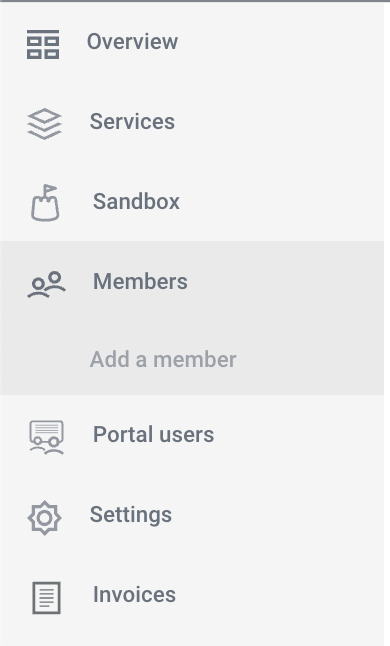
To add members, log in to your organisation and go to the side menu and click Members:
Click Add a member and fill in the details - please make sure the email address you use to invite a colleague to your organisation is the same as the email address they have added to their Yoti.
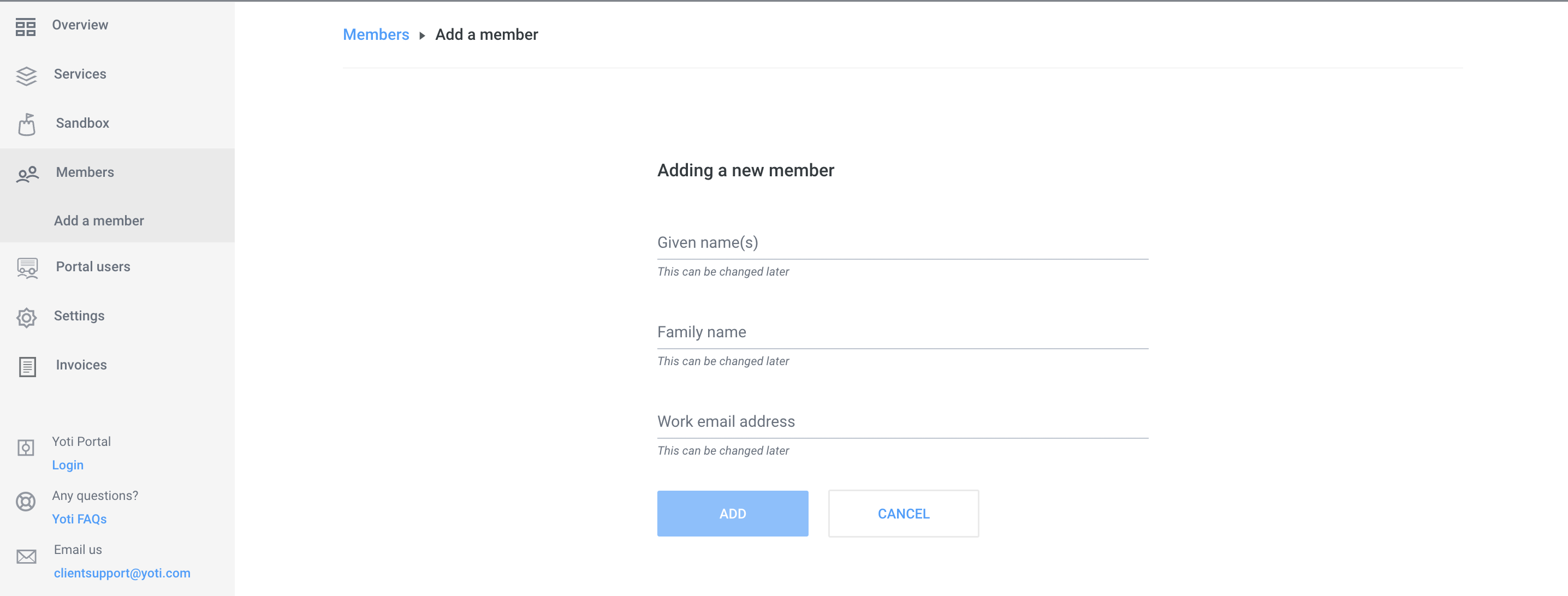
Once you have completed this the user will receive an email and will gain access to your Hub account when they scan the QR code sent to them.
Hint We strongly recommend you add another user to your Hub account as a backup user in case you lose access to your Yoti account.
Organisation Permissions
You need to be an admin to assign organisation permissions to users.
When a user gets invited to an organisation, they don't have any permissions by default. But they can still accept the invitation and access the organisation.
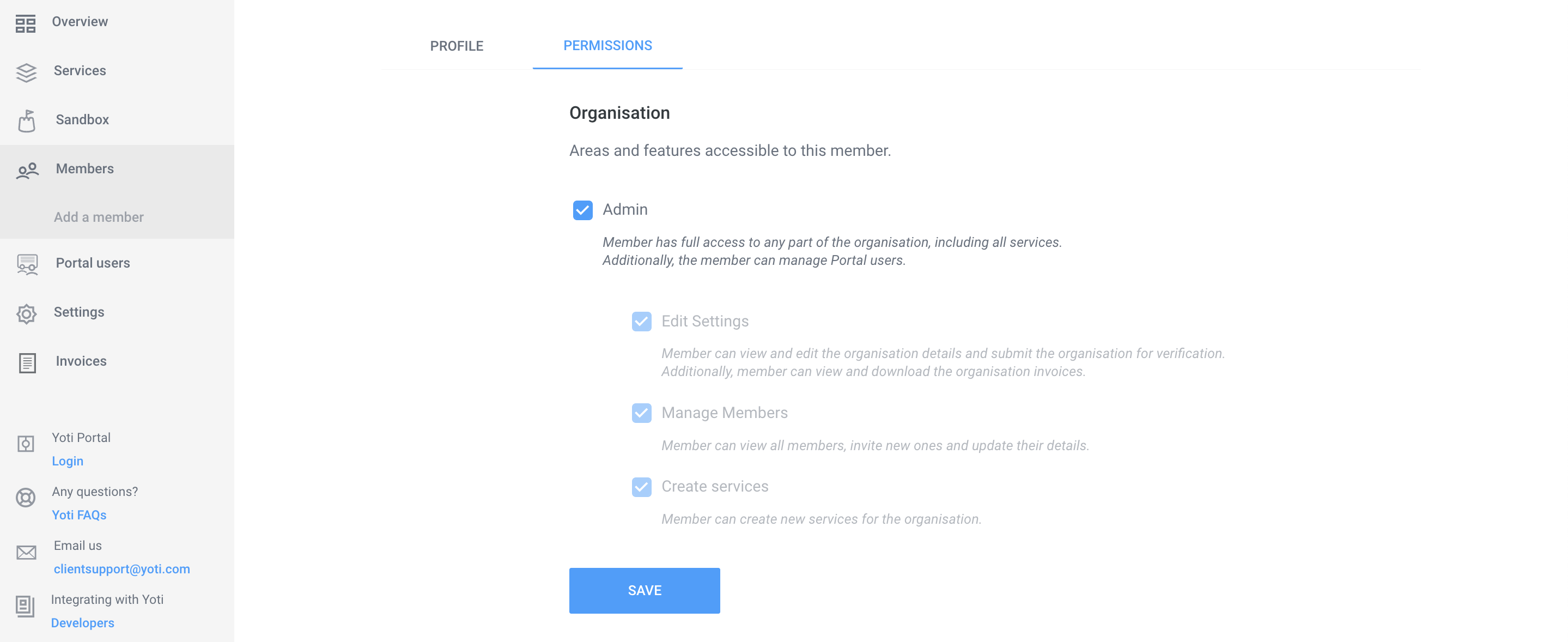
An organisation admin is able to give permissions to a user from the Permissions tab on their profile page.
Permission | Description |
|---|---|
No permissions | Users can view the overview page, the list of the organisation's services and the list of members. |
Create Applications and Pages | Users can create services within the organisation. They will become an admin of those services. |
Edit Settings | Users can view the organisation's settings, manage payment cards and add missing organisation details. |
Manage Members | Users can view and edit member information, invite new users and remove pending users. |
Admin | Admins inherit all of the permissions above. They can also set and update permissions for users, delete active users and will gain admin access to every service within the organisation. |
Service Permissions
Once a user is part of an organisation, they can be invited as collaborators for individual services. An organisation can set collaborator permissions for a user in their profile page, or they can be set in the Collaborator tab within the service.
Once a user is added as a collaborator of an service they automatically get collaborator permissions.
Permission | Description |
|---|---|
No permissions | All members of an organisation can see all services in the overview page. |
Collaborator | Users can view the Scenarios and Keys tabs. |
Access Receipts | Users can view, filter and download receipts. |
Edit | Users can edit services details, create, update and delete scenarios, generate keys and update the states of services. |
Admin | Admins inherit all of the permissions above. They can also add collaborators, set permissions for them and delete services and receipts. |
Delete a user
If you have a leaver the administrator of the account will need to do the following:
Log into the hub
Navigate to their organisation
Click on Members
Click on the user they want to remove
Click REMOVE MEMBER
This will prevent the user from logging in the hub from their Digital ID app. Yoti does not administer Hub accounts for you, it's all under your control and responsibility.